
1. Start with a specific purpose
Define what a live screen overview should help you do. A trainer may need to see who is stuck in an exercise. An IT team may want to see a problem before arranging a support session. A business may need visibility across its managed workstations.
A screen shows visible content at a particular moment. It does not, by itself, explain why someone is working in a particular way or reliably measure the quality of their work. Avoid treating screen visibility as a productivity score.
2. Check the PCs and installation requirements
For Wolfeye, the monitored devices are Windows PCs on which the software must be installed. A browser is used to view the screens; opening the dashboard alone does not enroll a new computer.
Before a wider deployment, ask your IT administrator to review the installer and its interaction with endpoint security. The quickstart describes antivirus preparation. Do not disable organization-wide security controls just to make a monitoring tool run; have any required exception reviewed and approved.
Test one authorized PC first. Confirm its Windows version, installation permissions and network access with the developer or your IT team. This guide is not a compatibility list for every Windows edition.
3. Understand the difference between a live overview and remote control
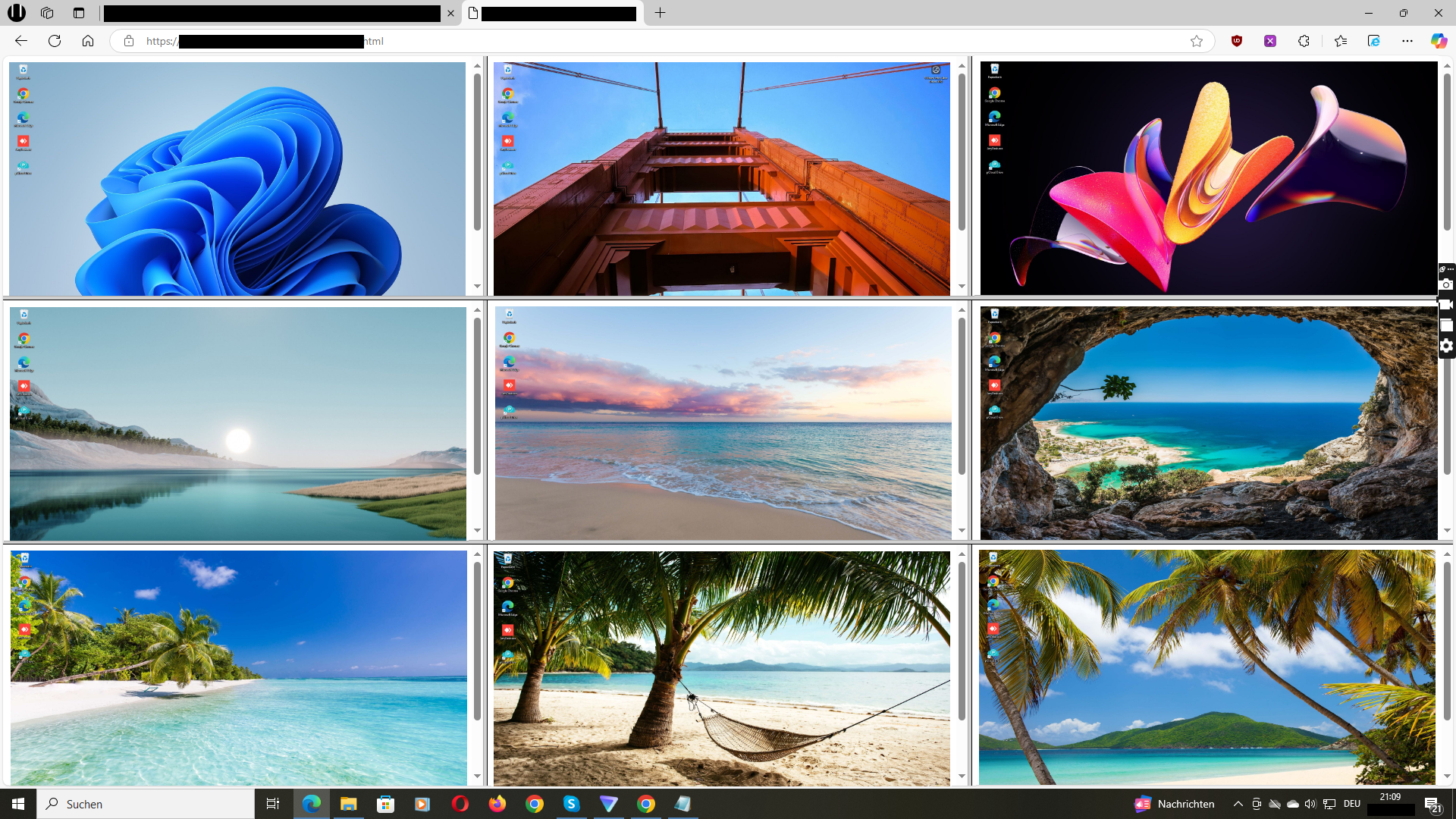
Wolfeye provides a browser view of screen content that updates every few seconds. Think of it as a regularly refreshed screen overview, not a promise of uninterrupted video or zero delay. The monitored PC must be online and the sharing software must be running.
The quickstart explains how to activate screen sharing and receive the viewing URL by email. Repeat the installation on additional managed PCs to bring their screens into your overview.
Seeing a screen and controlling a computer are different requirements. If you need to move the mouse, type on another PC, transfer files or present your screen to a class, evaluate those requirements separately. This guide does not promise these functions in Wolfeye.
4. Decide who may view the screens
The Wolfeye homepage describes password-protected dashboard access and transmission via HTTPS/TLS. These are technical safeguards, not a complete access policy for your organization.
Decide which people actually need access and how viewing links and credentials will be handled. Do not publish dashboard links or share them with unrelated people. Ask how access should be changed when responsibilities or staff members change.
Before purchasing, clarify any requirements for named user accounts, audit logs or single sign-on directly. Do not assume a product includes them just because its dashboard is protected.
5. Treat screenshot history as a separate decision
A live screen view answers “What is visible now?” A screenshot history lets an organization review previously captured screen content. Wolfeye describes screenshot history as optional; enable it only if you have an authorized, specific need.
Before using history, clarify the storage location, retention period, deletion process and who can retrieve the images. Ask about data-processing documentation and any contractual requirements. This page does not claim a particular hosting country, retention period or certification.
Screens can contain emails, customer details and other sensitive information. Assess that exposure before deployment rather than after screenshots have been collected.
6. Run a small, realistic pilot
Use representative managed PCs and real workflows, with the required authorization. A training PC running a simple exercise may produce a different viewing experience from a workstation running a visually demanding application.
Check whether the overview is readable with your actual number of PCs, whether refreshed screens are sufficient for your task, and how the solution behaves with your network and security settings. Do not infer bandwidth consumption or maximum capacity from a promotional screenshot.
Wolfeye is a deliberately focused project rather than an all-in-one time-tracking or employee-analytics suite. A pilot should establish whether that narrower approach fits your needs.
7. Confirm the conditions for lawful use
Ownership or management of a PC does not automatically make every form of monitoring lawful. Before deployment, determine the legal basis, purpose, necessity, notice requirements and any workplace or school consultation obligations that apply to your situation.
Inform affected users and obtain consent where required. In schools, consider the additional rules that may apply to student data. In workplaces, involve the appropriate internal representatives and privacy advisers where applicable.
Wolfeye must not be used for unauthorized monitoring. Technical setup instructions are not legal advice, and no monitoring product can promise blanket GDPR compliance for every deployment.
Questions to answer before you roll out
- Which managed Windows PCs will be included, and for what purpose?
- Who approves the installation and any security exceptions?
- Who needs viewing access, and how will it be withdrawn?
- Is live viewing enough, or is history genuinely necessary?
- Have storage, retention and deletion questions been answered?
- Are user information, permissions and internal policies in place?
Common questions
Can I see several PC screens at the same time?
Yes. Wolfeye describes a shared browser dashboard for multiple installed Windows PCs. The quickstart shows how to add further computers. Check the overview with your own device count during the pilot.
Do I have to install software on every monitored PC?
Yes. Wolfeye must be installed and screen sharing activated on each monitored Windows PC. The browser is the viewing side, not a replacement for installation.
Does a live screen overview show productivity?
It shows visible screen content. That is not an objective productivity or performance measurement. Wolfeye’s about page explicitly describes a focus on screen visibility rather than productivity scoring.
Where should I check price and technical setup?
Use the current pricing page for licensing and the quickstart for installation. Confirm open technical and privacy questions directly before wider deployment.