How Can I Monitor My Employees’ Screens? 4 Practical Methods (Plus a Full Live Demo with Wolfeye)
From one-off screen sharing to dedicated live screen monitoring: a practical overview of four ways to see what is happening on company PCs – with a full demo of Wolfeye in action.
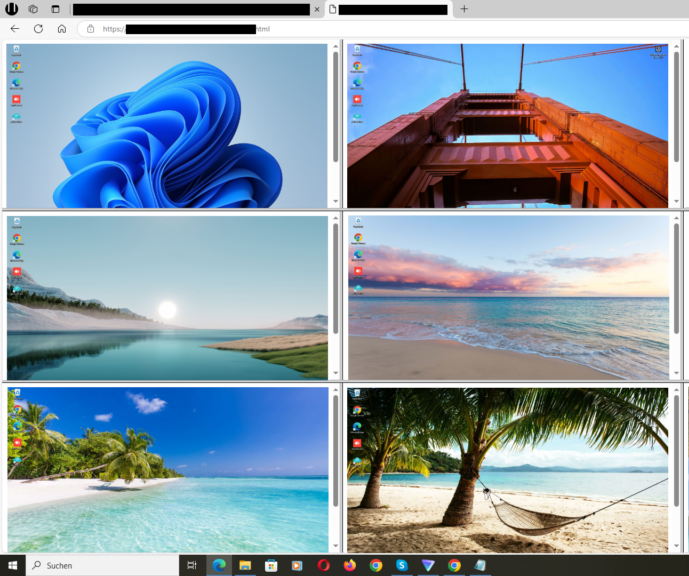
Visual example for monitoring several company PCs from one central dashboard.
At some point many business owners and IT service providers ask the same question: “How can I monitor my employees’ screens?”
The background is often similar: hybrid or remote work, new staff, critical systems that must be used reliably and the desire to better understand what actually happens on company PCs during the day. At the same time, the market is full of different tools and approaches – from classic remote desktop to comprehensive monitoring suites and time-tracking tools.
In this article, you will get a structured overview of four practical methods that companies and IT providers often consider when they want to see what is happening on employees’ screens:
- On-demand screen sharing and remote desktop tools
- Remote support and RMM (remote monitoring and management) platforms
- Productivity and time-tracking solutions
- Dedicated live screen monitoring with Wolfeye
The focus is on technical and organisational aspects. Any use of monitoring tools must always comply with the laws and regulations that apply to your company. This article does not provide legal advice and does not make any statement about what is permitted in any specific country or situation. Laws and regulations differ. Any legal questions about monitoring must always be clarified separately with qualified experts in your region.
1. The Core Question: What Does “Monitoring Screens” Actually Mean?
Before comparing tools, it helps to be precise about what you mean when you say you want to “monitor employees’ screens”. Depending on the context, people mean very different things:
- Occasional screen sharing: for example in support calls or internal training.
- Permanent remote access: to help users or manage systems.
- Automatic activity tracking: time tracking, application usage and productivity metrics.
- Visual live view: seeing what is currently displayed on selected PCs in real time.
Wolfeye focuses on the last point: a visual, live view of screens, optionally across many PCs at once. Other categories, such as time-tracking or deep system logging, are outside the scope of the product.
In practice, many organisations combine multiple approaches. For example, they may use classic remote tools for support, a ticketing system for communication and Wolfeye as a lightweight visual layer that gives a quick, real-time overview of what is happening on selected PCs.
How, when and where you use such tools should follow your internal rules and, where necessary, the legal requirements that apply to you. This article can only offer a technical and organisational perspective and is not legal advice.
2. Method 1 – On-Demand Screen Sharing and Remote Desktop
The simplest way to see an employee’s screen is often a classic screen sharing session. This can be built into communication tools (such as meeting software) or remote desktop tools that allow you to view or control another PC.
Typical use cases:
- Helping a user with a specific problem.
- Walking someone through a new process or application.
- Short internal reviews of how something is configured on a PC.
Advantages:
- Often already available through existing meeting or collaboration tools.
- Easy to understand: one person shares their screen, another person watches.
- Good for ad hoc support and one-off sessions.
Limitations compared to dedicated monitoring:
- Not designed for many PCs at once; usually one session per screen.
- Often requires an active action from the user who shares their screen.
- Not intended as a continuous overview of how a whole team or department is working.
If you only need occasional, interactive sessions, classic screen sharing can be enough. As soon as you want to see multiple PCs in parallel or have a consistent overview of what is happening in a team, a different approach is usually more practical. Whether and how you may use this kind of screen sharing with employees in your company depends on the legal framework that applies to you and should always be clarified with qualified legal counsel in your region.
3. Method 2 – Remote Support and RMM Platforms
Many IT service providers and internal IT teams use remote support tools and RMM platforms (remote monitoring and management). These solutions focus on managing systems: installing updates, monitoring performance, handling alerts and providing remote support.
Typical use cases:
- Managing larger numbers of PCs and servers across multiple locations or customers.
- Providing remote support without being physically on site.
- Monitoring technical health indicators such as CPU usage, disk space and service status.
Advantages:
- Very powerful for system management and automation.
- Ideal for IT providers who look after many environments.
- Often integrates with ticketing and documentation systems.
Limitations for “seeing what employees are doing”:
- The focus is on technical metrics, not on a visual overview of screens.
- Seeing a user’s screen may be possible, but usually in one session at a time, not as a permanent live wall.
- The solutions can be relatively complex to set up and manage, especially for small businesses.
RMM platforms are an excellent base for professional IT services. For a simple, visual overview of what is happening on multiple screens, however, many companies prefer a more focused and lightweight tool. Whether and how you may use such platforms to monitor employee activity must always follow the legal requirements in your jurisdiction and should be reviewed with qualified legal experts.
4. Method 3 – Productivity and Time-Tracking Software
Another category are productivity, activity and time-tracking tools. These applications often log when a user is active, which applications are used and sometimes which websites are opened. They may also create reports and scores.
Typical use cases:
- Tracking working time for billing or internal allocation.
- Analysing which applications and projects take the most time.
- Identifying unused licences or tools.
Advantages:
- Provide aggregated data over weeks or months.
- Good for long-term analysis of application usage and time budgets.
- Useful when you need reports and numbers rather than live views.
Limitations for real-time visibility:
- The main focus is data and reports, not a live picture of the screen.
- To understand a specific situation, you may still need a visual tool.
- The volume of data and options can be more than what small businesses actually need for everyday decisions.
If you mainly want to analyse trends and working time, these tools can be useful. If your primary question is “What is on the screen right now?”, a dedicated live screen solution is often the more direct answer. As with any monitoring of activity, whether and how you can use such tools in your company depends on the laws and regulations that apply to you and should always be checked with legal counsel.
5. Method 4 – Dedicated Live Screen Monitoring with Wolfeye
The fourth method is a specialised category: dedicated live screen monitoring. This is where Wolfeye comes in. Instead of focusing on time tracking or dozens of technical metrics, Wolfeye concentrates on one thing: showing you the actual screens of selected PCs in real time.
How it works technically:
- Wolfeye is installed on the PCs you want to monitor.
- The screen content is sent to a central, secure dashboard.
- You see multiple PCs at once in a grid view and can click on any screen for a larger view.
Typical use cases for SMBs:
- Getting a quick overview of what is happening in important teams or departments.
- Supporting owners who want to understand how key systems are used in everyday work.
- Observing how new employees work in critical applications during onboarding.
Typical use cases for IT service providers:
- Seeing user situations visually during support or review sessions.
- Checking how new systems are used after a rollout.
- Creating more transparency for customers without building a complex monitoring setup.
Wolfeye is deliberately designed to be lightweight and focused. It does not try to replace all existing tools, but adds a visual layer that makes digital work easier to understand in real time. How exactly you use these live views – on which PCs, in which teams and in which situations – must always comply with your internal policies and the legal framework that applies to you. This article can give technical and organisational suggestions, but it is not legal advice.
6. How to Choose the Right Method for Your Company
Which of the four methods is right for you depends on your situation, your goals and your existing tools. A few guiding questions:
- Do you mainly need ad hoc help on individual PCs?
Then simple screen sharing or classic remote desktop tools may already be enough. - Do you manage many systems across several locations or customers?
Then a professional remote support or RMM platform is often the technical backbone – and you can add visual tools where helpful. - Do you need long-term reports about working time and application usage?
Then specialised time-tracking and productivity tools can be the better choice. - Do you want a clear, real-time picture of what is happening on selected PCs?
Then a dedicated live screen monitoring solution such as Wolfeye is often the most direct and simple way.
Many small and mid-sized businesses decide to combine approaches: for example, they keep existing remote support tools for IT, use a ticket system for communication and add Wolfeye when they want to visually understand what is happening on employees’ screens in real time.
Whatever combination you choose, it is important to define clear internal rules about who can access which information and in which situations the tools are used. Any legal questions must be clarified separately with qualified experts in your country or region.
7. Full Live Demo: How Screen Monitoring with Wolfeye Works
The video below shows a complete live demo of Wolfeye. You will see how to view employees’ screens in real time, how the dashboard is structured and how you can switch between different PCs.
Video: “How Can I Monitor My Employees’ Screens?” – full live demo with Wolfeye. The demo shows technical possibilities and everyday use. It is for general information only and does not replace legal advice.
Frequently Asked Questions – Monitoring Employee Screens in Practice
Many small businesses start with a limited pilot using a dedicated live screen tool such as Wolfeye on a small group of PCs. This keeps the setup manageable and shows quickly whether the real-time overview helps with your concrete questions.
No. In many environments, Wolfeye is used in addition to existing tools. Remote support and RMM focus on system management, while Wolfeye provides an easy visual layer for real-time insight into what is on the screen.
No. This article describes technical and organisational approaches in general form. It does not make any statement about legal requirements in a specific country or situation. Before introducing any form of monitoring, you should clarify the legal framework for your concrete case with qualified legal counsel in your region.
Conclusion
There is no single “one size fits all” way to monitor employee screens.
Depending on your goals, you might rely on ad hoc screen sharing, professional RMM platforms, time-tracking tools or – when you need a clear, real-time picture – a dedicated live screen solution such as Wolfeye.
For many SMBs and IT service providers, a practical combination is to keep their existing IT tools and add Wolfeye where they need to see what is actually on the screen right now on selected PCs. This can make digital work more transparent and help owners and IT teams make better decisions about processes, tools and support.
At the same time, monitoring is a sensitive topic. Every organisation should define scope, access and internal rules carefully and clarify any legal questions separately. This article can only provide general technical and organisational ideas and is not a substitute for legal advice.
A pragmatic approach is to start small, test live screen monitoring with a few company PCs and then decide together with management and, where appropriate, legal advisors how screen visibility should fit into your everyday work.
Want to see how live screen monitoring works on your own company PCs?
Start 14-Day Free TrialWolfeye is monitoring software. Any use must comply with the laws and regulations that apply in your country and situation. This article is for general information only and does not constitute legal advice or a guarantee of specific results.