Monitor Employee Screens in Stealth Mode from Your Phone or Laptop
A mobile-first operational playbook for SMBs & MSPs: fast setup checklist, “grid radar → zoom” workflow, safe access habits, and troubleshooting — focused on real-world use, not theory. No legal advice.
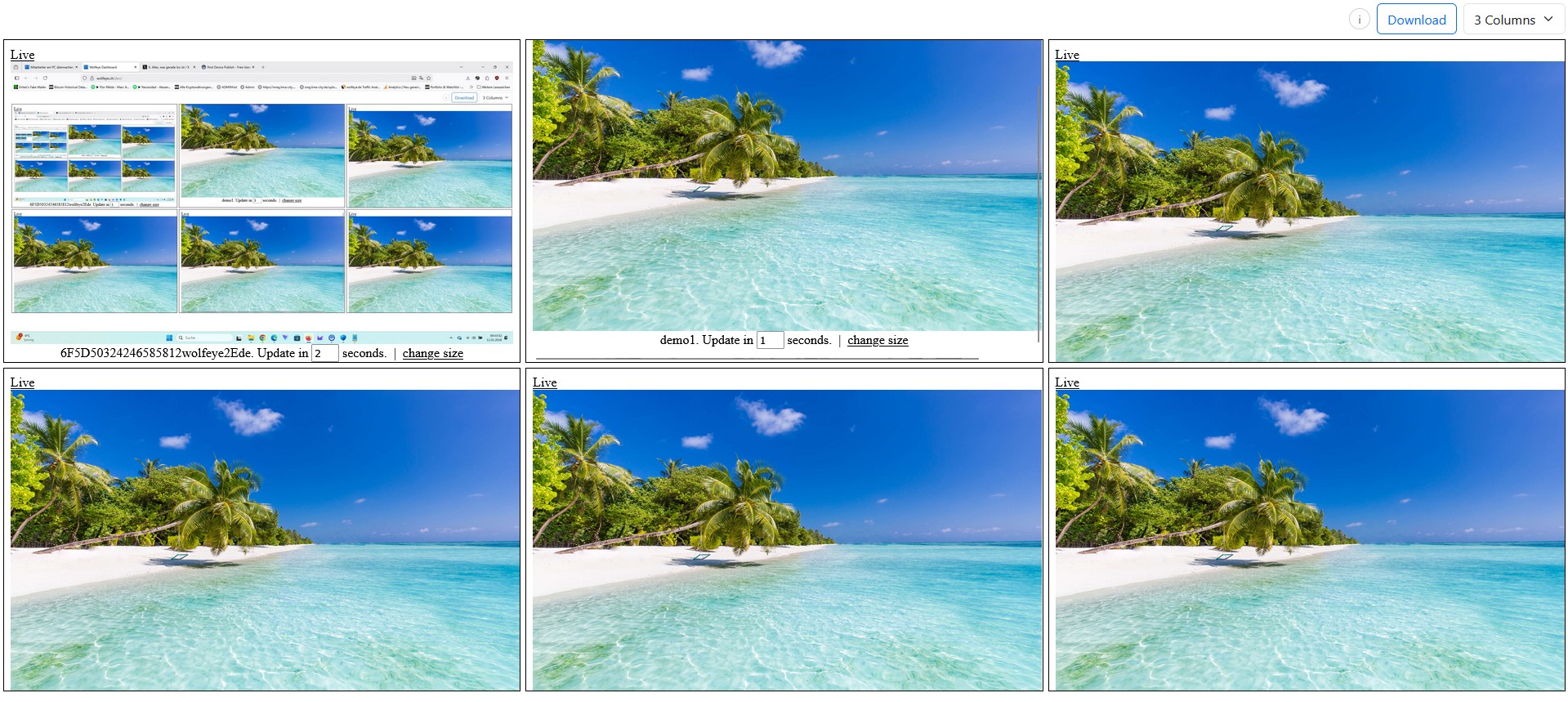
Illustration: a live “grid” overview for viewing multiple company-controlled PCs. Always use monitoring only where lawful, with proper internal policy, and after obtaining legal advice for your relevant countries.
Many SMB owners and IT service providers share the same “real” problem:
- I’m not at my desk. I’m in a meeting, on the shop floor, traveling, or visiting a client.
- I still need quick visibility into a few approved company PCs: onboarding, QA spot checks, support triage, or incident clarification.
- I don’t want remote control. I want a view-only live screen dashboard that works from my phone or laptop.
1) What “stealth mode from phone or laptop” means (technically)
In practice, people often mix up three different concepts:
- Remote desktop / control: you take over mouse/keyboard. Great for support, but not built for “many screens at once”.
- Heavy recording suites: lots of logs, storage, analytics, alerts. Useful in some enterprises, but often too heavy for SMBs.
- Live screen visibility (view-only): see what is on screen across multiple PCs in a grid, then open one PC in a larger view if needed.
Stealth/background mode here simply means: the agent can run unobtrusively on the selected company PCs after installation (no daily “please start the app” steps). You then view screens through a dashboard from your phone or laptop.
The key operational idea is:
- Grid = radar: fast overview for pattern recognition (who is stuck? who is idle? which workflow step repeats?).
- Zoom = detail: open one screen only when you have a real purpose (training, QA, support, incident clarification).
This keeps usage professional and purpose-driven — and it reduces the temptation to “watch all day”, which often destroys trust and adoption.

Example: live grid dashboard with multiple company-controlled PCs. Use only with proper authorization and within the legal/contractual framework of your relevant countries. No legal advice.
2) When mobile live viewing is actually useful (and when it isn’t)
2.1 High-value SMB use cases
- Onboarding & training: a trainer can see where a new hire is stuck without interrupting them with constant calls.
- QA sampling: supervisors do short spot checks during peak hours (call center scripts, CRM steps, ticket handling).
- Support triage: “Show me what you see” — without initiating a remote desktop session for every question.
- Incident clarification (rare): when something looks suspicious, verify what is actually on screen before escalating.
2.2 When you should use remote desktop instead
- You must control the PC (mouse/keyboard takeover).
- You need to copy files, run admin scripts, or fix system settings.
- You require full “interactive” work — not a quick visual overview.
A good mental model: mobile live monitoring is for fast context. Remote desktop is for execution.

Example: single-screen live view. Use it for short, purpose-driven checks (training, QA, support triage). No legal advice.
3) Mobile setup checklist (15 minutes, copy/paste)
This checklist is designed for SMB owners and MSPs who want a clean pilot without surprises. The goal is simple: install → verify visibility → test from phone → standardize naming.
3.1 Pilot scope (do this before installation)
- Choose a small device set (example: 5–10 PCs): onboarding PCs, support PCs, or a call center row.
- Decide the viewing roles: who is allowed to access the dashboard (owner, supervisor, MSP tech lead).
- Define the purpose in one sentence (training / QA / support triage). If you can’t define it, don’t deploy.
3.2 Installation + verification
- Create your Wolfeye account and log in.
- Download the installer for company PCs.
- Install the agent on your pilot PCs (manual for small pilots, or your RMM for larger rollouts).
- Open the dashboard and confirm the PCs appear.
3.3 Mobile test (phone + laptop)
- Open the dashboard in your phone browser and check that the grid loads reliably on mobile data and Wi-Fi.
- Open one PC in a single-screen view and verify readability of text.
- Decide your preferred viewing density: fewer tiles for detail, more tiles for overview.
3.4 Naming standard (this saves your rollout)
Adopt a naming convention before you scale beyond a pilot. Examples:
Support-BER-01Onboarding-MAD-03CallCenter-LIM-12
On mobile, naming matters even more because you don’t have the screen real estate to “guess”.
4) The mobile workflow that teams actually adopt
4.1 Use the grid as a “radar” (not a surveillance wall)
The most successful deployments use short routines:
- Start-of-shift check (60–90 seconds): grid overview to spot issues early.
- Peak-time sampling (2–3 minutes): quick QA or coaching context.
- Triggered checks: only when a real question exists (support, onboarding, incident clarification).
4.2 Zoom only when you have a question
When a tile looks unusual, open the PC in a larger view. Then take action through normal channels:
- call/chat the employee,
- coach the next step,
- or open a support ticket if it’s an IT issue.
4.3 Mobile best practices (small details, big impact)
- Prefer Wi-Fi for longer checks; mobile data works for short checks.
- Keep checks short: mobile monitoring is strongest as “quick context”, not long sessions.
- Don’t share dashboard links via unmanaged chats. Treat access like admin access.
5) Safe access habits for phone/laptop viewers (security, not legal)
The biggest practical risk in live screen monitoring is usually not the screenshot pipeline — it’s access. A dashboard link or account login can expose sensitive business screens.
Practical habits that reduce operational risk:
- Least privilege: only a small number of authorized viewers should have access.
- Dedicated viewer accounts (where your process allows it), especially for MSP teams.
- Device hygiene: phone screen lock, strong passcode, and never leave the dashboard open on a shared device.
- Password manager: avoid reusing passwords or saving them in insecure places.
- Access review: when roles change, remove access immediately.
These are general security best practices, not legal guidance. Align your access model with your internal policy and legal advice for your relevant countries.
6) Video walkthrough: Stealth mode live viewing from your phone or laptop
This video demonstrates the practical workflow: how to open the dashboard from a phone or laptop and check live screens in a discreet/background setup.
Reminder: this is a technical demo only, not legal advice. Always obtain legal advice for your relevant countries and inform users / obtain consent where required.
Video: “How to Monitor Employee Screens in Stealth Mode from Your Phone or Laptop”.
FAQ – Mobile stealth live screen monitoring
No. Technically it means the agent can run unobtrusively in the background on approved company PCs. Whether and how you may use it is a legal and policy question — obtain legal advice for your relevant countries and follow transparency/consent obligations where required.
No. Use remote desktop when you must control the PC. Use live screen visibility when you need quick context across multiple PCs.
In practice, no. Short, purpose-driven checks get better adoption and reduce misuse risk.
Use a good naming convention, keep the grid density reasonable, and rely on “grid radar → zoom detail”.
Conclusion
Mobile live screen visibility is not about watching all day — it’s about quick context when you are away from your desk.
If you implement it with a clean pilot, clear viewer roles, and short routines, you get a practical operational advantage:
- faster onboarding and coaching,
- better QA spot checks,
- less “I can’t see what you see” support friction,
- and faster clarification when something looks off.
Want to test mobile live visibility on your own company PCs?
Start 14-Day Free TrialWolfeye is monitoring software for company-controlled PCs. Any use must comply with the laws and regulations that apply in all relevant countries, your industry and your specific use case (for example, training supervision, quality assurance or security). This article and the embedded video are for general technical and organisational information only and do not constitute legal advice or a guarantee of legal admissibility.