View-Only Employee Monitoring on Company PCs: How to Watch Screens Without Remote Control
A practical technical guide for SMBs and IT providers/MSPs: how to see live screens on company-controlled PCs in a browser dashboard without taking control of mouse and keyboard — and why this matters for onboarding, QA, remote teams and incident clarification. No legal advice.
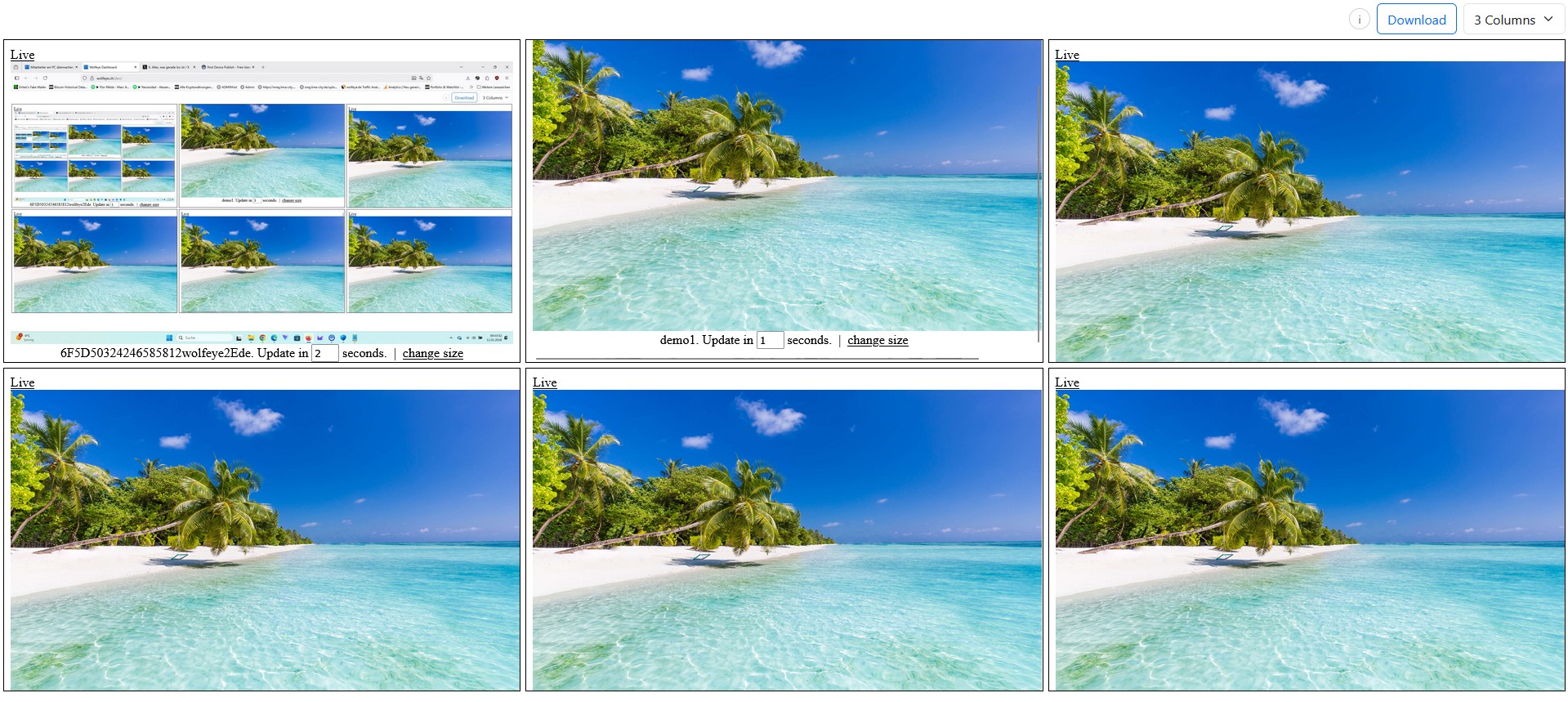
Illustrative Wolfeye live grid on company-controlled PCs. This article explains technical possibilities only. Whether you may monitor employees, under which conditions, and whether users must be informed or must consent depends on the laws of your country, your use case and your contracts. Always obtain qualified legal advice before real-world deployment.
A surprisingly large number of SMB owners and IT service providers are not actually looking for classic remote desktop software. They do not want to click on the other PC, move the user’s mouse, or interrupt somebody’s session. What they want is simpler: see the live screen of selected company-controlled PCs in real time, understand what is happening, and decide whether support, coaching, QA or escalation is needed.
In other words, they want view-only monitoring.
Typical questions sound like this:
- “Can I watch employee screens without taking remote control?”
- “Is there a way to see what is happening on company PCs without interfering with the user?”
- “We do not want a heavy remote desktop or analytics suite — just a live browser view. Is that possible?”
Important: this article is a technical and organisational guide only. It does not provide legal advice. Whether you may monitor employees, which company-controlled devices may be included, whether you must inform users, whether consent is required, and whether a particular background setup is lawful depends on the laws and regulations in each relevant country, your specific industry, your contracts, and your concrete use case (for example, training supervision, QA or security).
Before using Wolfeye or any other monitoring software, always obtain qualified legal advice in all relevant jurisdictions. With that limitation in mind, let us focus on the practical side: what view-only monitoring means, how it differs from remote desktop, and when SMBs and IT providers usually prefer it.
1. Why some companies want visibility without remote control
When people first hear “screen monitoring”, they often assume a classic remote support session: one person connects, takes over the mouse and keyboard, clicks through the other person’s PC, and actively changes something. That is useful in a support context, but it is not always what SMBs and IT providers need day to day.
In many operational situations, the job is not to intervene immediately. The job is first to see:
- Is the new employee stuck in the CRM or just slow because the process is new?
- Is the support agent following the right workflow during a quality check?
- Is the remote worker on the intended business system or obviously lost in something unrelated?
- Does the suspicious incident on a company PC actually look urgent right now?
In those situations, remote control can even be counterproductive. It introduces another layer of interaction, can distract the user, and changes the situation you are trying to observe. A view-only setup is often better because it leaves the user session untouched while still giving an authorised viewer live visibility.
That is especially relevant for SMBs and MSPs that want clear operational visibility without building a heavy support stack, a broad analytics platform or a tool that does far more than they actually need.
Just as important: the scope should stay on company-controlled PCs. This article does not recommend monitoring private devices, and it does not answer whether that would be lawful in your country. For any real deployment, always define the use case, the device scope and the legal basis with qualified counsel first.

Example: a browser-based live dashboard with several company-controlled PCs visible at once. In a view-only setup, authorised viewers see what is happening without taking over the PC.
2. What “view-only” technically means
In a technical sense, view-only monitoring means that the viewer can see screen contents, but is not using remote control to interact with the monitored PC. The viewer is there to observe, verify, coach, or decide whether another action is needed — not to type, click, open windows or move the cursor on that device.
With a tool like Wolfeye Remote Screen, that usually means:
- a small agent runs on the selected company-controlled Windows PC,
- the current screen view is sent to the Wolfeye environment,
- authorised viewers open a browser dashboard,
- they see one PC in large format or many PCs in a grid,
- and the purpose is live visibility, not keyboard/mouse takeover.
This distinction matters because many buyers do not actually need a remote support tool in the first place. They need a lightweight visibility layer: a way to look at what is happening now, compare several screens quickly, and focus only when something needs attention.
Technically, this creates a different working style from remote desktop:
- Grid first, zoom second: scan many screens at once, then open one screen larger only when needed.
- Observation first, intervention second: see the context before deciding whether a call, message, support session or escalation is appropriate.
- Less disruption: the monitored user keeps working normally because there is no remote takeover step.
Depending on configuration, you may also add optional screenshot history for later review. That is separate from the live viewing workflow and should be enabled only if your operational and legal framework supports it.

Example: large live view of one company-controlled PC. The viewer sees the current screen without taking control of the other computer.
3. View-only monitoring vs remote desktop: the practical difference
Search behaviour often mixes these categories, so it helps to separate them clearly.
3.1 Purpose
Remote desktop is built for interaction: support, maintenance, configuration, troubleshooting, and direct action on the target PC. View-only monitoring is built for visibility: seeing what is happening right now without changing the user session.
3.2 User impact
In a remote support session, the user often notices what is happening because the session itself changes the environment. In a view-only workflow, the whole point is usually to avoid unnecessary interference while still giving authorised people situational awareness.
3.3 Daily workflow
Remote desktop is usually one-PC-at-a-time and task-driven. View-only monitoring often starts with a many-PC overview and then narrows down to the one screen that needs attention. This is very useful for supervisors, team leads, operations managers and MSPs who want a “radar” view before they go deeper.
3.4 Where each approach fits
- Use remote desktop when you need to fix something directly, click through settings, install a tool or guide a user interactively.
- Use view-only monitoring when you want live context for onboarding, QA spot checks, workflow verification, support triage or fast incident clarification.
3.5 Why SMB buyers care about this distinction
Many SMBs do not want a tool that feels too heavy, too invasive, or too complicated for the actual job. They want live visibility in the browser, minimal friction, and a clear separation between “seeing” and “taking control”. That is why the phrase “without remote control” is more than wording — it describes a different operating model.
4. Where view-only monitoring fits best
View-only monitoring becomes especially valuable when the organisation needs clarity without touching the remote PC. Common examples include:
4.1 Onboarding and training
New hires often get stuck silently. A live, view-only setup helps trainers see where the process breaks down without constantly asking for screenshots, calls or screen shares.
4.2 QA and supervisor spot checks
Team leads and supervisors may only need a quick visual check: are the right systems open, is the workflow followed, is the call center agent on the intended screen, is the support queue handled correctly?
4.3 Remote and hybrid teams
In hybrid environments, managers often want the same visibility standard across office PCs and home-office company laptops. A browser dashboard with view-only access is often simpler than building separate support processes for every case.
4.4 MSP and IT-provider services
IT providers can use a view-only model as a managed visibility layer for clients: the client gets transparency, the MSP gets a technically lean service model, and both sides keep remote control separate from monitoring when that is operationally cleaner.
4.5 Incident clarification
When something looks unusual on a company PC, the first need is often not immediate takeover. The first need is context: what is happening, on which screen, with which application, and does this require action now?
In all of these cases, the same rule applies: keep scope tight, viewer roles limited, and legal review in place before real deployment.
5. Video: View-only monitoring without remote control
The following video matches this article closely. It demonstrates the technical idea of watching employee screens without controlling their PCs.
Important: the video is not legal advice and does not determine what is permitted in your country. Always obtain legal advice before using monitoring software in a real environment.
Video: “View Only Monitoring - How to Watch Employee Screens Without Controlling Their PCs”. It illustrates a technical view-only workflow on company-controlled PCs.
6. Step-by-step: how to set up a view-only workflow
A good view-only rollout is usually not just about installation. It is about defining a working model that stays technically lean and organisationally controlled.
- Define the use case first. Decide whether the main purpose is onboarding, QA, remote operations, support triage, incident clarification, or a combination.
- Limit scope to company-controlled PCs. Start with a specific device group such as support team PCs, training PCs, or selected hybrid workstations.
- Install the Wolfeye agent. For small tests this can be manual; for larger environments it can be rolled out through your existing IT process.
- Open the browser dashboard. Use a grid view as your first layer, then zoom into a single-screen live view only when needed.
- Separate viewers from admins where possible. Not everyone who can watch should automatically have broader technical permissions or wider organisational access.
- Decide deliberately on screenshot history. Keep it off by default unless you actually need later review and your legal framework clearly allows it.
- Document a simple viewing rule. For example: who may watch, which PCs are in scope, for which purpose, and under which internal escalation path.
That last point is more important than it sounds. A view-only tool works best when it is not used as “someone watches everyone all day”. It works better as a focused operational layer: short grid checks, trigger-based zoom-ins, and specific use cases like coaching, QA or incident clarification.
7. Best practices for keeping view-only monitoring useful and controlled
- Keep “monitoring” and “support takeover” conceptually separate. Use one workflow to observe and another workflow to intervene, so teams understand the difference.
- Use grid view as a radar. Looking at all selected PCs briefly is often more efficient than permanently staying on one screen.
- Restrict access to a small circle. Owners, operations leads, QA supervisors or specific IT roles are usually enough.
- Stay on company-controlled devices. Do not expand casually into personal devices or ambiguous hardware situations.
- Explain the purpose internally where required. In many countries or setups, transparency, prior information or consent may be required. That is a legal matter, not a product choice.
- Use legal counsel before rollout. This is essential where employee monitoring, background mode, screenshot history or cross-border environments are involved.
Used this way, view-only monitoring can become a very practical operational tool: less guessing, faster coaching, cleaner QA, and better visibility across remote and office environments — without turning the solution into a heavy remote-control stack.
Frequently Asked Questions – View-Only Monitoring
No. Remote desktop is primarily for interaction and control. View-only monitoring is primarily for visibility. The viewer sees what is happening on a company-controlled PC without taking over mouse and keyboard.
Not automatically. These are separate questions. In Wolfeye live mode, the current live view is transmitted so it can be shown in the dashboard. Optional screenshot history can be enabled separately. Whether and how long anything may be stored is something you should define carefully and review legally.
Yes, technically that is often a strong fit for managed services. The client gets visibility, the MSP gets a lightweight operational model, and remote support can remain a separate workflow. But the lawful use must always be clarified by the client with legal counsel.
This article does not recommend that. It focuses on company-controlled PCs. Monitoring private devices is legally far more sensitive and must be assessed separately with qualified legal advice.
Because it lets trainers or supervisors understand what happens on the screen without changing the situation they are trying to observe. That often creates a cleaner basis for coaching and troubleshooting.
Conclusion
View-only employee monitoring is not just a softer wording for remote desktop. It is a different operational model.
The core idea is simple: see first, control only if necessary. For many SMBs and IT providers, that is exactly what makes the setup attractive. You get live visibility into selected company-controlled PCs, keep workflows lighter, reduce unnecessary disruption, and create faster context for onboarding, QA, support triage and incident clarification.
At the same time, every real-world deployment must be treated carefully. Whether you may use monitoring software at all, whether users must be informed, whether consent is needed, whether history may be stored, and whether background operation is lawful depends on the countries, contracts, industries and use cases involved.
A sensible practical sequence is:
- define the exact operational use case,
- limit the rollout to clearly defined company-controlled PCs,
- clarify legal requirements in all relevant jurisdictions,
- and only then deploy a focused pilot with restricted viewer access.
Want to see a view-only live dashboard on your own company PCs?
Start 14-Day Free Trial
Wolfeye is monitoring software for company-controlled PCs. Any use must comply with the laws and regulations that apply in all relevant countries, your industry and your specific use case. In many jurisdictions, the admissibility of employee monitoring depends on factors such as prior information, explicit consent, contractual arrangements and data protection requirements. This article and the embedded video provide general technical and organisational information only and do not constitute legal advice.
Before deploying any monitoring software such as Wolfeye, always obtain independent legal advice in all relevant countries regarding whether and how you may monitor company-controlled PCs, for which purposes (for example training, QA or security), whether users must be informed, and whether consent or contractual clauses are required.