
1. What should classroom management solve?
The term covers different requirements. Screen visibility means seeing the current visible work state. Device control might mean operating PCs remotely or restricting applications. Lesson organisation means managing assignments, submissions and feedback. List these needs separately before selecting a product.
For screen visibility, the key question is: can I recognise which step learners are working on? Device control and assignment management require their own demonstrated features. A product with many features is not automatically the right tool for your lesson.
2. Seeing student PCs: where Wolfeye fits
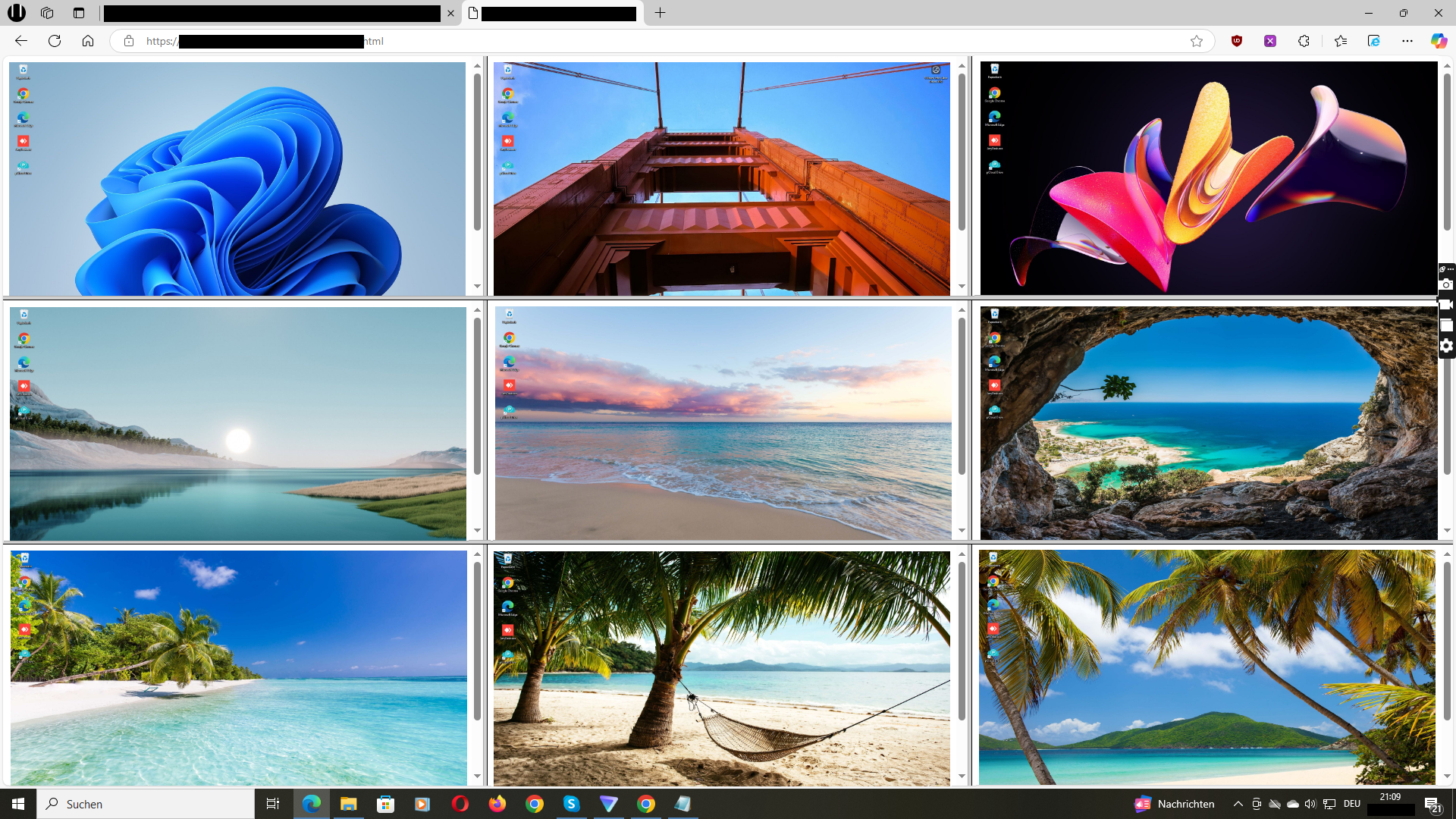
Wolfeye displays several Windows screens side by side in a browser; its product description says the view refreshes every few seconds. This can help you notice whether the expected application is open or several learners are at the same step. Software must be installed on each included Windows PC.
A screen view shows only the visible state. It cannot reliably explain why someone has paused, whether they understood a solution or how good their work is. Use the overview as a reason to ask a question or offer support, not as an automatic measure of attention or attainment.
3. Screen visibility is not remote control
A teacher can use the view to decide who might need help. That does not mean they can operate the student PC mouse, lock screens, block websites or distribute assignments. This guide does not promise those features for Wolfeye.
If your school needs device locking, central application control or submission management, ask to see those exact actions before purchasing. Check what your existing school IT and learning platforms already provide. Here, Wolfeye is positioned as a screen overview, not a guaranteed all-in-one classroom management suite.
4. School IT: check devices and access first
First inventory the school-managed Windows PCs you intend to include. Establish who may install software and how installation will be retained on PCs whose user profiles are reset. IT should test operation with the networks, security policies and user accounts actually used at school.
For updates, devices must be connected and the software running. Check how displayed devices can be matched to workstations and who will have access to the overview. Room or class filtering and specialised teacher roles are not promised Wolfeye features on this page; clarify those requirements during a personal trial.
5. Classroom visibility needs clear boundaries
Before deployment, agree the purpose, legal basis, information duties and access rules with school leadership, the responsible school authority and qualified privacy advisors. EU schools must consider GDPR principles such as purpose limitation and data minimisation, as well as an appropriate legal basis. Additional education rules depend on the country and type of school.
Explain the scope and purpose clearly to affected learners and, where applicable, their parents or guardians. Plan use for approved school devices and lesson situations, not private activities. Screenshot history is an additional storage decision: need, access, retention and deletion must be addressed separately. Consent is not automatically the appropriate legal basis.
6. See the approach, then test in your own room
Start with the online demo to assess the type of screen overview. It shows a sample view, not your student PCs. For a trial on your own devices, tell the developer your PC count, Windows environment and teaching requirements. Ask for specific answers to unresolved questions.
After the required approvals, test with a small, defined device group. Check whether screens are readable and current enough and whether they support useful help. If technical fit and teaching value are missing, adding devices will not solve the problem. The computer lab guide describes an illustrative practice lesson.
Your school selection checklist
- Does the school need screen visibility, device control or assignment management?
- Are these managed Windows PCs, with installation approved?
- Can PCs be identified and screen views updated adequately on the school network?
- Are legal basis, information duties, access and scope agreed?
- Is storage necessary, and have its rules been addressed separately?
- Has a small practical trial shown that the overview supports teaching?
Classroom management questions
What is classroom management software?
In a digital classroom, the term describes tools for organising or supporting teaching on student devices. Depending on the product, this can include screen visibility, device control or assignment management. The label alone does not establish which features a product provides.
Can I see several student PCs at once?
Wolfeye displays multiple Windows PC screens together in a browser. Software is installed on the included PCs. Test refresh behaviour, readability and device identification in your own school environment.
Can Wolfeye lock or remotely control student screens?
This page does not promise those functions. Its focus is screen visibility. If locking or remote control is essential, confirm those requirements through a concrete demonstration before purchasing.
Is this intended for Chromebooks, iPads or personal student devices?
The use described here concerns school-managed Windows PCs. It does not establish ChromeOS or iPadOS support and is not a recommendation to monitor students’ personal devices.
May a school monitor student screens?
There is no blanket answer. Legal basis, proportionality, information duties and local education rules must be reviewed before deployment. The responsible school authority and privacy advisors should assess the proposed use; this guide is not legal advice.
Do I need to install anything for the online demo?
No. The link opens a sample overview in your browser. Seeing your own Windows PCs requires a separate setup. Contact the developer for a personal trial.