
1. A typical computer lab exercise
Imagine a spreadsheet training session: everyone needs to open a table, enter a formula and create a chart. Some participants have finished; others still see an error message. Looking across the room may not tell you which is which.
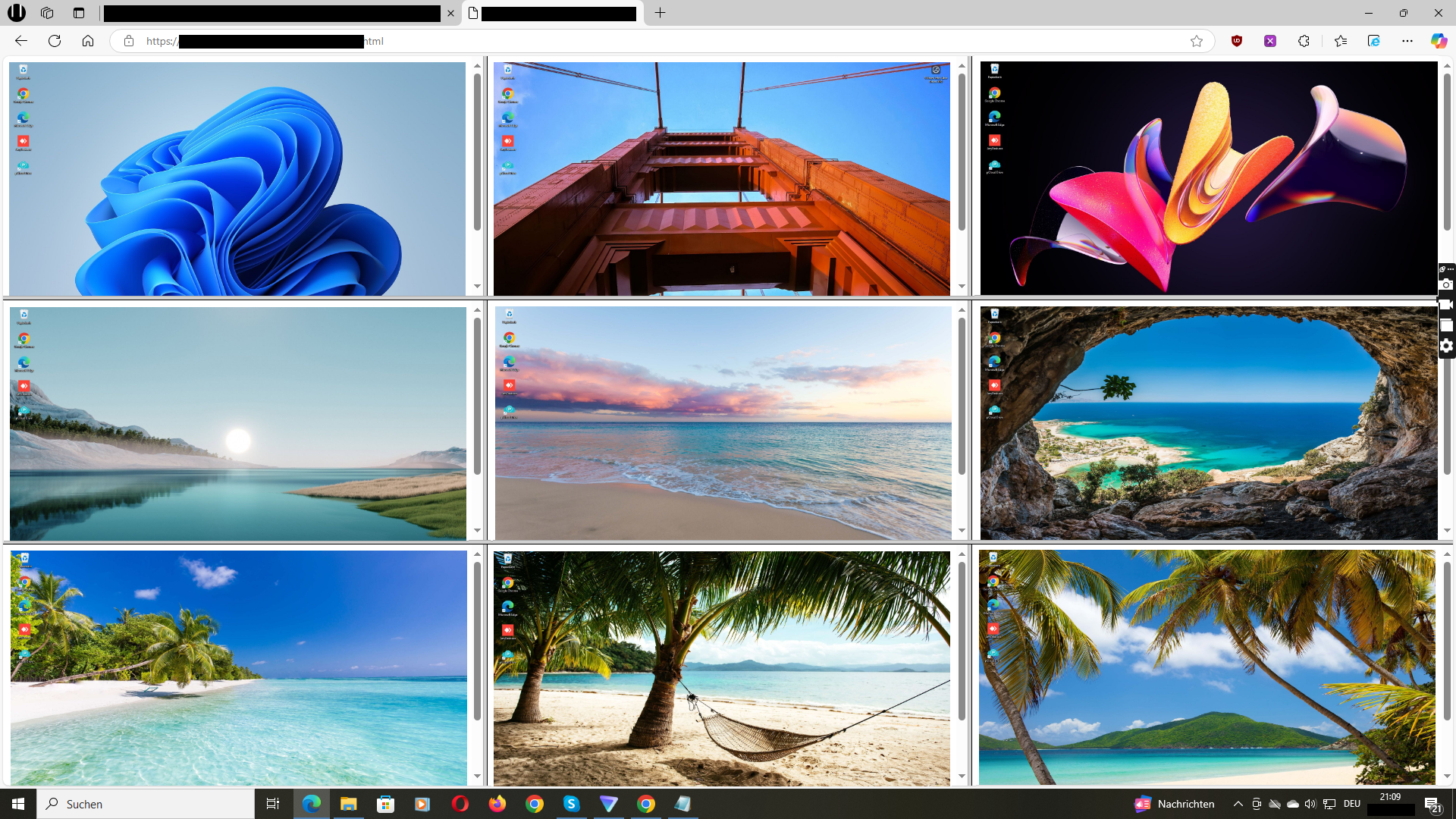
A live overview displays current screen content side by side. This can help you notice an unchanged start screen, an unexpected dialog or a visible error. This is an illustrative use case, not a documented customer story.
2. Before the exercise: prepare the room
Have your IT team install Wolfeye on the authorized Windows PCs and set up screen sharing. Before the session, check that the correct PCs appear and their views refresh. The quickstart covers the installation steps.
Open the overview on a device whose screen is not inadvertently visible to the entire group. Inform participants about the purpose and scope of viewing. Use sample data for exercises wherever possible rather than real customer or personnel information.
3. During the exercise: observe, ask and help
Start with a clear work step. Then look at the overview: which screens already show the expected application or result? Where is an error or an unexpected dialog visible?
Ask the participant before drawing conclusions from the view. An unchanged screen may simply mean someone is thinking or reading instructions. A screen overview does not automatically assess understanding or performance.
Offer help at the workstation or through your existing communication channel. Wolfeye provides the visual overview; this guide is not a promise of remote control, chat or automatic error detection.
4. Explain shared problems to the group
If several visible screens show the same unexpected dialog or a similar error, a short explanation to everyone may be more useful than several separate conversations. You can then look again to see whether participants have reached the next step.
Do not project a participant’s personal screen information without the appropriate permission. Use your own prepared example screen for the explanation instead. The live overview supplements support; it does not replace conversation or teaching.
5. Where this approach fits—and its limits
This approach suits Windows computer labs, professional training and PC-based workshops when your main need is an overview of visible work. Wolfeye focuses on screen visibility rather than being a comprehensive classroom suite.
If you also need to lock screens, block websites, distribute assignments or broadcast a teacher’s screen, evaluate those requirements separately. This page does not promise those features. It also does not claim support for monitored Chromebooks, tablets or other operating systems.
Test readability with your actual room size and typical applications. Refreshes every few seconds are more useful for visible work steps than for judging every rapid mouse movement. PCs must be online and screen sharing must be running.
6. Separate live support from recording
If the purpose is to help during an exercise, first consider whether live viewing without screenshot history is sufficient. Wolfeye describes history as optional. Stored images require a separate authorized purpose and rules for access, retention and deletion.
Before use, clarify the legal basis, user notices and required approvals with your institution. Additional requirements may apply to student data. Owning a device does not permit arbitrary observation, and use must not be unauthorized. This guide is not legal advice.
Try one exercise as a practical pilot
- Choose a clearly defined exercise using sample data.
- Check installation and screen viewing with IT before the session.
- Inform participants about the authorized use.
- Look for visible support needs, not performance scores.
- Afterwards, assess whether the overview was readable and useful for support.
Common questions
Can I see several classroom PCs at the same time?
Yes. Wolfeye describes a shared browser overview for multiple Windows PCs with the software installed and sharing activated. Test the display with your actual device count.
Do I need to record participants’ screens?
No. Wolfeye describes screenshot history as optional. Consider whether live viewing is enough for support. Recording requires a separate decision and the appropriate legal and organizational conditions.
Can Wolfeye automatically identify who needs help?
This page does not promise automatic detection. You view screen content and decide whether a question would help. Talking to the participant remains important.
How can I preview the overview?
Open the online demo. It shows an example dashboard, not your own computer lab. To test on your managed PCs, contact the developer through the demo request page.