How to Monitor Office and Remote Employee PCs Live in One Dashboard (Without Complex VPN or Remote Desktop)
A practical guide for SMBs and IT providers: how to get a clear, real-time view of office and remote employee PCs in one live dashboard – without building a complex VPN or remote desktop environment.
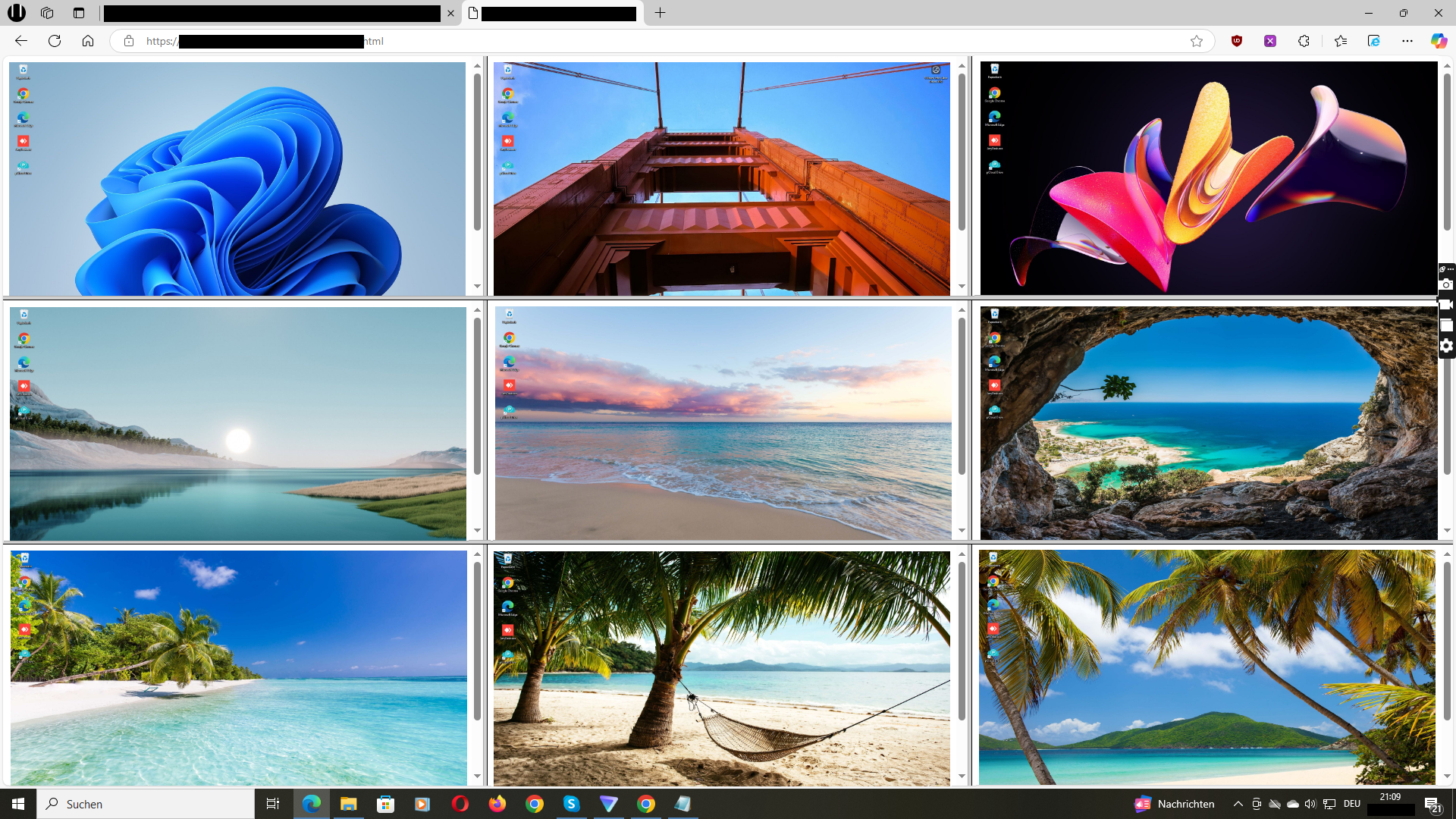
Example of monitoring several office and remote employee PCs in one central live screen dashboard.
Hybrid work is here to stay. Many small and mid-sized businesses now have a mix of office employees, home office workers and external freelancers – often spread across locations and time zones.
At some point, owners and IT service providers ask themselves:
“How can we see what is happening on office and remote employee PCs in one place – without setting up a complicated VPN and remote desktop infrastructure?”
Classic solutions such as VPN plus remote desktop or full RMM platforms are powerful, but they can be overkill for companies that simply want a visual, real-time overview of selected PCs.
In this article, you will learn:
- Why classic VPN and remote desktop setups are often too heavy just for visibility
- What a live screen dashboard is and how it works for office and remote PCs
- Practical use cases for business owners and IT providers
- A step-by-step outline for rolling out live screen monitoring with Wolfeye
- Best practices for responsible and transparent use in hybrid teams
1. The Challenge: Hybrid Teams and Fragmented Visibility
In a traditional office, it was relatively easy for managers to get a feeling for what was happening: people were sitting at their desks, screens were visible and questions could be asked spontaneously.
With hybrid work, the situation changes:
- A part of the team is in the office, another part works from home or co-working spaces.
- Some employees use company PCs in the office, others use managed devices at home.
- IT service providers support several customers with different setups at the same time.
Owners and managers often want to answer simple questions:
- Are the most important systems and applications actually being used during the day?
- Do new employees and remote staff really work in the environments we agreed on?
- What is happening on critical PCs while an important process is running?
Technically, it is possible to set up complex VPN connections and remote desktop environments to see individual machines. But this often requires:
- Detailed network configuration and firewall changes
- Multiple tools and logins for different locations or customers
- More effort than many SMBs want to invest just for visual insight
This is where a live screen dashboard can be a simpler alternative. Instead of building a full remote desktop infrastructure, you install a lightweight agent on selected PCs and see their screens centrally in your browser.
How and when you use such a dashboard must always follow your internal rules and the legal framework that applies to your company. The following sections focus on the technical possibilities and organisational use cases, not on legal questions.
2. Why Classic VPN and Remote Desktop Setups Are Often Too Heavy for Simple Visibility
VPN and remote desktop solutions were originally designed to connect individual users with internal company resources – for example, to work on a server or a single office PC from home.
They are powerful, but they have some typical limitations when the goal is simply to see what is on the screen of many PCs:
- One connection at a time: classic remote desktop tools focus on full control of a single machine, not on a live overview of many screens at once.
- Complex network configuration: VPN tunnels and firewall rules must be configured, which can be time-consuming, especially across locations and customers.
- Licences and infrastructure: in some setups, additional servers, gateways or licences are required.
- Not optimised for quick visual checks: to see multiple PCs, you often have to open several sessions or jump from device to device.
For IT providers and SMBs that “only” want to:
- Get a quick overview of selected office and remote PCs
- See how hybrid teams work in everyday life
- Check a few critical workflows on screen
… a leaner, more visual solution is often more practical. This is where the idea of a live screen dashboard comes in.
3. The Idea: One Live Screen Dashboard for Office and Remote PCs
A live screen dashboard such as Wolfeye follows a simple concept:
- You install a small program on the Windows PCs you want to monitor – whether they are in the office or used remotely.
- The software sends the screen content securely to a central dashboard.
- In this dashboard, you see multiple screens at once in a grid view and can click any screen to enlarge it.
From a technical perspective, this has several advantages over classic remote desktop setups when your main goal is visibility:
- One browser login instead of many RDP sessions: you see all relevant PCs in one place.
- Same approach for office and remote devices: the location of the PC is less important, as long as it has internet access and the Wolfeye software installed.
- Optimised for “read-only” viewing: the focus is on seeing what is on the screen, not on taking over full control (although support scenarios can still be combined with other tools).
Typical questions that a live dashboard can answer in a few seconds:
- “Are the four call centre PCs in the office currently logged into the phone system?”
- “Is our remote accounting staff really working in the accounting software right now?”
- “What is shown on the screens of our new hires during their first days?”
The dashboard itself does not answer legal questions. It only provides a technical possibility. How, where and under which conditions it may be used in your company is a separate question that depends on the laws and regulations in your country and should always be clarified with qualified legal counsel.
4. Practical Use Cases for SMBs and IT Service Providers
Live screen dashboards are particularly useful when you combine office and remote work or manage several environments as an IT provider. Some typical scenarios:
4.1 Hybrid teams with office and home office staff
- Managers want a quick overview of what is happening on key PCs in customer service, logistics or back office – regardless of whether employees sit in the office or at home.
- Teams working on time-critical tasks (for example, order processing or booking) can be observed more closely during sensitive periods.
4.2 Onboarding of new employees and freelancers
- During the first days, it can be helpful to see whether new staff actually work in the systems and processes that were explained to them.
- For remote freelancers, a live view can show whether the agreed tools and environments are being used.
4.3 IT service providers and MSPs
- IT providers can build a visual layer on top of existing RMM and ticket systems.
- In review or audit sessions, they can show customers how selected PCs are used in real time without logging into multiple remote desktop sessions.
4.4 Monitoring specific workstations and roles
- Reception desks, cashier PCs or other special workstations can be watched more closely in everyday operation.
- In some departments, it may be helpful to see screen activity during specific projects or campaigns.
In all of these scenarios, it is crucial to define internal rules and limits: which PCs are monitored, who has access to the dashboard, in which situations it may be used and how long information is kept. This article can give you technical and organisational ideas – but it cannot replace individual legal advice.
5. Step by Step: Setting Up Wolfeye for Office and Remote PCs
Every network environment is different, but the basic steps for using Wolfeye as a live screen dashboard are often similar:
- Define scope and objectives internally
Before installing anything, clarify which PCs and roles should be visible, who needs access to the dashboard and what the primary goals are (for example, onboarding, process transparency, support for remote teams). - Start with a pilot group of PCs
Many companies begin with a small group of office PCs and a few remote devices. This keeps the technical setup manageable and allows you to gather organisational experience. - Install Wolfeye on selected PCs
The Wolfeye software is installed on each PC that should appear in the dashboard. After installation, the PC can send its screen content to your Wolfeye account. - Open the dashboard in your browser
You log into the Wolfeye dashboard and see the hybrid mix of office and remote PCs in a grid view. From here, you can select and enlarge screens. - Refine internal rules and communication
As you gain experience, you can refine which PCs are monitored, who has access and in which situations the dashboard is used. Any legal and compliance questions should be discussed with qualified experts in your jurisdiction.
Technically, Wolfeye is designed to be as lightweight and focused as possible. It does not try to replace RMM systems or time tracking tools, but to offer a visual layer that works equally for office and remote PCs.
6. Best Practices for Responsible and Transparent Use
Live screen monitoring is a powerful capability. How you use it in practice matters just as much as the technical setup. Some general best practices from an organisational perspective:
- Define clear access rights: decide who may see which screens in the dashboard and in which situations.
- Use monitoring with a purpose: focus on supporting processes, quality and security instead of monitoring everything “just in case”.
- Combine with coaching and process improvement: use insights to optimise workflows and training instead of only looking for mistakes.
- Document internal rules: write down how and when live screen monitoring may be used in your organisation.
Important: these are general organisational suggestions. They are not legal guidelines. What is required or allowed in your specific country, industry and situation can differ significantly. Before introducing monitoring of employee screens, you should always clarify the legal framework for your case with qualified legal counsel in your region.
7. Live Demo: Monitor Office and Remote PCs in One Wolfeye Dashboard
The video below shows a live demo of Wolfeye. You will see how office and remote PCs can be displayed together in one dashboard, how to switch between screens and how a hybrid setup looks in practice.
Video: Live demo of monitoring office and remote employee PCs in one Wolfeye dashboard. The demo shows technical possibilities and everyday use. It is for general information only and does not replace legal advice.
Frequently Asked Questions – Live Monitoring of Office and Remote PCs
Wolfeye is designed so that you can see screens of office and remote PCs in one dashboard without having to build a complex VPN and remote desktop setup just for visibility. In some environments, VPNs may still be used for other purposes, such as accessing internal servers. The exact network architecture depends on your company and should be planned together with your IT experts.
Yes. One of the advantages of a browser-based live dashboard is that you can access it from different devices as long as you have an internet connection and the necessary login data. Many owners use Wolfeye from a notebook or mobile device when they are travelling or working from home themselves.
This depends entirely on the laws and regulations in your country, your industry and your specific situation. Wolfeye only provides the technical possibility to see screens. Whether, how and under which conditions you may use such tools must always be clarified with qualified legal counsel. This article and the demo video are for general technical and organisational information only and do not constitute legal advice.
Conclusion
A single live dashboard for office and remote PCs can make hybrid work much more transparent.
Instead of juggling several VPN connections and remote desktop sessions, owners and IT providers can see selected screens at a glance – whether the PCs are in the office or in a home office environment. This makes it easier to understand how systems are used, to support new staff and to keep an eye on critical workflows.
Wolfeye focuses on this visual layer: live screens in one dashboard, technically simple and lightweight. It does not replace professional RMM solutions or time tracking tools, but complements them when real-time visibility is needed.
At the same time, monitoring employee screens is always a sensitive topic. Every organisation should define clear internal rules, limit access and clarify legal questions separately. This article cannot give legal advice and does not state what is permitted in any specific country. A pragmatic way forward is to start with a small pilot, test a live dashboard with a limited number of PCs and then make informed decisions together with management, IT and – where appropriate – legal advisors.
Want to see your own office and remote PCs in one live dashboard?
Start 14-Day Free TrialWolfeye is monitoring software. Any use must comply with the laws and regulations that apply in your country and situation. This article is for general technical and organisational information only and does not constitute legal advice or a guarantee of specific results.