How to Review Past Screen Activity on Company PCs (Screenshot History: See Exactly What Happened on Any PC)
A practical, non-legal guide for SMBs and IT providers: how to use screenshot history to reconstruct what happened on company PCs at a specific time – without having to watch every screen live all day.
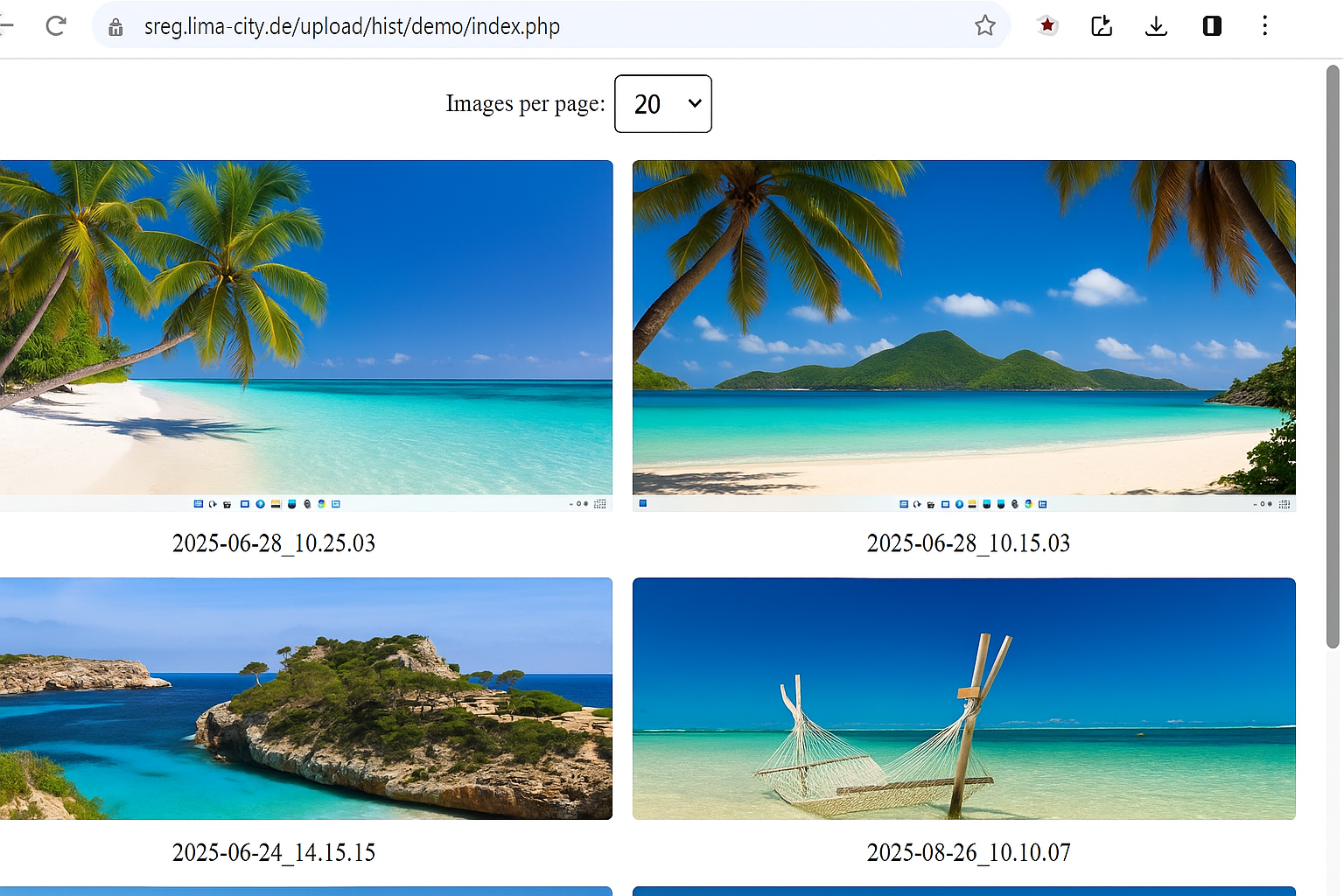
Example of reviewing past screen activity on a company PC with a screenshot history timeline.
In many companies, there are recurring moments where someone asks:
“What exactly happened on this PC yesterday at 14:30?”
Maybe an important file was changed, a transaction was booked incorrectly, a suspicious email was opened or a customer complaint came in. In all of these cases, it would be helpful to rewind the screen and see what was actually displayed.
Live monitoring helps in the present – but it does not automatically answer questions about the past. This is where screenshot history comes in: a chronological sequence of screenshots that lets you reconstruct screen activity for selected company PCs.
In this article, you will learn:
- Typical situations in which reviewing past screen activity becomes important
- How screenshot history works technically and what it can – and cannot – show
- How to plan which PCs, time ranges and retention periods make sense
- How to set up and use screenshot history with Wolfeye in a structured way
- Practical use cases for business owners and IT service providers
- General best practices for responsible, transparent use
1. When Reviewing Past Screen Activity Becomes Critical
Live dashboards give you a good overview of what is happening right now. But many questions in everyday business are about the past:
- A customer complains about a wrong order – you want to see what was on the screen during order entry.
- Accounting discovers a strange transaction – you want to see which system was used and which data was entered.
- A process broke down yesterday afternoon – you want to find out what employees saw on their screens when problems started.
- New hires are struggling with a workflow – you want to analyse afterwards where they clicked and which screens caused confusion.
- There are indications of time theft or fake timesheets – you want to understand how a PC was used during a specific time window.
Without screenshot history, you often only have indirect information:
- Log files that show which system was accessed – but not what was visible on the screen.
- Reconstructed memories (“I think I clicked there, then there…”).
- Assumptions based on the current system state.
Screenshot history gives you something different: a visual timeline of what was actually displayed on the screen at certain times on selected company PCs.
Important: This is a technical possibility. Whether, how and for which purpose you may use such history in your company depends on the legal framework and internal agreements. This article does not make any legal assessment – it only describes typical technical scenarios and organisational patterns.
2. How Screenshot History Works Technically
The basic idea of screenshot history is simple:
- On selected company PCs, a small program regularly captures screenshots of the screen.
- These screenshots are stored in an archive associated with that PC.
- Later, you can open a timeline view and see what was displayed at specific times.
In a tool like Wolfeye, this means in practice:
- You decide which PCs are included in the history.
- You configure how frequently screenshots are taken (for example, every few seconds or at longer intervals, depending on your goals and environment).
- You define how long screenshots are kept before they are deleted in line with your internal rules.
- In the dashboard, you can later choose a PC, a date and a time range and browse through the screenshots.
This allows you to:
- Reconstruct individual situations (“What was on the screen when this happened?”).
- Understand the path through a workflow step by step.
- Check whether agreed tools and systems were used during a given time.
At the same time, screenshot history does not replace other systems:
- It does not automatically interpret or classify actions.
- It does not answer legal questions about what is allowed.
- It does not replace proper process documentation or security concepts.
It is a visual instrument that can support analysis, training and quality assurance – provided it is used in a structured and responsible way.
3. Planning Screenshot History: Which PCs, Which Time Ranges, Which Retention?
Before you start capturing screenshots, it pays to plan carefully what you really need. A few guiding questions can help.
3.1 Which company PCs should be in the history?
- Which workstations are associated with critical processes such as accounting, logistics, customer service or data entry?
- Are there new hires, probation roles or external freelancers where you especially want to understand workflows?
- Which PCs are regularly involved when errors, complaints or security incidents occur?
In many SMBs, it makes sense to start with a small, focused group of PCs instead of recording everything immediately.
3.2 For which time periods is history useful?
- Core working hours only, or also evenings and weekends?
- Specific phases, such as month-end closing or campaign periods?
- Limited pilot projects with defined start and end dates?
Clear time windows make evaluation easier and avoid collecting more data than necessary from an organisational perspective.
3.3 How long should screenshots be kept?
- Which retention period is appropriate from a business perspective (for example, a few days, several weeks, longer)?
- Which internal rules apply to storage and deletion of monitoring data?
- Who is responsible for reviewing and adjusting these settings over time?
These are organisational and, in many cases, legal questions. The concrete answers depend on your country, industry and internal policies. This article can give you ideas for structuring your approach, but it cannot replace individual legal advice.
4. Step by Step: Using Screenshot History with Wolfeye
Each IT environment is different, but the basic workflow for using screenshot history with Wolfeye often looks similar. The following is a high-level, technical overview – not legal guidance.
- Define your goals and scope
Clarify internally why you want screenshot history: for example, to analyse process errors, support onboarding, investigate incidents or verify selected time periods. Decide which PCs and roles are affected and who will have access to the history. - Start with a small pilot group
Choose a handful of representative PCs (for example, two support workstations, one accounting PC and one PC for a new hire) and enable screenshot history only for these machines initially. - Install and configure Wolfeye
Install Wolfeye on the selected Windows PCs. In your Wolfeye dashboard, activate screenshot history for these PCs and set reasonable capture intervals and retention periods that fit your technical and organisational goals. - Generate first history data
Let the pilot run for a few days. During this time, work continues as usual. Wolfeye records screenshots according to your configuration and stores them in the history for each PC. - Review and analyse
After the pilot phase, open the screenshot history in the Wolfeye dashboard: select a PC, choose a day and time period and step through the screenshots. Check whether you can answer the practical questions that led you to introduce history in the first place. - Adjust settings and internal rules
Based on your experience, you can adjust intervals, retention, which PCs are included and who can access history. Any questions about compliance, employee information or documentation should always be clarified with qualified experts familiar with your jurisdiction.
The goal is to build a setup that is technically robust and organisationally sensible – not to record everything “just in case”.
5. Practical Use Cases for Business Owners and IT Service Providers
Used in a focused way, screenshot history can support many concrete scenarios in SMBs and for IT providers. A few examples:
5.1 Analysing process errors and data inconsistencies
- An invoice or order is wrong – you can see step by step how the data was entered.
- A system behaves unexpectedly – you can reconstruct which sequence of clicks led to the issue.
- A recurring error appears – you can compare several histories and look for patterns.
5.2 Supporting onboarding and training
- For new hires, history can show where people get stuck in complex systems.
- Team leads can use real examples (with appropriate internal procedures) to improve training materials and process descriptions.
5.3 Verifying work on specific tasks
- In project phases, you can check whether agreed tools and environments were used.
- For external freelancers, history can help verify that work was carried out in the expected systems.
5.4 Incident response and security
- In the event of a suspected incident, you can see what happened on a PC shortly before and after the event.
- This can support internal investigations and help identify weak points in processes.
In all of these cases, screenshot history is an internal tool for clarity. How far you may go in reviewing and using this information is always bounded by the legal framework in your country and by your own internal policies. Again: this article cannot give legal advice.
6. Best Practices for Responsible, Transparent Use
Screenshot history is powerful. How you implement and use it is just as important as the technology itself. A few general organisational recommendations:
- Define clear responsibilities: decide who is allowed to enable, view and evaluate screenshot history.
- Use history with a concrete purpose: focus on process quality, training and security – not on collecting data without a clear reason.
- Limit scope and retention: include only the PCs, time periods and retention durations that you realistically need.
- Document internal rules: write down how screenshot history is used in your organisation, who has access and how long data is stored.
- Review settings regularly: check at intervals whether frequency, retention and scope are still appropriate.
These are general organisational suggestions, not legal instructions. What is required or allowed in your specific country, industry and situation can differ significantly. Before introducing screenshot history for employee screens, you should always clarify the legal framework for your case with qualified legal counsel in your region.
7. Live Demo: How to Review Past Screen Activity with Wolfeye Screenshot History
The video below shows a live demo of Wolfeye focusing on screenshot history. You will see how to open the history for a specific PC, move through the timeline and reconstruct what was shown on the screen at different times.
Video: Live demo of reviewing past screen activity with Wolfeye screenshot history. The demo illustrates technical possibilities and everyday use. It is for general information only and does not replace legal advice.
Frequently Asked Questions – Screenshot History and Past Screen Activity
In Wolfeye, how far back you can go depends on the settings you choose and the storage available – for example, how frequently screenshots are taken and how long they are kept before deletion. From a technical perspective, you can adjust these parameters. From an organisational and legal perspective, retention periods should always be aligned with your internal rules and the law in your country.
Screenshot history focuses on what is visible on the screen at the moments when screenshots are captured. It does not automatically record every keystroke or every internal system event. For most SMBs and IT providers, the visual timeline is already a powerful tool to understand processes. If you need additional technical information, you can combine screenshot history with existing logs and monitoring tools in your environment.
Wolfeye is designed to be lightweight. In typical office environments, the impact of screenshot recording is usually low. As with any monitoring tool, you should still test it in your own environment first – for example with a small pilot group – and adjust intervals and scope if necessary.
This depends entirely on the laws and regulations in your country, your industry and your specific situation. Wolfeye only provides the technical possibility to create screenshot history. Whether, how and under which conditions you may use such tools must always be clarified with qualified legal counsel. This article and the demo video are for general technical and organisational information only and do not constitute legal advice.
Conclusion
Screenshot history can turn many “What happened here?” questions into concrete, visual answers.
Instead of relying only on logs, assumptions or memory, you can reconstruct past screen activity on selected company PCs and understand workflows step by step. This helps in analysing errors, improving training and supporting security – especially in environments with remote work, complex systems and distributed teams.
Wolfeye focuses on this visual layer: live screens and screenshot history in one dashboard, technically lightweight and designed for everyday use in SMBs and by IT providers. It does not replace professional legal advice or your internal compliance processes, but it can be an important technical building block.
At the same time, recording and reviewing screenshot history is always a sensitive topic. Every organisation should define clear internal rules, limit scope and access and clarify legal questions separately. A pragmatic way forward is to start with a small pilot, test screenshot history on a limited number of PCs and then make informed decisions together with management, IT and – where appropriate – legal advisors.
Want to see past screen activity on your own company PCs?
Start 14-Day Free TrialWolfeye is monitoring software. Any use must comply with the laws and regulations that apply in your country and situation. This article is for general technical and organisational information only and does not constitute legal advice or a guarantee of specific results.