How to Monitor All Company Computers from One Dashboard (Live Screens in Under 5 Minutes)
A practical, non-legal guide for SMBs and IT providers: how to get a clear, real-time overview of all important company computers in one live dashboard – from zero to live screens in under 5 minutes.
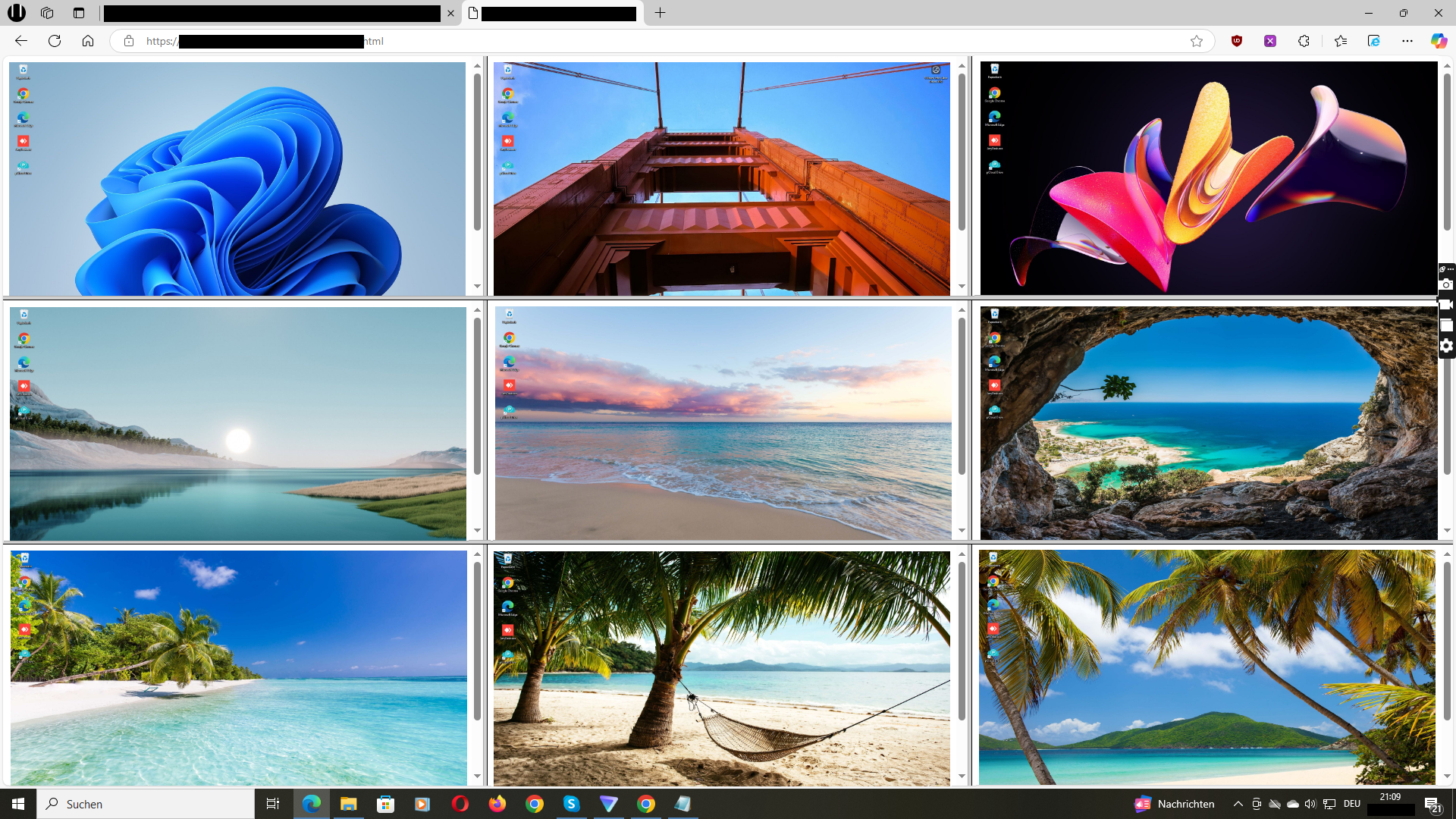
Example of monitoring several important company computers in one central live screen dashboard.
Many small and mid-sized businesses reach the same point: there are office PCs, warehouse PCs, home office devices and laptops for travelling staff – but no simple way to see what is happening on all important computers in one place.
Owners and IT service providers often ask themselves:
“How can we see the screens of our most important company computers live on one dashboard – quickly and without building a complex IT project?”
Classic tools such as full remote desktop environments or heavy RMM platforms are powerful, but if you mainly want live visibility of selected PCs, they can be more complex than necessary.
In this article, you will learn:
- What “all company computers on one dashboard” really means in practice
- Why switching between many remote desktop sessions is slow for simple visual checks
- How to design a clear live screen dashboard for owners, managers and IT providers
- How to go from zero to your first live dashboard with Wolfeye in under 5 minutes
- How to roll it out to more PCs step by step and use it responsibly in everyday work
1. What Does “All Company Computers on One Dashboard” Really Mean?
“All company computers” sounds big – and in some organisations there may literally be hundreds of devices. In practice, most SMBs and IT providers start with a more focused view:
- Key business PCs: for example, accounting, logistics, order processing, support or call centre workstations.
- New hires and freelancers: where you want extra visibility during the first weeks.
- Critical roles or projects: like campaign teams, time-sensitive operations or specific client projects.
The idea is not to mirror every single machine in the company 24/7. Instead, you define a set of PCs that really matter for operations and show them in one central live screen dashboard.
Technically, this usually looks like this:
- Each selected PC has a small program installed that sends its screen to your dashboard.
- You log into the Wolfeye dashboard in your browser.
- You see all chosen computers at once in a grid view and can click any screen to enlarge it.
This gives owners and IT providers a quick answer to questions like:
- “Are all core workstations up and running right now?”
- “Is our remote staff working in the agreed tools?”
- “What is happening on these 10 PCs during this important process?”
Again, the dashboard only shows what is technically possible. Whether and under which conditions you may monitor specific screens depends on local laws and internal agreements. This article cannot answer legal questions – it can only describe technical concepts and organisational patterns.
2. Why Jumping Between Many Remote Desktop Sessions Is Not Enough
Many companies already use remote desktop tools or even full RMM platforms. These are excellent for support and maintenance, but less ideal for a quick visual overview of many screens at once.
Typical limitations when you try to “see everything” using classic tools:
- One screen at a time: remote desktop tools are usually built for controlling a single PC, not for watching many at once.
- Session hopping: you constantly open and close sessions or try to arrange several windows manually on one monitor.
- High cognitive load: switching between 10+ remote sessions makes it hard to keep track of what is happening where.
- Slow checks: even simple questions (“Are the support PCs logged into the ticket system?”) can take minutes.
For fast visual checks – especially across dozens of PCs – a dedicated live screen dashboard is more practical:
- You see all important computers in one grid.
- You can quickly zoom in on a specific screen.
- You don’t need to manage many sessions manually.
The goal is not to replace your existing tools, but to add a lightweight visual layer on top of them.
3. Designing Your Live Screen Dashboard: Which PCs Belong on It?
Before you install anything, it helps to design your dashboard conceptually. A few guiding questions:
3.1 Which computers are truly “business critical”?
- Which PCs must be working properly for your business to function smoothly?
- Which roles cause problems if something goes wrong unnoticed (for example, sales support, payroll, dispatching)?
- Which external freelancers or remote staff handle sensitive or time-critical tasks?
These PCs are often the best candidates for your first dashboard.
3.2 Who will look at the dashboard?
- Owners and managers: they may want a high-level overview, especially at peak times.
- Team leads: they may use the dashboard to coordinate their team and support new staff.
- IT providers / MSPs: they may use it to visually check environments and demonstrate value in meetings.
It often makes sense to create separate dashboards or views for different groups – for example, one view for management and another for the IT provider’s internal team.
3.3 How should the screens be grouped?
- By department (support, accounting, logistics, etc.).
- By location (office A, office B, home office PCs).
- By client (for IT providers and MSPs).
The clearer the structure, the easier it becomes to understand what is happening at a glance. Remember: the dashboard is there to support operations, quality and security, not to monitor everything without a plan.
4. From Zero to First Live Dashboard in Under 5 Minutes
Once you know which computers and roles you want to include, you can set up your first live dashboard with Wolfeye very quickly. In many environments, the basic process takes only a few minutes.
- Create or log into your Wolfeye account
Access your Wolfeye dashboard from your browser. This will later show all live screens in one place. - Choose your first test PC
For the very first test, pick one company PC that is easy to access – for example, your own office workstation or a test machine. - Install Wolfeye on this PC
Download and install the Wolfeye software on the selected Windows PC. Installation typically takes only a few moments. After that, the PC is ready to send its screen to your account. - Open the dashboard and verify the live screen
Go back to your browser, refresh the dashboard and you should see the live screen of your test PC. This confirms that the basic connection works. - Add more PCs step by step
Repeat the installation on a few more important computers – for example, two support PCs and one accounting PC. They will appear in the same dashboard automatically.
If you prefer a visual walkthrough of this process, the demo video below shows exactly how a Wolfeye dashboard looks when it goes from one to many computers in just a few minutes.
Important: The steps above describe technical setup. Before you roll out monitoring more broadly, you should always clarify internal policies and legal requirements with qualified experts in your country.
5. Scaling Up: From a Handful of PCs to Dozens of Company Computers
Once your first dashboard is running smoothly, you can expand it to more PCs. The best approach depends on whether you are an internal IT team or an external IT service provider.
5.1 For SMBs with internal IT
- Rollout by department: start with one department (for example, customer service), then add others.
- Add new hires by default: include new employees and probation period roles in the dashboard for additional visibility during their first weeks.
- Use maintenance windows: install Wolfeye during planned maintenance times to minimise disruption.
5.2 For IT service providers and MSPs
- Create a standard monitoring package: include “live screen dashboard” as part of your managed service offering.
- Roll out per client: define which client PCs belong on the dashboard and install Wolfeye as part of your onboarding checklist.
- Use scripts and automation where appropriate: depending on the environment, you can streamline installation across multiple machines.
In both cases, it is helpful to review regularly:
- Which computers are shown on the dashboard and why.
- Who has access to which views.
- How insights from the dashboard are used in everyday work (for example, coaching, process improvements, support).
The goal is a lean, useful dashboard that supports your operations – not a cluttered wall of screens that nobody uses.
6. Everyday Use: How to Get Real Value from a Live Screen Dashboard
Once your Wolfeye dashboard shows all relevant company computers, the question is: how do you use it in a meaningful way?
- Short daily overview: some owners quickly check the dashboard in the morning or at peak times to ensure that everything is running as expected.
- Support for new staff: team leads can use the dashboard to support new colleagues, spot confusion early and improve training.
- Process quality: for critical workflows, you can monitor key PCs more closely during important phases.
- Security and misuse prevention: unusual or obviously inappropriate activity can often be detected visually.
From an organisational perspective, a few general best practices are helpful:
- Define clear access rights: decide which roles may see which screens and in which situations.
- Use monitoring with a clear purpose: focus on supporting processes, quality and security instead of monitoring everything “just in case”.
- Document your internal rules: write down how live screen monitoring is used in your organisation.
These are general organisational suggestions, not legal guidelines. What is required or allowed in your specific country, industry and situation can differ significantly. Before introducing monitoring of employee screens, you should always clarify the legal framework for your case with qualified legal counsel in your region.
7. Live Demo: See All Important Company Computers on One Dashboard
The video below shows a live demo of Wolfeye. You will see how several company computers appear in one dashboard, how quickly you can go from zero to live screens and how the grid view works in practice.
Video: Live demo of monitoring multiple company computers on one Wolfeye dashboard. The demo illustrates technical possibilities and everyday use. It is for general information only and does not replace legal advice.
Frequently Asked Questions – One Dashboard for All Company Computers
Yes. To display a PC in the Wolfeye dashboard, the Wolfeye software must be installed on that machine. Many companies start with a limited number of key PCs and then expand step by step. The exact rollout method depends on your IT environment and should be planned with your technical team or IT provider.
Wolfeye is designed to be lightweight. In normal office environments, the impact on performance is usually low. As with any software, you should still test it in your own environment first – for example with a small pilot group – before rolling it out more widely.
Yes. Because the dashboard runs in your browser, you can access it from different devices as long as you have an internet connection and valid login details. Many owners use Wolfeye from a notebook or mobile device when they are travelling or working remotely themselves.
This depends entirely on the laws and regulations in your country, your industry and your specific situation. Wolfeye only provides the technical possibility to see screens. Whether, how and under which conditions you may use such tools must always be clarified with qualified legal counsel. This article and the demo video are for general technical and organisational information only and do not constitute legal advice.
Conclusion
A single live screen dashboard for all important company computers can make everyday work much more transparent.
Instead of jumping between many remote desktop sessions, owners and IT providers see selected PCs at a glance – whether they are in the office, in a warehouse or in a home office. This makes it easier to understand how systems are used, support new staff and keep an eye on critical workflows.
Wolfeye focuses on this visual layer: live screens in one dashboard, technically simple and lightweight. It does not replace professional RMM solutions or time tracking tools, but complements them when real-time visibility is needed.
At the same time, monitoring employee screens is always a sensitive topic. Every organisation should define clear internal rules, limit access and clarify legal questions separately. This article cannot give legal advice and does not state what is permitted in any specific country. A pragmatic way forward is to start with a small pilot, test a live dashboard with a limited number of PCs and then make informed decisions together with management, IT and – where appropriate – legal advisors.
Want to see all important company computers on one live dashboard?
Start 14-Day Free TrialWolfeye is monitoring software. Any use must comply with the laws and regulations that apply in your country and situation. This article is for general technical and organisational information only and does not constitute legal advice or a guarantee of specific results.