Employee Screen Monitoring on Company PCs: What’s Technically Possible?
A technical, non-legal overview for SMBs and IT providers: what employee screen monitoring on company PCs can actually do in practice – and what it cannot – using live screens, screenshot history and a central dashboard.
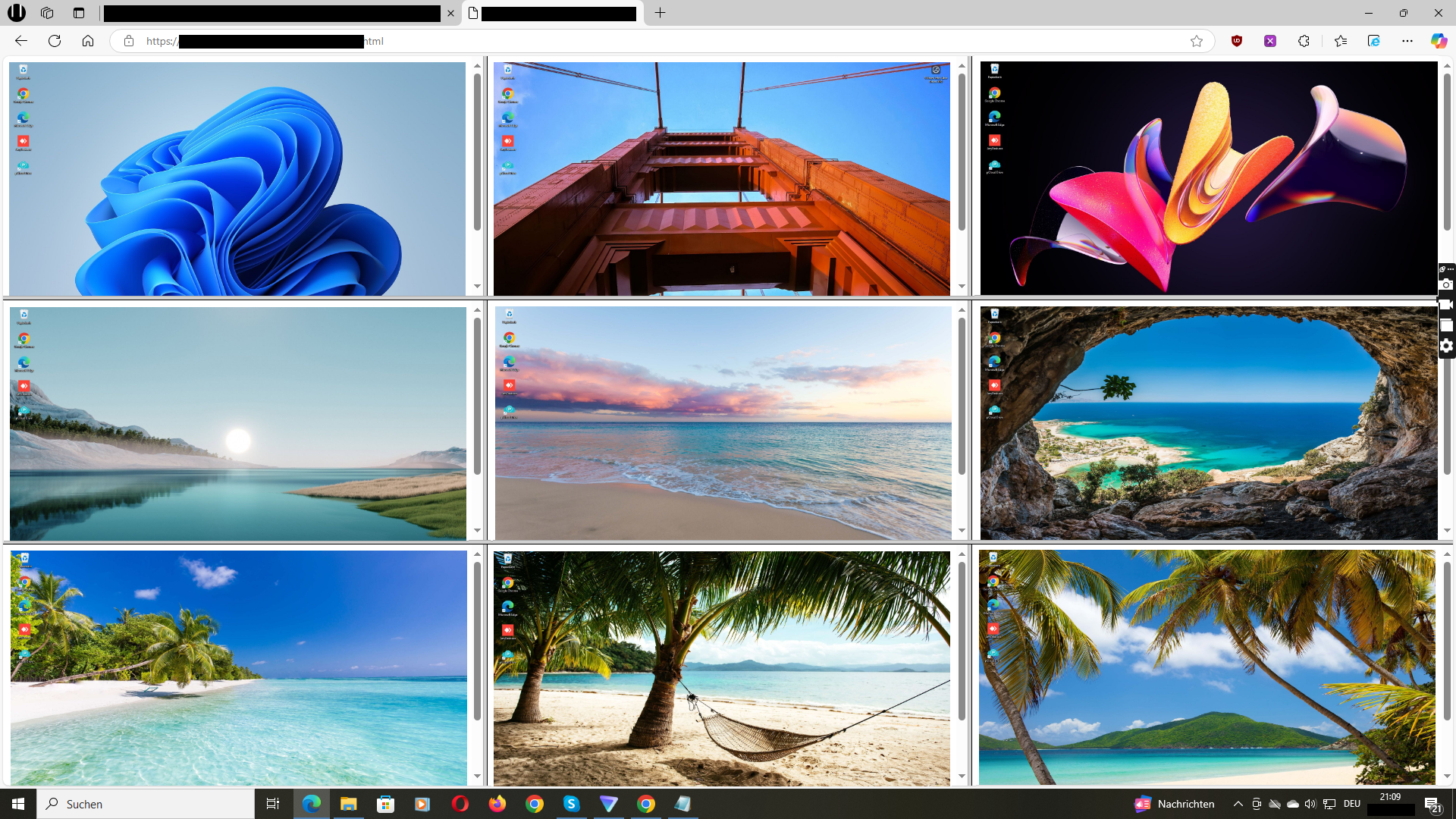
Example of a live screen monitoring dashboard for selected company PCs, showing what is technically possible in everyday use.
“Employee monitoring” is a broad term. In practice, many small and mid-sized businesses – and the IT service providers who support them – are looking for something much more concrete and limited:
They want to see what is happening on selected company PCs in a simple, visual way.
Typical questions owners and IT providers ask themselves:
- “What can modern employee screen monitoring software technically do on company PCs – and what not?”
- “Is it about keyloggers and deep tracking, or just seeing the screen like a silent observer?”
- “How does a tool like Wolfeye actually work under the hood?”
- We focus on technical and organisational aspects of screen monitoring on company-controlled PCs.
- We do not give any legal advice and we do not make any statement about what is allowed in a specific country, sector or situation.
In this article, you will learn:
- What “employee screen monitoring on company PCs” technically means
- Which building blocks typical screen monitoring tools use (agent, data transfer, dashboard, screenshot history)
- What you can realistically see on the screen – and where the technical limits are
- How SMBs and IT service providers usually set up such dashboards in everyday use
- Why a focused, lightweight setup often works better than “monitoring everything”
1. What Do We Mean by “Employee Screen Monitoring” on Company PCs?
When we talk about employee screen monitoring in the context of Wolfeye and similar tools, we have a very specific scenario in mind:
- Company-controlled Windows PCs (for example, office desktops, call centre machines, remote workstations that belong to the company).
- A small software component (“agent”) that runs on these PCs and can send screen content to a central server.
- A dashboard where authorised users (for example, owners, managers, IT providers) can see live screens and screenshot history of the PCs that are included.
Technically, this is closer to a “live screen wall” than to a full remote-control or RMM system. In many SMB scenarios, the goal is not to control PCs, but simply to visually understand what is happening on selected company machines.
Important clarifications:
- This article assumes company PCs, not private devices of employees or freelancers.
- We focus on screen content (what you could see with your own eyes if you were standing behind the user), not on deep system-level tracking.
- We describe what is technically possible, not what you may or must do legally in your country.
In other words: when we say “employee screen monitoring”, we mean seeing what appears on the screen of selected company PCs in real time or as a history of screenshots – nothing more, nothing less.
Whether and under which conditions you may use such functionality in your environment is always a separate legal question.
2. How Screen Monitoring Software Works Technically
Most screen monitoring tools for company PCs – including Wolfeye – follow a similar technical principle. The exact implementation can differ, but the core building blocks are usually the same.
2.1 Lightweight agent on the company PC
On each Windows PC you want to include, a small agent program is installed. Technically, this component is responsible for:
- Capturing the current image of the screen (or screens, if multiple monitors are attached).
- Compressing and securely sending this image data to a central server or cloud service.
- Handling configuration instructions (for example, whether screenshot history is active).
The agent is designed to be lightweight, so that normal work on the PC can continue without disruption.
2.2 Secure transmission to the dashboard
The captured screen images are sent over the network to your screen monitoring dashboard. In a typical setup:
- The connection is encrypted (for example, via HTTPS), similar to how websites are protected.
- Only authorised users with access to the dashboard can see the incoming live screens and screenshot history.
- Configuration options allow you to include only specific PCs that you selected beforehand.
2.3 Live view: “What is happening right now?”
In the live view, you can see the screens of selected company PCs in near real time. Technically, this works like a constantly updated series of screenshots that are shown as a continuous stream:
- You can display multiple screens in a grid.
- You can enlarge a single PC to see its screen in more detail.
- You see the same content that the person at the PC sees (subject to resolution and scaling).
2.4 Screenshot history: “What happened earlier?”
In addition to live view, many tools offer a screenshot history. Technically, this means:
- The agent takes screenshots at defined intervals (for example, every X seconds or minutes).
- These screenshots are stored with time stamps.
- In the dashboard, you can navigate through a timeline and open specific screenshots from the past (for example, yesterday morning).
This allows you to reconstruct what was happening on a company PC at a certain time – visually, based on real screen images.
How long screenshots are stored, how often they are taken and which PCs are included are configuration decisions that you (together with IT and legal advisors) must define for your organisation.
3. What You Can See in Practice on Company PCs
From a technical perspective, screen monitoring shows you exactly what is visible on the screen of the company PC at the moment of capture. In practice, this means that you can:
- See which applications are in the foreground (for example, CRM, email, browser, ticketing, office tools).
- Follow workflows visually (for example, how a support ticket is processed, how data is entered into a form).
- Check multi-monitor setups – if the PC has two or three screens, the agent can capture each one.
- Observe patterns of use (for example, frequent switching between tools, long idle times on a specific screen).
Examples from everyday use:
- A manager wants to understand how a new employee handles a certain process. Live view shows the exact sequence of screens, clicks and tools.
- An IT provider checks if a POS or CRM system is being used as planned on several branch PCs.
- A call centre supervisor sees all agent screens in a grid to support them more effectively during peak times.
Technically, the tool does not “interpret” what you see – it simply delivers images of the screen. The interpretation of those images (for example, whether a certain behaviour is productive or not) always remains your responsibility as an organisation.
Again, how and for which purpose you may use such visibility in your country is a legal question that must be clarified separately.
4. Technical Limits: What Screen Monitoring Does Not Do
Just as important as understanding what is possible is understanding what screen monitoring is not. Technically, there are clear limits.
4.1 No “mind reading” or magic insight
Screen monitoring shows you what is on the screen, nothing more. It does not:
- Read the thoughts, motivations or feelings of a person.
- Automatically judge whether a certain activity is “good” or “bad”.
- Guarantee that every second of work is visible – for example, when the user is thinking, talking on the phone or writing notes.
4.2 No automatic bypass of encryption or access controls
Screen monitoring does not “hack” systems. If a user is not logged into an application, the monitoring tool also does not see its internal content. It simply captures the visible screen.
Encrypted network connections (for example, HTTPS websites) are still encrypted on the network level. You only see what the logged-in user sees on their screen.
4.3 No monitoring of devices without an agent
From a technical perspective, a tool like Wolfeye can only monitor devices where the agent is installed and active. It does not automatically monitor:
- Private devices without the agent.
- External systems that are not part of your setup.
- PCs that you did not explicitly include.
Whether you may or should install an agent on certain devices (for example, home office PCs, laptops, shared PCs) is a legal and organisational decision. This article cannot answer that.
4.4 No guarantee that everything is stored forever
The existence of a screenshot history depends on your configuration and storage settings. If you configure the system to only store screenshots for a limited time, older images will no longer be available later.
In short: screen monitoring provides visual insight into what is happening on selected company PCs, within the limits you technically define. It does not automatically turn into a complete, legally perfect log of all activities.
5. Typical Setups for SMBs and IT Service Providers
How do small and mid-sized businesses and IT providers typically use screen monitoring on company PCs in practice? The specific setups vary, but some patterns are common.
5.1 Focus on key roles and critical PCs
Instead of monitoring every device, many organisations start with:
- Specific roles (for example, support agents, data entry, operations).
- Selected PCs in critical workflows (for example, front office, POS, operations desktops).
- Dedicated training PCs for onboarding.
This keeps the setup technically simple and makes it easier to define clear internal rules.
5.2 Dashboard groups and views
In the Wolfeye dashboard, you can group PCs logically, for example:
- “Office PCs”
- “Remote staff”
- “Call centre”
- “Training & onboarding”
Managers and IT providers can then focus on the views that are relevant for their role instead of seeing everything at once.
5.3 Multi-client setups for IT providers
IT service providers and MSPs often support several SMB clients at the same time. In such cases, it is important that the tool supports separation between clients:
- Each client environment has its own set of PCs and dashboards.
- Access rights are defined per client or per group of PCs.
- Configuration and roll-out can be done centrally, but visibility remains separated.
Again, how you structure this organisationally – and which contracts and legal agreements you need with your clients – is something you should clarify with legal professionals in your region.
6. Best Practices for a Lightweight, Responsible Setup
From a technical and organisational point of view, most SMBs want a solution that is useful, lightweight and transparent internally. Some general best practices:
- Define a clear purpose: for example, process quality, training, operational transparency on selected company PCs. Avoid “monitor everything just because we can”.
- Limit the scope: start with a manageable number of PCs and roles instead of your entire infrastructure.
- Control access: only give dashboard access to people who genuinely need it (for example, specific managers, owners, IT providers).
- Document how the tool is used: internally write down when and how screen monitoring and screenshot history may be accessed.
- Combine monitoring with support and coaching: use what you see to improve training, workflows and support – not only to look for mistakes.
- Clarify legal questions separately: before rolling out a monitoring setup, discuss the legal framework with qualified counsel in your country.
These are general technical and organisational suggestions. They are not legal requirements, and they do not replace individual legal advice.
7. Live Demo Video: Employee Screen Monitoring – What You Can Do Technically
The video below shows a live demo of Wolfeye under the title “Employee Screen Monitoring: What You Can Do Technically”. You will see how company PCs appear in the dashboard, how live screens and screenshot history work and what is technically possible in everyday use.
Video: Technical demo of employee screen monitoring on company PCs with Wolfeye. The video is for general technical and organisational information only and does not replace legal advice.
Frequently Asked Questions – Technical Aspects of Employee Screen Monitoring
Tools like Wolfeye are designed to be technically lightweight. The agent compresses screenshots before sending them and typical SMB networks can handle the traffic well, especially if you limit the number of monitored PCs and tune the screenshot interval. For specific performance questions in your environment, you should consult your IT team or service provider.
This article focuses on the visual layer – what appears on the screen of company PCs. Wolfeye is oriented towards live screen view and screenshot history. If you are interested in additional telemetry (for example, detailed logs, software inventory, remote control), this is usually provided by separate RMM or endpoint management tools. Always check the official product documentation before you make assumptions.
From a pure technical point of view, any Windows device on which an agent is installed could send screen data. However, whether you may install such an agent on private devices is a complex legal and organisational question. This article does not recommend or evaluate this. You should always clarify such scenarios with qualified legal counsel before considering them.
No. This article and the demo video describe technical possibilities and organisational patterns of screen monitoring on company PCs. They do not constitute legal advice and do not say what is permitted in any specific country, sector or situation. For legal questions, you must always consult qualified experts in your region.
Conclusion
Employee screen monitoring on company PCs is, from a technical perspective, a very concrete thing: an agent on selected PCs captures the screen, sends it securely to a dashboard and optionally builds a screenshot history.
This gives owners, managers and IT providers a visual understanding of what happens on important company machines – without setting up a large, complex remote-control landscape. You can see which tools are used, how workflows run on the screen and what was happening at a certain time.
At the same time, the technology has clear limits: it only shows what is visible on the screen, on devices where the agent is installed, and within the configuration you define. It does not replace contracts, internal policies or legal frameworks.
Wolfeye is designed to make this visual layer simple and focused: live screens and screenshot history on selected company PCs, fast to roll out and easy to use.
Any use of monitoring software must always comply with the laws and regulations that apply in your country and situation. A pragmatic approach is to first understand the technology, then clarify the legal framework with qualified counsel and finally design a small, clear pilot setup on company PCs – together with management, IT and, where appropriate, legal advisors.
Want to understand what is technically possible with employee screen monitoring on your company PCs?
Start 14-Day Free Trial
Wolfeye is monitoring software. Any use must comply with the laws and regulations that apply in your country and situation. This article and the demo video are for general technical and organisational information only and do not constitute legal advice or a guarantee of specific results.
For specific legal questions about monitoring employees, contractors or devices, always consult qualified legal counsel in your country. Nothing in this article or on this page replaces that.