DE EN ES
wolfeye.co
Pricing Book Live Demo

New hires & probation: see in the first 30 days whether workflows really stick

Wolfeye is live screen monitoring (screenshot-based) for onboarding and probation periods. Team leads see in real time whether new hires use the right tools and steps—without constantly interrupting them.

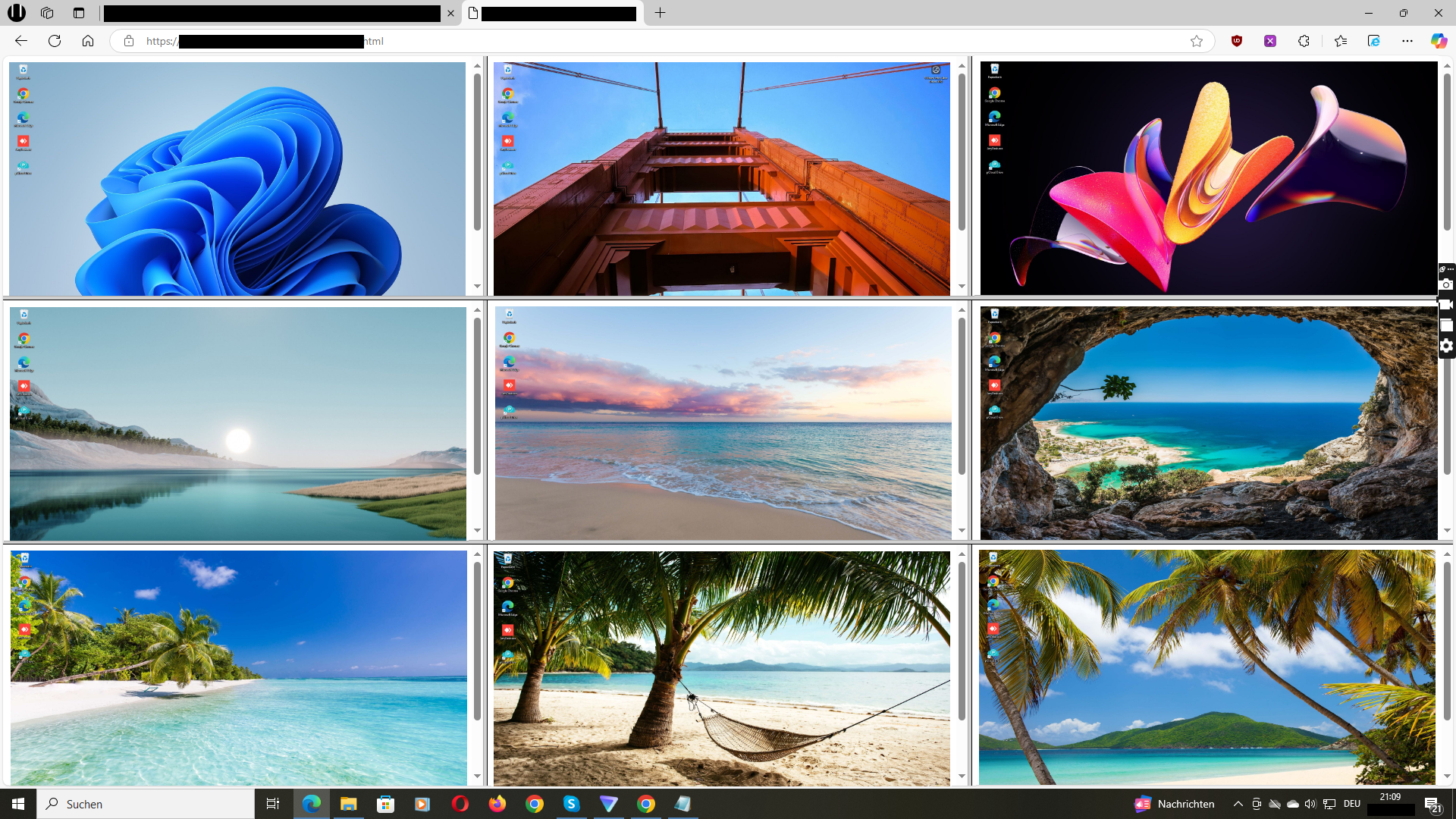
Wolfeye new hires monitoring example
Example: live screen visibility in your browser (onboarding)

Why teams use Wolfeye for probation periods

Instantly verify onboarding progress

See live whether new hires follow the right steps in CRM/ERP/ticketing—without starting remote desktop.

Train without disrupting work

Mentors quickly spot where someone is stuck and help precisely—no guessing.

Optional screenshot history for review

When needed, review what happened (e.g., before a coaching conversation).

Book Live Demo

Typical use cases (onboarding / probation)

  • First 30 days: verify workflow and tool usage (CRM/helpdesk/back office).
  • Quality: spot script/process deviations early.
  • Coaching: detect problems early and correct fast.
  • Remote onboarding: home office and office in one dashboard.
  • Risk reduction: suspicious patterns (unexpected tools/uploads) become visible earlier.
Book Live Demo
Wolfeye dashboard grid view

3-step technical setup – ready in minutes

Prepare antivirus: Add an exception for C:\Users\Public\Documents.

Install & activate: Run setup → in the control window: Share ScreenEmail URL (optional Stealth Mode).

View live: Open the email link in your browser. Repeat for additional PCs—then everything appears in the dashboard.

Full walkthrough: Quickstart

Book Live Demo
Book Live Demo →

Video: probation period – monitor new hires more closely in the first 30 days

See how Wolfeye is used to support new hires during probation: watch live, help fast, and optionally review history.

Video: New hires & probation (Wolfeye)

FAQ (New hires / probation)

Will Wolfeye slow down PCs?

No.

Does it work for remote / home office?

Yes. Live view works over the internet.

How fast is the setup?

Often minutes: run installer, click Share Screen + Email URL, open link in the browser. Quickstart.

Can I watch multiple PCs at once?

Yes. Install Wolfeye on each PC and they will appear in your dashboard (grid view).

Is screenshot history enabled by default?

No. History is optional. Live view shows current screenshots continuously; history can be enabled as an additional option.

More guides in the blog →

Book Live Demo →
Wolfeye is monitoring software. Use is subject to local laws, contracts and internal policies. We do not provide legal advice.
Chat with me on WhatsApp