How to Investigate Suspicious Activity on a Company PC
A practical “triage → timeline → decision” playbook for SMBs and MSPs using live view + optional screenshot history — so you can verify what actually happened on a specific company computer (without guessing).
Key takeaways (read this first)
- Don’t guess: use a short live check to confirm what is on-screen now.
- Reconstruct time: if history is enabled, use timestamps to rebuild the sequence of actions.
- Most “suspicious” cases are not malicious: workflow friction and missing training are common root causes.
- Document minimally: capture only what you need for the incident process.
- Restrict access: treat the dashboard like an admin panel (least privilege, strong passwords).
This is a technical playbook. Legal admissibility varies by country and use case — always clarify with qualified counsel.
On this page
- 1) What counts as “suspicious” (signals + scope)
- 2) Live view triage: what to check in 2–5 minutes
- 3) Screenshot history: how to rebuild a timeline (if enabled)
- 4) Incident timeline worksheet (copy/paste)
- 5) Decision paths: benign vs. training vs. security escalation
- 6) MSP workflow: how to run investigations safely for clients
- 7) Video walkthrough
- FAQ
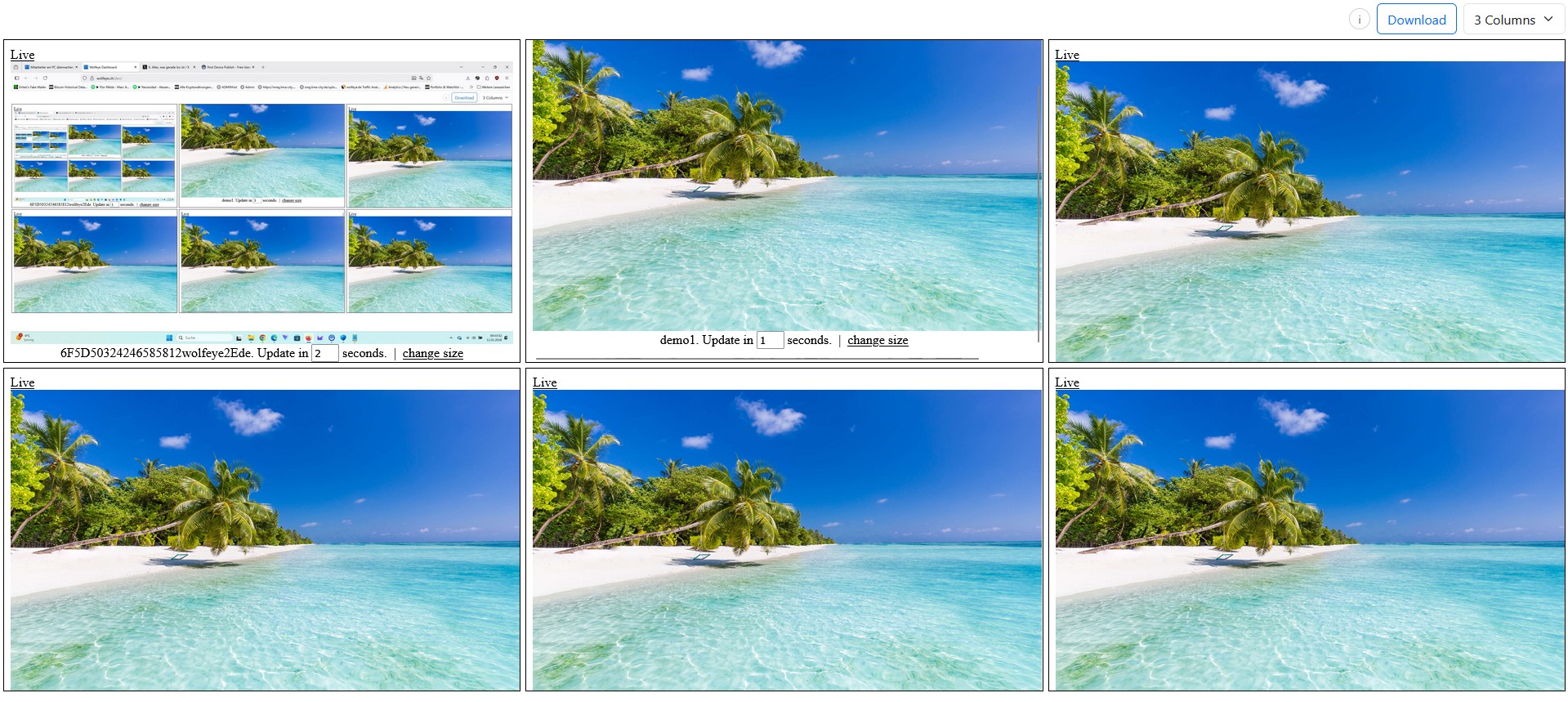
Use the live grid as a radar, then zoom into one PC to investigate details.
Sometimes something simply doesn’t add up: an employee’s results do not match claimed working hours, a customer reports slow responses while the agent claims they were “working the whole time”, or you spot unusual behavior on one specific workstation. In those moments, you don’t want to guess. You want a clear technical way to answer two questions:
(1) What is happening right now? (live view)
(2) What happened earlier? (screenshot history, if enabled)
This article turns that into a simple workflow you can repeat: a short live check (triage), then a time-based reconstruction (timeline), then a decision based on evidence. It’s designed for SMB owners and IT service providers/MSPs who support company-controlled Windows PCs.
Compliance & legal disclaimer (no legal advice): Monitoring software may only be used if it is lawful in your country and lawful for your specific use case (for example training supervision, quality assurance, or security). In many jurisdictions, users must be informed and/or explicit consent is required. This article is technical information only. Before deployment or any investigation, obtain independent legal advice in all relevant countries and implement appropriate policies, transparency steps, and access controls.
1) What counts as “suspicious” (signals + scope)
In real operations, “suspicious activity” usually starts as a signal — not proof. The goal is to validate context quickly and avoid overreaction.
1.1 Common signals in SMB environments
- Output mismatch: hours claimed vs. little visible progress.
- Customer complaints: slow replies, quality issues, missed steps.
- Unusual workstation behavior: popups, unexpected tools, repeated errors, sudden “busy” behavior.
- Security trigger: an EDR/AV alert, suspicious email, or an internal report.
1.2 Define scope before you look
Even technically, investigations go wrong when scope is unclear. Define these four items first:
- Which PC(s): one specific company-controlled Windows PC (start narrow).
- Which time window: “last 30 minutes” or “yesterday 14:00–16:00”.
- Which purpose: training/QA/security workflow (document internally).
- Who may view: restrict dashboard access to authorised roles only.
Rule that prevents chaos
Live view = triage (short, targeted). History = timeline (only if you truly need it). Don’t turn monitoring into permanent watching.
2) Live view triage: what to check in 2–5 minutes
Live view answers the “what is happening right now?” question. In Wolfeye, live view typically updates as periodic screenshots (often around every 2–3 seconds, depending on setup). The purpose is fast clarity, not endless observation.
2.1 Start with the grid (radar), then zoom
- Open the dashboard grid: scan for obvious anomalies (frozen screen, repeated dialogs, unexpected windows).
- Identify the target PC: open it in a larger view (single-screen tab) for details.
- Confirm context: what website/app/window is open right now?
2.2 What to look for on-screen (practical checklist)
- Websites: personal email, file sharing, cloud drives, shopping, streaming, social feeds (context matters).
- Programs: unapproved remote tools, unknown installers, “portable” apps, unusual admin consoles.
- Windows & dialogs: repeated credential prompts, security warnings, error loops, “access denied” patterns.
- Data movement signals: bulk exports, mass copy/rename, archives/compressed folders, repeated uploads.
2.3 Fast triage questions (write down answers)
- Is this likely legitimate work for that role?
- Is the person stuck (training/support issue) or actively doing something risky?
- Does this need immediate containment (security escalation), or a calm follow-up?
Do not turn triage into a “debate”
Live view gives technical context. If you need organisational or HR action, follow your internal process. Keep notes factual (“what was on screen”), not interpretive (“what they intended”).

Grid view helps you scan many screens quickly, then focus on one PC for investigation.
3) Screenshot history: how to rebuild a timeline (if enabled)
Live view alone can’t answer “what happened earlier?” That’s where screenshot history becomes useful — but only if you enabled it and only for PCs where you actually need a timeline.
3.1 Important technical concept: live ≠ stored history
In a typical screenshot-based live setup, a current screenshot is sent to the server so it can be shown in the dashboard. The previous screenshot is overwritten by the new one. That means: without history enabled, you do not have a timeline — you only see “now”.
3.2 Enable history intentionally (interval choice)
History is commonly disabled by default. If you choose to enable it, you typically select an interval (for example every 1, 5, or 10 minutes). Operational guidance:
- 1 minute: higher detail for short incidents; more data to review.
- 5 minutes: a practical default for many SMB investigations.
- 10 minutes: lighter storage, good for broad patterns (less detail).
3.3 How to reconstruct what happened (step-by-step)
- Pick the time window: define start/end (“yesterday 14:00–16:00”).
- Scroll by timestamps: note what app/site/window appears at each step.
- Mark transitions: “CRM export started”, “upload page opened”, “unknown installer ran”.
- Cross-check with internal signals: ticket times, customer complaint timestamps, EDR alerts.
Minimal data principle (operational, not legal)
Store and review only what you need for the defined purpose. Too much history creates noise and increases organisational risk. Keep scope small and purpose-based.
4) Incident timeline worksheet (copy/paste)
Teams get faster (and safer) when they use a consistent documentation format. Below is a simple worksheet you can copy into your ticket system or incident notes. Keep it factual and time-based.
Incident timeline worksheet
INCIDENT ID:
Reported by:
Date / Time (timezone):
Device (PC name):
User / role:
Trigger (what felt suspicious?):

SCOPE
- Time window to review:
- Live check performed at:
- Screenshot history enabled? (yes/no)
- History interval (if yes):

LIVE VIEW (NOW)
- What was on screen?
- Which website/app/window?
- Any obvious errors/warnings?
- Immediate risk indicators? (yes/no)

TIMELINE (PAST)
[Time]  [What is visible on screen]  [Notes]
14:05   CRM export page             Export started
14:10   File archive tool           Large folder compressed
14:15   Upload page / webmail       Destination visible
14:20   Returned to normal tools    Context unclear

DECISION
- Likely benign / workflow issue?
- Training/coaching needed?
- Security escalation needed?
Actions taken:
Next review time:
Owner:
Use your internal policies and legal advice to define who may document and access such notes.
4.1 What “good notes” look like
- Time-based: “14:15 upload page opened” is better than “looked suspicious”.
- Specific: website/app/window names (as seen).
- Linked to triggers: tie notes to the original signal (complaint/alert).

Single-screen live view: use it for detail during investigation, not for constant watching.
5) Decision paths: benign vs. training vs. security escalation
After triage and (if needed) timeline review, you usually end up in one of three buckets. This keeps investigations constructive and prevents “monitoring drama”.
5.1 Bucket A: benign / expected work
- Document the finding (“context confirmed”).
- Close the loop with the requester (manager/client).
- Consider a naming/role clarification if the workflow looked unusual but legitimate.
5.2 Bucket B: workflow friction or training gap (common)
- Identify the bottleneck: missing access, unclear SOP, slow tooling, repeated rework.
- Improve: update SOPs, run a short coaching session, fix tooling or permissions.
- Re-check after a week with a short live spot check (trigger-based, not constant).
5.3 Bucket C: security escalation (treat as an incident)
If you see strong indicators (unknown installers, mass exports to unapproved destinations, credential harvesting patterns, etc.), follow your internal incident process. Typical technical steps (examples, not exhaustive):
- Involve the right people: IT/security lead, MSP engineer, management.
- Containment: isolate the device if your process requires it.
- Credentials: rotate passwords / disable accounts as per policy.
- Preserve evidence appropriately: use your formal security tooling and incident documentation methods.
Note: HR/employment actions and legal admissibility are jurisdiction-specific. Obtain legal advice before taking steps that affect employment or privacy rights.
6) MSP workflow: how to run investigations safely for clients
For IT providers, “investigation capability” is valuable — but it must be governed. A clean MSP workflow reduces mistakes and builds trust.
6.1 MSP checklist (operational)
- Contract scope: confirm monitoring/investigation is contractually agreed for that client.
- Client roles: define who at the client may request a review and who may view results.
- Separation: keep client environments clearly separated (dashboards, naming, access).
- Trigger-based reviews: avoid “always-on watching”; use incident or QA triggers.
6.2 Position it as an outcome (not surveillance)
Clients buy outcomes: faster incident clarification, fewer blind spots, better training and QA. When you present it that way, it becomes easier to sell as a managed service — with clear boundaries, limited access, and a documented purpose.
MRR-friendly packaging idea
- Starter: setup + pilot + naming + access hardening.
- Operations: monthly check-in + QA/training playbook + dashboard hygiene.
- Security workflow: incident runbook integration + escalation support (client-led).
Always align scope and governance with the client’s legal advice and internal policies.
7) Video walkthrough: Investigate suspicious activity (Live View + History)
This video shows the exact workflow: open the live dashboard, zoom into one PC in a larger view, and (if enabled) use screenshot history to review earlier moments by date and time.
Reminder (no legal advice): Use monitoring software only if it is lawful in your country and for your specific use case. Where required, inform users and obtain consent. Always obtain independent legal advice before deployment.
Video: “How to Investigate Suspicious Activity on a Company PC - Live View + History”.
FAQ – Investigating suspicious activity with live view + history
No. In a typical Wolfeye setup, live view is based on periodic screenshot updates (often around every 2–3 seconds, depending on configuration).
No. History is usually optional and must be enabled intentionally. Choose an interval (e.g., 1/5/10 minutes) based on your purpose.
Use a trigger-based workflow: short live triage when there is a reason, and history only when you need a timeline.
Technically yes, as long as the company-controlled PC is connected and can reach the dashboard over the internet.
Only authorised roles. Treat it like an admin panel: least privilege, strong passwords, and clear purpose documentation.
Conclusion
When something feels off, the best outcome is not “more monitoring” — it’s faster clarity. A short live view triage confirms what is happening now. If you enabled it, screenshot history lets you rebuild a timeline and make decisions based on what actually appeared on-screen.
The repeatable model is simple: triage → timeline → decision. Keep scope narrow, document facts, restrict access, and integrate findings into your normal support/QA/security workflows.
Final reminder (no legal advice): Monitoring is only permissible if lawful in your country and for your specific use case. Where required, inform users and obtain consent. Always obtain independent legal advice before production use.
Want to test the workflow on your own company PCs?
Book a Demo & Start Your 14-Day Free TrialWolfeye is monitoring software. Any use must comply with the laws and regulations that apply in all relevant countries, your industry and your specific use case (for example training supervision, quality assurance or security). In many jurisdictions, permissibility depends on factors such as prior information of users and consent requirements. This article and the embedded video are for general technical and organisational information only and do not constitute legal advice or a guarantee of legal admissibility.