Wolfeye 2026 Update: Monitor Office & Remote Screens in One Live Grid
A practical playbook for SMB owners and IT service providers: how to run a live grid as a “radar”, when to zoom into full screen, and how to scale from 10 to 100+ PCs without turning your monitoring into chaos.
Key takeaways (read this first)
- Grid = radar: scan many screens quickly to spot issues early.
- Full screen = investigation: open one PC only when needed.
- 2 vs 3 columns: choose layout based on role and workflow (matrix below).
- Scale with structure: use naming standards and multiple dashboards (departments/clients).
- Access matters: treat the dashboard like an admin panel (least privilege, strong passwords).
This article is a practical operations guide. Legal admissibility varies by country and use case — always clarify with qualified counsel.
On this page
- 1) Why a live grid matters (radar vs zoom)
- 2) What’s new in the 2026 grid update
- 3) Deployment walkthrough (5–10 minute pilot)
- 4) Operating the grid daily (playbook + roles)
- 5) Secure access checklist (technical + organisational)
- 6) MSP packaging ideas (MRR-friendly, practical)
- 7) Video walkthrough
- FAQ
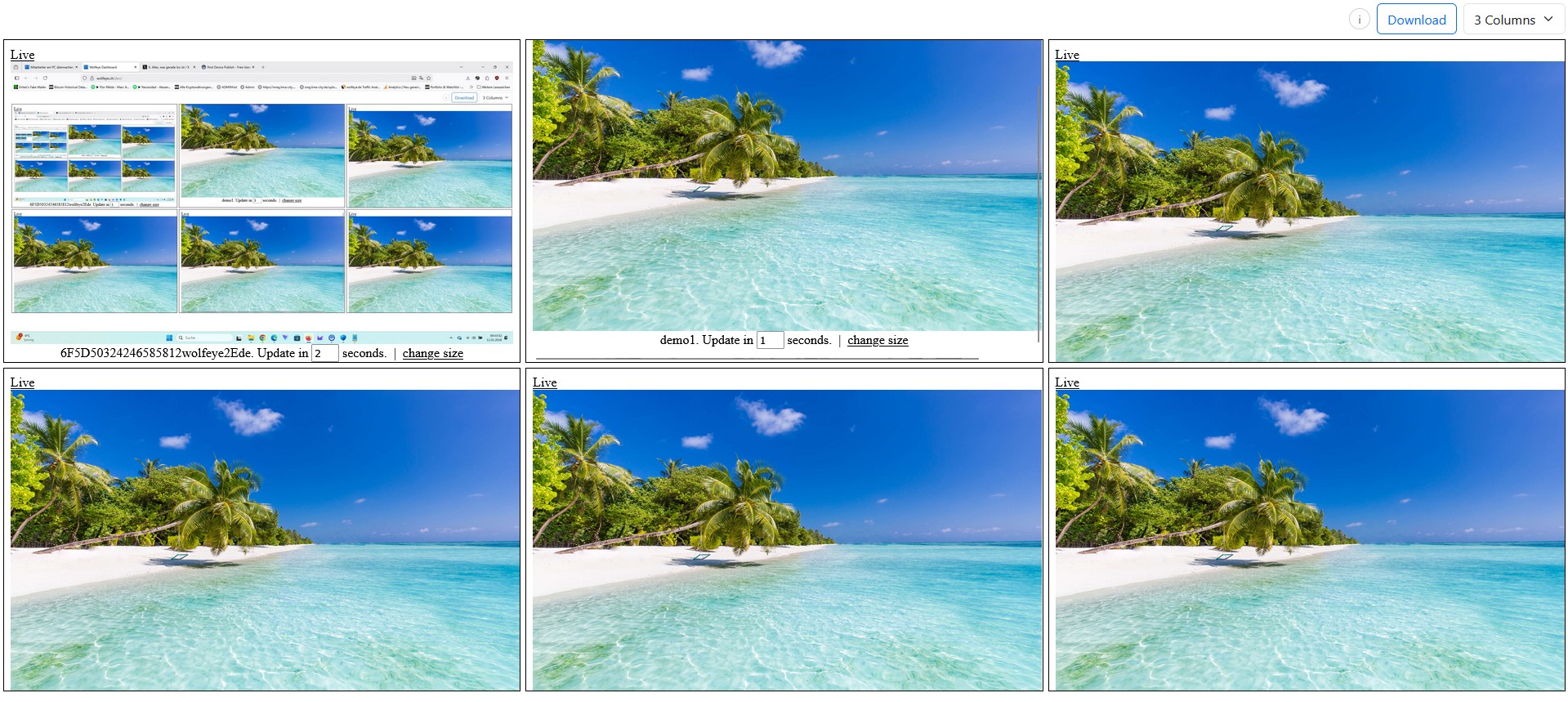
The 2026 live grid: a practical radar view for office and remote company PCs.
Hybrid operations (office PCs + remote laptops) create a simple day-to-day problem: when something goes wrong, teams lose time because nobody has a fast overview. The Wolfeye 2026 dashboard update focuses on exactly that: a live grid where office and remote company-controlled PCs are visible side by side, with quick zoom into full-screen live view when needed.
The goal of this article is not “watching more”. The goal is faster support, smoother training, and clearer operations — with the right access controls and internal rules.
Compliance & legal disclaimer (no legal advice): Monitoring software may only be used if it is lawful in your country and lawful for your specific use case (for example training supervision, quality assurance, or security). In many jurisdictions, users must be informed and/or explicit consent is required. This article is technical information only. Before deployment, obtain independent legal advice in all relevant countries and implement appropriate policies, transparency steps, and access controls.
1) Why a “live grid” matters (and how to use it correctly)
Most teams don’t need complicated analytics to get value from screen visibility. They need speed. The live grid is a control-room overview that helps you answer operational questions fast:
- Support: is a workstation stuck on an error dialog?
- Training: is a new hire lost in an ERP/CRM workflow?
- Operations: are critical stations running normally during peak hours?
- Security workflow: does a screen show patterns that require escalation?
1.1 Radar vs Zoom (the model that avoids overload)
The most important rule is: don’t treat the grid like permanent viewing. Treat it like a radar:
- Radar: scan the grid for anomalies (frozen screens, repeated popups, workflow bottlenecks).
- Zoom: open one PC in full-screen live view only when needed.
- Act: resolve a ticket, coach the user, or escalate a security process.
1.2 Layout decision matrix: 2-column vs 3-column
| Role / situation | Best layout | Reason |
|---|---|---|
| Supervisor scanning many screens | 3 columns | More tiles visible for quick anomaly detection |
| Owner / IT admin doing deeper checks | 2 columns | Bigger tiles, less “open full screen” needed |
| Training a new hire live | 2 columns + full screen | Readability matters more than many tiles |
| Busy period “control room” mode | 3 columns | Wider overview of the floor |
2) What’s new in the 2026 dashboard update (and why it helps)
This update focuses on faster day-to-day usage: better overview, simple layout switching, and a clearer path to scale with structure.
2.1 One grid for office + remote PCs
The live grid is designed for hybrid environments: office workstations and remote laptops appear in one place, so the workflow is consistent for supervisors and IT providers.
2.2 Live updates via periodic screenshots
“Live” in Wolfeye is typically implemented as periodic screenshot updates (often around every 2–3 seconds, depending on setup). This approach can be lighter than continuous high-FPS streaming in many environments, especially when scaling beyond a handful of PCs.
2.3 Quick investigation: full-screen live view
When a tile looks unusual, open that PC in full-screen live view. This is the “zoom” step: you get clarity without permanently staring at dozens of screens.
2.4 Multi-dashboards: structure beats raw scale
If you monitor many PCs, you need structure. Many teams use multiple dashboards (for example departments, sites, or separate client environments for MSP work). This prevents the “50 tiles of chaos” problem.

Example: multiple company PCs in a live grid. Use the grid as a radar and zoom in only when needed.
3) Deployment walkthrough (and the 10-minute pilot you should always do)
The fastest deployments are the ones that avoid surprises. The key is a short pilot on representative devices (office + remote, older + newer hardware).
10-minute pilot checklist (SMB + MSP)
- Pick 2–3 representative PCs: one office, one remote, one older device if you have it.
- Install and connect: verify the PCs appear in the live grid.
- Viewer workflow test: scan grid → open one PC full screen → return to grid.
- Endpoint sanity check: confirm no noticeable user lag and no security tool conflicts.
- Access rules: confirm only authorised roles can log in and view screens.
If the pilot is clean, scale in phases: 5 → 10 → 50+.
3.1 Antivirus / EDR preparation (before you blame “performance”)
In many organisations, the first deployment friction comes from endpoint security. If your setup requires it, add the relevant folder path to exclusions according to your internal policy and security vendor guidance. This reduces false positives and prevents the “it worked on one PC but not on another” situation.
3.2 Install, then activate live sharing
- Download and run the installer on the company-controlled Windows PC.
- Start Wolfeye and press Share Screen to begin live updates to the dashboard.
- Refresh the dashboard: the PC should appear as a live tile.
3.3 Background/stealth mode: keep it policy-safe
Some environments prefer a minimized/background operation so users are not distracted by a local window. Important: permissibility depends on country and use case and often requires transparency or consent. Use background/stealth features only where lawful and aligned with your internal policies and communication approach.
Copy-paste naming standard (prevents grid chaos)
[SITE]-[DEPT]-[ROLE]-[PC#]
NL-AMST-SUPPORT-07
DE-BER-FINANCE-02
US-AUS-OPS-RECEPTION-01
MSP tip: prefix client name: CLIENT-SITE-DEPT-PC#.
3.4 Common rollout mistakes (and quick fixes)
- Too many viewers watching too much: enforce “grid = radar” and restrict full-screen viewing to roles that need it.
- No naming structure: implement the naming standard above before you hit 20+ PCs.
- Security tooling conflicts: coordinate exclusions and policies with your IT/security provider.
- One giant dashboard for everything: split by department/site/client to stay readable.
4) Operating the live grid daily (playbook + roles)
The grid delivers the most value when it is attached to a routine. Below is a simple operating playbook used by many SMBs and MSPs.
4.1 Daily routine: radar → zoom → act
- Radar: scan during peak hours or training windows for obvious anomalies.
- Zoom: open one PC in full-screen live view to confirm what is happening.
- Act: create a ticket, coach the user, fix a process issue, or escalate to security workflow.
4.2 Practical role model (least privilege)
| Role | Typical permissions | Typical purpose |
|---|---|---|
| Supervisor / Team lead | Grid view, limited full-screen | Peak-hour overview, QA checks, training supervision |
| IT lead / MSP engineer | Grid + full-screen investigation | Incident clarification, troubleshooting, escalation support |
| Owner / Ops lead | Grid view for critical stations | Operational continuity for business-critical workstations |
4.3 Where the live grid is especially useful
- Call centers: build a “screen wall” for supervisors during shifts.
- Onboarding: support new hires in their first 30 days without interrupting work.
- Distributed ops: see office and remote stations in one consistent view.
- Incident response: verify what is on-screen before escalation steps.

Zoom into any tile: open a full-screen live view for investigation or training support.
5) Secure access checklist (technical + organisational)
A live screen dashboard is sensitive by nature. Treat it like an admin panel: strong credentials, least privilege, and clean role assignment.
5.1 Technical access basics
- Encrypted transport: use HTTPS/TLS for transmission.
- Login protection: ensure only authorised roles have credentials.
- Strong passwords: unique, long passwords stored in a password manager.
5.2 Organisational controls that prevent misuse
- Least privilege: not everyone needs full-screen investigation access.
- Purpose clarity: define why you use the grid (training, QA, security workflow).
- Transparency steps: where required, inform users and follow internal policies.
- Offboarding: remove access immediately when roles change.
MSP note: clean separation per client
If you support multiple clients, keep separation clean: separate dashboards, clear naming, documented authorised roles, and a predictable escalation workflow. This reduces mistakes and increases trust.
6) MSP packaging ideas (MRR-friendly and practical)
If you are an IT service provider, screen visibility is often easiest to sell when you package it as an operational outcome: fewer support calls, smoother onboarding, faster incident clarification — under the client’s policies and local laws.
6.1 Simple service tiers (example)
- Starter: setup + naming standard + 10-minute pilot + basic dashboard structure.
- Operations: weekly review routine, supervisor playbook, department dashboards.
- Security workflow: escalation runbook, access hardening, incident documentation workflow.
6.2 Implementation sequence that reduces churn
- Agree the purpose: training/QA/security workflow (client decision).
- Run a pilot: 2–3 representative PCs and verify stability.
- Roll out in phases: expand to 10, then 50+.
- Train roles: “radar vs zoom” + access discipline.
- Review monthly: rename mislabelled PCs, split dashboards as teams grow.
Compliance note (no legal advice): MSPs should encourage clients to obtain legal advice and to implement internal policies and transparency steps suitable for their jurisdiction and use case.
7) Video walkthrough: The new 2026 dashboard in action
This video demonstrates the updated live grid, layout switching, full-screen live view, and the practical setup flow.
Reminder (no legal advice): Use monitoring software only if it is lawful in your country and for your specific use case (for example training supervision, QA, or security). Where required, inform users and obtain consent. Always obtain independent legal advice before deployment.
Video Demo: “New Wolfeye Update – Monitor All Office & Remote Screens in One Live Grid”.
FAQ – Wolfeye 2026 Live Grid
No. Wolfeye is typically based on periodic screenshot updates (often around every 2–3 seconds for live view, depending on setup).
Teams often start with 10–50 PCs. Larger environments usually scale by splitting into multiple dashboards (departments/sites/clients).
Yes, as long as the company-controlled PC has internet access and is connected to your dashboard.
The dashboard is designed to be accessible in a browser, including on mobile devices (depending on your setup and screen size).
Some setups can run minimized/in the background. Whether and how you may use such modes depends on local laws, policies, and transparency requirements. This is not legal advice.
Conclusion
The Wolfeye 2026 update makes the live grid more operational: clearer overview, flexible layouts, and an easier path to scale with structure. The most successful deployments follow one simple rule: grid as radar, full screen as zoom — with restricted access and a documented purpose.
Final reminder (no legal advice): Monitoring is only permissible if lawful in your country and for your specific use case. Where required, inform users and obtain consent. Always obtain independent legal advice before production use.
Ready to see your team in one live grid?
Book a Demo & Start Your 14-Day Free TrialWolfeye is monitoring software. Any use must comply with the laws and regulations that apply in all relevant countries, your industry and your specific use case (for example training supervision, quality assurance or security). In many jurisdictions, permissibility depends on factors such as prior information of users and consent requirements. This article and the embedded video are for general technical and organisational information only and do not constitute legal advice or a guarantee of legal admissibility.