Time Tracking vs Live Screen Monitoring
What’s the difference, what do you actually see, and which one fits your SMB (or your client) best? Includes a decision matrix + copy/paste checklist — technical guide only (no legal advice).
Key takeaways (read this first)
- Time tracking answers “how long” (per task/project/user). It’s great for billing, utilization and project control.
- Live screen monitoring answers “what’s happening” (right now) and helps with support, QA, onboarding and fast incident context.
- Screenshots inside time trackers are usually evidence-lite (interval, blurred, partial). Live view is evidence-rich for “now”.
- Best SMB setup is often hybrid: time tracking for structured reporting + live view for fast clarity when something feels off.
- To avoid “surveillance culture”: use trigger-based viewing, narrow scope, strict access control.
This is a technical decision guide. Legal admissibility varies by country and use case — always clarify with qualified counsel.
On this page
- 1) Definitions: what each tool measures
- 2) What you actually see: outputs & evidence quality
- 3) Decision matrix by SMB use case
- 4) The “hybrid stack”: how to combine both without complexity
- 5) MSP playbook: how to choose for clients + RFP checklist
- 6) 7-day pilot plan (copy/paste)
- Video walkthrough
- FAQ
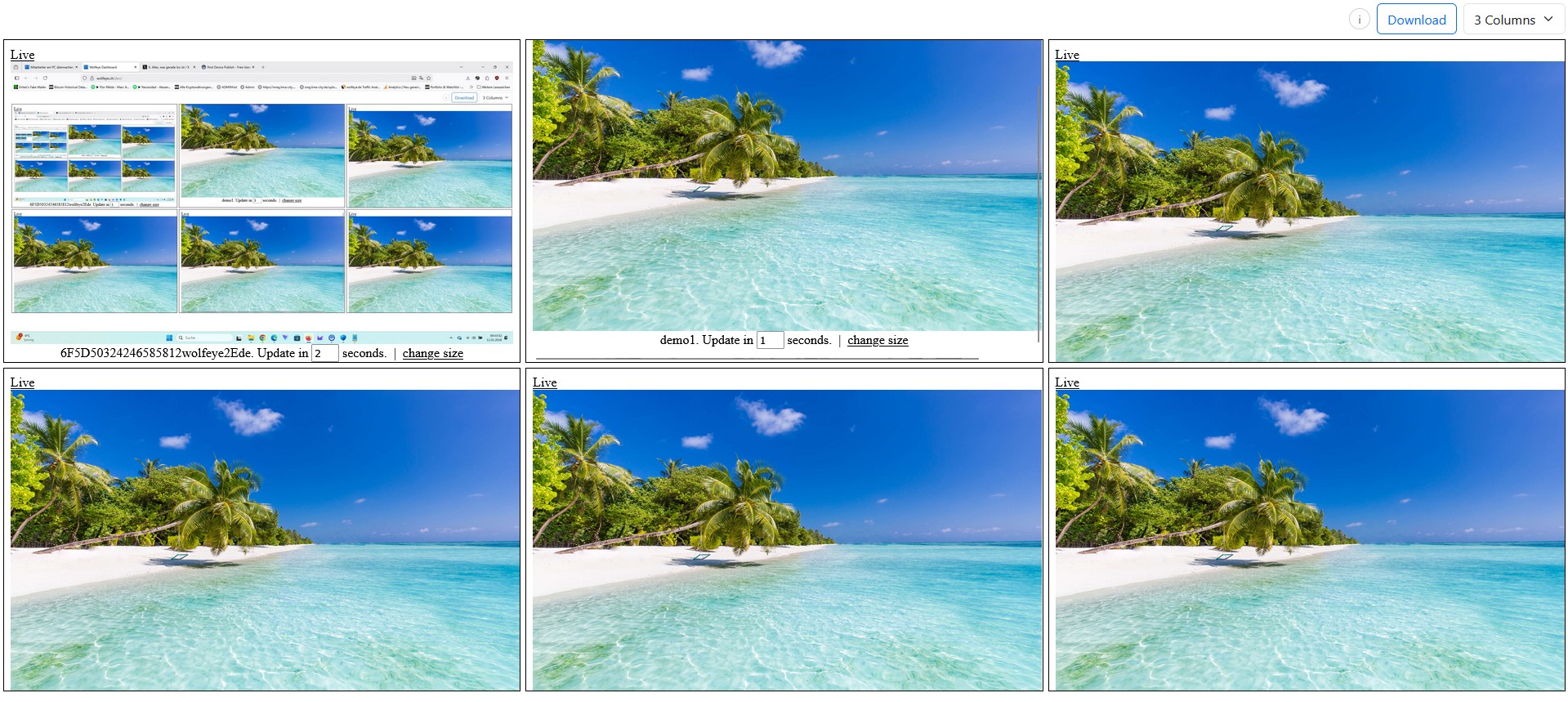
Live grid = “radar” for many PCs. Use it for fast operational clarity (support/QA/training) — not for constant watching.
Many SMBs start with a simple question: “Should we implement time tracking… or should we use live screen monitoring?”
The problem is that those two approaches often get mixed up online. In reality, they solve different problems and produce different evidence.
This article is written for SMB owners/managers and IT service providers/MSPs who support company-controlled Windows PCs. You will learn what each approach shows, where each approach fails, and how to make a clean decision without building a heavy monitoring stack.
Compliance & legal disclaimer (no legal advice): Monitoring and employee oversight are legally sensitive and depend on your country, your use case (e.g., training supervision, QA, security), contracts, and whether users must be informed and/or consent is required. This article is technical and operational information only. Before deployment, obtain independent legal advice in all relevant jurisdictions and implement appropriate policies, transparency steps, and access controls.
1) Definitions: what each tool measures
When teams argue about “time tracking vs monitoring”, they often compare apples to oranges. Here is the clean technical separation:
1.1 Time tracking (core concept)
- Primary metric: time spent (per task, project, client or user).
- Typical output: timesheets, utilization reports, project budgets, invoices, payroll exports.
- Common workflow: user starts/stops timers, or software auto-detects activity and maps time to categories.
1.2 Live screen monitoring (core concept)
- Primary signal: what is visible on screen (now), often via frequent screenshot updates.
- Typical output: a live dashboard (grid view) + optional screenshot history (if enabled).
- Common workflow: a supervisor/owner views selected company PCs to support training, QA, remote support or incident context.
One-line summary
Time tracking = accounting & planning. Live screen monitoring = operational visibility. They overlap a bit, but they are not the same tool.
2) What you actually see: outputs & evidence quality
This section is the practical part most buyers miss: what do you really get on screen as an admin?
2.1 Time tracking: what you get
- Timesheet data: “8 hours on Project A”, “2.5 hours meeting time”.
- Activity summaries: app/website categories, “productive vs unproductive” labels (depends on tool).
- Proof elements (optional): periodic screenshots, URL logs, idle time indicators (varies by vendor and configuration).
Evidence limitation: Most time trackers do not show “what is happening now” with clarity. Even if screenshots exist, they are usually interval-based (e.g., every 5–10 minutes), can be blurred, partial, or not meaningful without context.
2.2 Live screen monitoring: what you get
- Live context: which app/window/site is open right now.
- Grid overview: scan many PCs quickly (“who is stuck?”, “which screen looks odd?”).
- Optional history: if you enabled it, you can review a timeline in defined intervals.
Evidence advantage: Live view is the fastest way to answer: “Is this person working on the expected thing right now?” It also helps with onboarding and quality monitoring because you can immediately see where someone is stuck.
2.3 A realistic comparison table
| Question you want answered | Time Tracking | Live Screen Monitoring |
|---|---|---|
| How many hours did we spend on Project X? | Best (built for this) | Not designed for it |
| What is happening on this PC right now? | Weak/indirect | Best (live context) |
| Are people stuck due to missing access/tools? | Indirect | Strong (you see errors/dialogs) |
| Evidence for a quick QA review (call center, support) | Sometimes (screenshots) | Strong (live + optional history) |
| Billing & invoicing workflow | Strong | Not a billing tool |
| Fast incident context (suspicious behavior) | Sometimes (logs/alerts) | Strong (visual confirmation) |
Operational warning
Both approaches can be misused. The safest operational pattern is: define purpose, limit scope, restrict access, and use trigger-based checks instead of constant surveillance (and always follow your legal advice).

Grid view helps supervisors and IT providers scan multiple PCs quickly and focus where needed.
3) Decision matrix by SMB use case
Below is a practical decision matrix. Use it as a buyer (SMB) or as a provider (MSP) to avoid “tool shopping chaos”.
3.1 Choose time tracking first when your core goal is…
- Client billing / invoices: agencies, consultants, dev shops.
- Project control: budgets, burn rate, utilization, capacity planning.
- Payroll workflows: where your process requires hour-based exports.
3.2 Choose live screen monitoring first when your core goal is…
- Operational visibility: remote/hybrid teams where managers lack day-to-day context.
- Onboarding & training: seeing exactly where a new hire is stuck.
- Quality assurance: call centers, support teams, repetitive workflows.
- Fast incident context: “something feels off” → quick visual confirmation.
3.3 The “SMB truth”: many teams need both — but not at full depth
In many SMBs, the winning model is:
- Time tracking for structured reporting (hours, projects, invoices).
- Live screen monitoring for fast clarity in specific moments (support/QA/training/incident triggers).
Template: simple “purpose statement” (copy/paste)
PURPOSE (choose 1–2, keep it narrow):
[ ] Billing & project control (time tracking)
[ ] Training & onboarding support (live view)
[ ] Quality assurance checks (live view / optional history)
[ ] Incident clarification (trigger-based live checks)

SCOPE:
- Devices: company-controlled Windows PCs only
- Roles allowed to view: ____
- Trigger rule (when we check): ____
- Retention (if history enabled): ____ (define with legal/policy guidance)
Operational template only. Define legality, transparency and consent rules with qualified counsel.
4) The “hybrid stack”: how to combine both without complexity
The biggest mistake is building a heavy stack that nobody maintains. Here is a lean hybrid setup that works for many SMBs:
4.1 Minimal hybrid setup (recommended starting point)
- Time tracking: one tool for time → project/client mapping.
- Live visibility: a live dashboard for selected PCs (teams with low visibility or high risk).
- Optional history: enable only where needed (QA, incidents, specific workflows).
4.2 Where live monitoring replaces remote desktop (in many SMB scenarios)
Many managers use remote desktop tools when they actually just want visibility. But remote desktop often means:
- you “take over” or disturb the user,
- you need VPN/infrastructure in some environments,
- you can’t easily see 10–50 PCs in one overview.
Live screen monitoring is often the lighter alternative when the goal is view-only clarity for support/QA/training.
4.3 Data minimisation (operational)
Even if your tool can collect more, SMBs usually win by collecting less:
- Use live checks for immediate questions.
- Enable history only where it has a clear purpose.
- Keep access restricted (least privilege, strong credentials).

Single-screen view: best for detail during training, QA or incident clarification — not for constant watching.
5) MSP playbook: how to choose for clients + RFP checklist
For IT providers/MSPs, the buyer’s “time tracking vs monitoring” question is also a packaging opportunity. Many clients do not want 10 dashboards — they want outcomes: clarity, QA, faster support, fewer blind spots.
5.1 The right discovery questions (MSP)
- Is the main pain billing/time accounting or operational visibility?
- Is this about training/QA or project cost control?
- Which teams/devices are in scope (start small)?
- Who is allowed to view (client roles, MSP roles)?
- Do they need now (live) or later (reports)?
5.2 Copy/paste RFP checklist (requirements)
Requirements checklist (copy/paste)
RFP / REQUIREMENTS — SMB VISIBILITY

GOALS (pick max 2)
[ ] Billing/time accounting
[ ] QA/training visibility
[ ] Remote team oversight (operational)
[ ] Incident clarification / security context

TECHNICAL
[ ] Works on company-controlled Windows PCs
[ ] View-only option (no remote control required)
[ ] Central dashboard (grid view for many PCs)
[ ] Optional screenshot history with interval & deletion
[ ] HTTPS/TLS in transit
[ ] Strong auth / access control (least privilege)
[ ] Simple rollout (silent install / central deployment)

OPERATIONS
[ ] Trigger-based workflow (not constant watching)
[ ] Clear roles: who can view what
[ ] Documentation: purpose + scope per device group
[ ] Retention defined (if history enabled)

COMPLIANCE (handled by client/legal counsel)
[ ] Confirm lawful basis per country/use case
[ ] Employee/user information & consent rules clarified
[ ] Internal policy/works council steps (if applicable)
This checklist is operational. Legal and HR requirements must be clarified by qualified counsel in each relevant country.
5.3 MSP packaging idea (MRR-friendly)
- Pilot package: install on 10–25 PCs + naming + access hardening + 1-week workflow training.
- Operations package: monthly QA/support visibility review + dashboard hygiene + onboarding playbook.
- Incident support add-on: trigger-based investigations + documentation template integration.
6) 7-day pilot plan (copy/paste)
If you want results fast, do not start with 200 PCs. Start with a 7-day pilot on a small device group and a clear purpose.
7-day pilot plan
DAY 0 (PREP)
- Define purpose (max 2): training / QA / incident clarity / billing
- Define scope: 10–25 company-controlled Windows PCs
- Define who may view: roles + access rules
- Confirm legal/policy steps with counsel (country-specific)

DAY 1 (SETUP)
- Install tools (time tracking and/or live view)
- Name devices consistently (team-role-location)
- Validate that live dashboard works from office + remote

DAY 2–3 (WORKFLOW)
- Establish trigger rule (when checks happen)
- Train supervisors on “triage → action” (keep it short)
- Document 3–5 real observations (facts only)

DAY 4–5 (IMPROVE)
- Identify bottlenecks: access issues, slow tools, unclear SOP
- Run 1 training/coaching session based on what you saw

DAY 6 (REVIEW)
- What problems got solved?
- What should be disabled (too noisy)?
- Which devices truly need history (if any)?

DAY 7 (DECISION)
- Choose: time tracking only / live view only / hybrid
- Expand scope only if the workflow is stable
Use monitoring only where lawful. Always follow your country-specific legal advice and transparency obligations.
Video walkthrough: Time Tracking vs Live Screen Monitoring
This video explains the difference in a practical way and shows what you really see in a live dashboard compared to time-based reports.
Reminder (no legal advice): Use monitoring software only if it is lawful in your country and for your specific use case. Where required, inform users and obtain consent. Always obtain independent legal advice before deployment.
Video: “Time Tracking vs Live Screen Monitoring - What’s the Difference and What Do You Really See”.
FAQ – Time tracking vs live screen monitoring
No. Many solutions (including typical Wolfeye setups) use frequent screenshot updates rather than a single continuous video stream.
No. Wolfeye focuses on live screen visibility (and optional screenshot history). If you need billing/project timesheets, use a dedicated time tracking tool.
In most SMBs, no. Use a trigger-based workflow: short checks for onboarding, QA, support, or when something doesn’t add up.
Narrow scope, strict access control, defined purpose, and minimal retention — and always follow your country-specific legal advice.
Often yes: time tracking for structured reporting, live view for fast operational clarity. Keep both setups lean.
Conclusion
Time tracking and live screen monitoring are not “competing tools” — they answer different questions.
If you need billing, utilization, budgets, start with time tracking. If you need fast operational visibility (training, QA, support, incident context), live screen monitoring is often the simpler path. In many SMBs, the best answer is a lean hybrid: time reports for structure, live view for clarity.
Final reminder (no legal advice): Monitoring is legally sensitive and depends on your country and use case. Obtain independent legal advice and implement policies, transparency steps and access controls before any real deployment.
Want to see what live visibility looks like on your own company PCs?
Book a Demo & Start Your 14-Day Free TrialWolfeye is monitoring software. Any use must comply with the laws and regulations that apply in all relevant countries, your industry and your specific use case (for example training supervision, quality assurance or security). In many jurisdictions, permissibility depends on factors such as prior information of users and consent requirements. This article and the embedded video are for general technical and organisational information only and do not constitute legal advice or a guarantee of legal admissibility.