Employee Screen Monitoring Announcement (Copy/Paste)
A simple script + email template + team FAQ for SMB owners and IT providers/MSPs. Operational only (no legal advice).
Key takeaways (read this first)
- Lead with purpose: onboarding, QA, support, incident context — not “we don’t trust you”.
- Define boundaries: trigger-based checks, limited roles, minimal retention.
- Make it predictable: who can view, what is viewed, when checks happen.
- Separate visibility from control: live view is not remote takeover.
- Document the rules: a simple 1-page policy beats vague promises.
Operational kit only. Legal requirements vary by country — obtain independent legal advice.
On this page
- 1) The mindset: how not to blow up trust
- 2) Copy/paste meeting script (5–7 minutes)
- 3) Copy/paste email / Slack announcement
- 4) The “3 boundaries” that stop micromanagement
- 5) Employee FAQ (copy/paste)
- 6) Rollout checklist (SMB + MSP)
- 7) MSP section: how to position this to clients
- Video: Simple script for business owners
- Conclusion
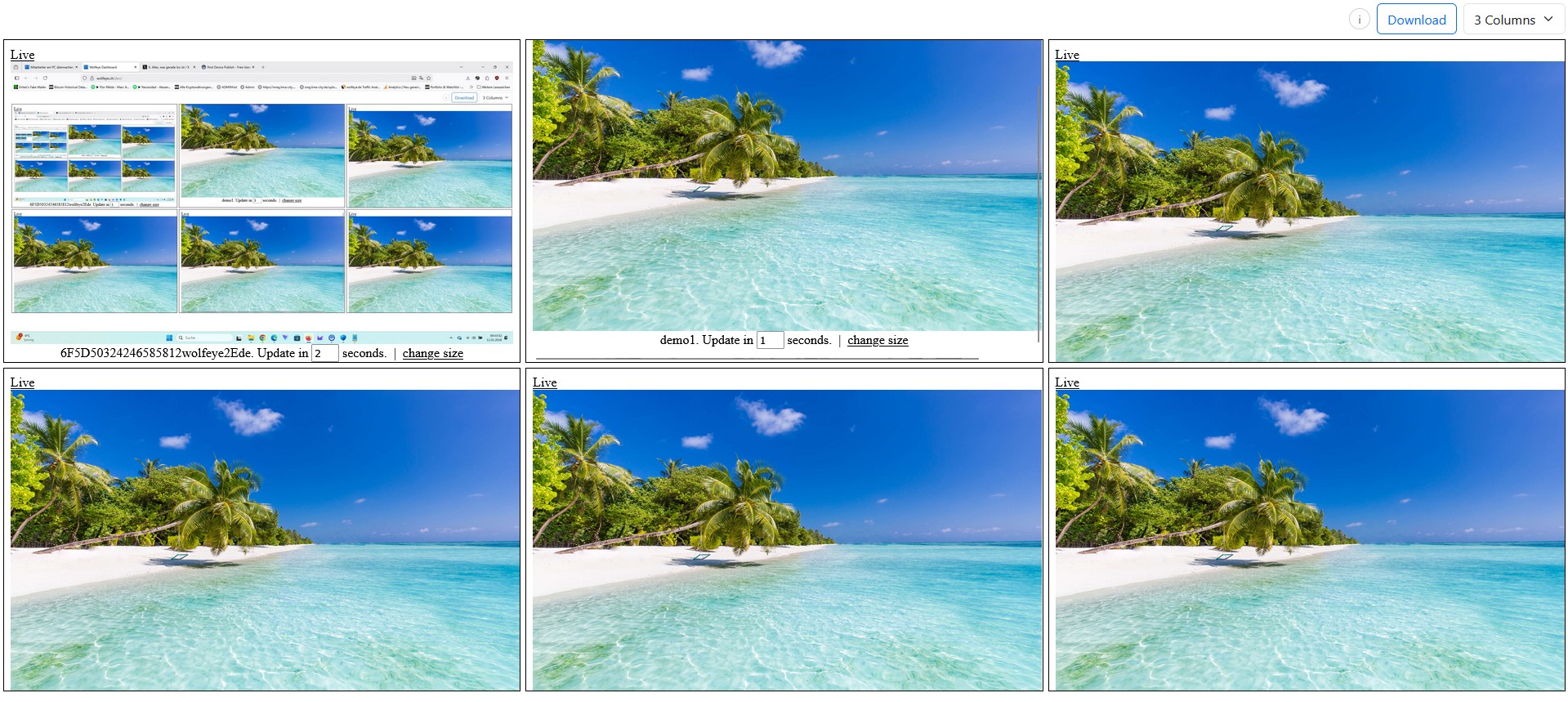
A live grid is an overview tool: scan many screens, zoom in only when needed.
If you roll out screen monitoring the wrong way, you don’t just risk pushback — you create a culture problem: fear, rumors, “gotcha” thinking, and managers watching too much.
If you roll it out the right way, it becomes what it should be in many SMB environments: an operational visibility tool for onboarding, quality assurance, support triage, and incident clarification — used with purpose and boundaries.
This post is a copy/paste communication kit to help you explain screen monitoring to your team in a calm, transparent way. It includes:
- a short meeting script (what to say out loud),
- an email/Slack announcement template,
- a practical employee FAQ,
- and a rollout checklist that prevents micromanagement.
1) The mindset: how not to blow up trust
Most employee resistance comes from uncertainty. People imagine the worst: “Someone is recording everything”, “they read my private messages”, “they’re watching me all day”. If you don’t address that fear directly, rumors fill the gap.
So your goal is simple: make monitoring predictable.
- Why: define 1–2 purposes (onboarding, QA, support triage, incident clarification).
- Who: define roles (owner, supervisor, helpdesk) and least privilege.
- When: define trigger-based checks (not constant watching).
- What: clarify it’s screen visibility (often screenshot-based) — not remote takeover.
One sentence that changes everything
“This is not a surveillance culture tool — it’s a support and quality tool with clear boundaries.”

The grid is built for fast scanning. Keep checks short and purpose-driven.
2) Copy/paste meeting script (5–7 minutes)
Use this script in a short team meeting. Keep it calm. Say the quiet part out loud: what you will not do.
Meeting script (copy/paste)
Hi everyone — quick update about a tool we’re rolling out on our company-controlled Windows PCs.

1) WHY we’re doing this
We’re not doing this because we “don’t trust people”.
We’re doing it for 1–2 operational reasons:
- faster onboarding/training (we can see where someone is stuck),
- quality assurance for repetitive workflows,
- faster support triage (less back-and-forth),
- and, in rare cases, clarifying incidents when something doesn’t add up.

2) WHAT the tool does (and doesn’t)
It shows screen visibility in near real-time (often via frequent screenshots).
It is NOT a remote-control tool — we are not “taking over” your PC.
We are not trying to build a micromanagement culture.

3) WHEN checks happen (boundaries)
We will use it trigger-based:
- during onboarding/training sessions,
- for QA sampling at agreed times,
- for support triage when you request help,
- or when there is a specific operational/security reason.
We will not watch screens all day.

4) WHO can view
Access is restricted to specific roles (e.g., owner/supervisor/helpdesk),
and we apply least privilege (not everyone can see everything).

5) PRIVACY / POLICY note
Use of monitoring depends on local laws and policies.
We will follow the rules that apply to our country and use case,
and we’ll keep usage limited and documented.

Questions are welcome — especially about boundaries and access.
Operational template only. Legal requirements vary — obtain independent legal advice.
Tip: after the meeting, send the announcement email below so people have it in writing.

Single-screen view is for detail during training, QA, support triage or incident clarification — not constant watching.
3) Copy/paste email / Slack announcement
This template works as email or Slack/Teams post. Keep it short and specific.
Email/Slack template (copy/paste)
Subject: New operational visibility tool (training / QA / support)

Hi team,

We are rolling out a screen visibility tool on our company-controlled Windows PCs.

Purpose (what it’s for):
- onboarding & training (helping new hires faster),
- QA for repetitive workflows,
- support triage (fewer “what do you see on your screen?” loops),
- rare incident clarification when something doesn’t add up.

Boundaries (what it’s NOT):
- Not for “watching all day”.
- Not for building a micromanagement culture.
- Not a remote-control / takeover tool.

How it will be used:
- Trigger-based checks only (training sessions, QA sampling, support requests, specific incidents).
- Access is limited to defined roles, with least privilege.

Legal/policy note:
Monitoring rules depend on country and use case. We will follow all applicable requirements and keep usage purpose-driven. If you have concerns, please raise them — boundaries matter.

Thank you,
[Name / Role]
Operational template only. Adjust to your internal policy and local legal requirements.
4) The “3 boundaries” that stop micromanagement
If you implement just three boundaries, your rollout goes from “creepy” to “professional”.
Boundary #1: Trigger-based checks
Define when checks happen. Examples: onboarding session, QA sampling window, support ticket request, incident review. Avoid “always on, always watching”.
Boundary #2: Least privilege access
Define who can view. In most SMBs, that’s a small set of roles. In MSP setups, it must be restricted per client and per assignment.
Boundary #3: Minimal retention
If screenshot history exists, keep it off by default and enable only for a clear purpose with a minimal window. Many SMB deployments work perfectly with live view only.
Practical anti-micromanagement rule
Use live visibility like a short walk-by in an office: quick checks with a reason, not all-day surveillance.
5) Employee FAQ (copy/paste)
People want direct answers. Put this into your wiki or internal email. Keep it factual.
FAQ (copy/paste)
EMPLOYEE FAQ — SCREEN VISIBILITY TOOL

Q: Are you recording everything I do?
A: The tool provides screen visibility in near real-time. Whether any history is enabled depends on our configuration and policy. We keep usage purpose-driven and minimal.

Q: Will someone watch my screen all day?
A: No. We use trigger-based checks only (training, QA sampling, support requests, specific incidents). Constant watching is not the goal.

Q: Is this the same as remote control like TeamViewer?
A: No. Screen visibility is not remote takeover. It’s designed to see context without controlling your PC.

Q: Who can access the dashboard?
A: Access is limited to specific roles, with least privilege. Not everyone can see everything.

Q: What is the purpose?
A: Onboarding/training support, QA for repetitive workflows, faster support triage, and rare incident clarification.

Q: What about legality and privacy rules?
A: Monitoring requirements vary by country and use case. We will follow applicable rules and keep use documented and purpose-driven. If you have concerns, raise them.
Operational template only. Adjust to your country, policy, contracts and legal advice.
6) Rollout checklist (SMB + MSP)
Use this checklist before you deploy beyond a small pilot.
Rollout checklist (copy/paste)
ROLLOUT CHECKLIST — SCREEN VISIBILITY (SMB/MSP)

PURPOSE (keep it narrow)
[ ] Pick 1–2 purposes: onboarding / QA / support triage / incident clarification
[ ] Define success metric: faster onboarding, fewer support loops, fewer errors

SCOPE (pilot first)
[ ] Start with 3–10 company-controlled Windows PCs
[ ] Define teams/devices included (and excluded)

BOUNDARIES (stop micromanagement)
[ ] Trigger rule defined (when checks happen)
[ ] Usage windows defined (e.g., onboarding sessions, QA sampling)
[ ] Document “what we do NOT do” (no all-day watching)

ACCESS CONTROL
[ ] Named viewers/roles (owner/supervisor/helpdesk)
[ ] Least privilege: limit which PCs each role can view
[ ] Offboarding process: revoke access immediately

RETENTION (if history exists)
[ ] History OFF by default
[ ] If enabled: clear purpose + minimal retention window
[ ] Restrict history access to fewer people than live view

COMMUNICATION
[ ] Meeting script delivered
[ ] Email/Slack announcement sent
[ ] Employee FAQ published (internal)

LEGAL / POLICY NOTE
[ ] Country + use-case requirements reviewed with qualified counsel
[ ] Internal policy and transparency steps implemented (as required)
Operational checklist only. Obtain independent legal advice before deployment.
7) MSP section: how to position this to SMB clients
If you are an IT provider/MSP, your client doesn’t want “surveillance”. They want faster operations and less chaos.
- Position it as a managed visibility add-on: onboarding help, QA, faster support triage.
- Sell the boundaries: trigger-based checks, least privilege access, minimal retention.
- Client separation is critical: technicians only see assigned client environments.
- Make it a package: setup + naming standard + access roles + communication kit.
MSP one-liner (copy/paste)
“We deploy live screen visibility with strict boundaries — so your supervisors can coach and support faster, without building a micromanagement culture.”
Video: How to explain employee screen monitoring to your team (simple script)
This video walks through a simple way to explain screen monitoring to employees without creating fear — focusing on purpose and boundaries.
Reminder (no legal advice): Monitoring permissibility and requirements vary by country and use case. Inform users and obtain consent where required, and always obtain independent legal advice before deployment.
Video: “How to Explain Employee Screen Monitoring to Your Team (Simple Script for Business Owners)”.
Conclusion
A monitoring rollout succeeds or fails on communication. If you lead with “we don’t trust you”, you get resistance. If you lead with purpose + boundaries, you get clarity.
Keep it narrow (1–2 purposes), keep it predictable (who/when/what), and keep it professional (least privilege, minimal retention, documented rules).
Final reminder (no legal advice): Rules vary by country and use case. Always obtain independent legal advice and implement required policy/transparency steps before deployment.
Want to see what live screen visibility looks like on your own company-controlled Windows PCs?
Book a Demo & Start Your 14-Day Free TrialWolfeye is monitoring software. Any use must comply with the laws and regulations that apply in all relevant countries, your industry and your specific use case (for example training supervision, quality assurance or security). In many jurisdictions, permissibility depends on factors such as prior information of users and consent requirements. This article and the embedded video are for general operational information only and do not constitute legal advice or a guarantee of legal admissibility.