How Employee Screen Monitoring Works (Under the Hood)
Screenshot pipeline, HTTPS and practical access control — written for SMB owners and IT providers/MSPs. Technical only (no legal advice).
Key takeaways (read this first)
- “Live view” is often screenshot-based (updates every few seconds) — not continuous video.
- HTTPS protects data in transit (against interception), but you still need strong access control.
- Access is the real risk: treat the dashboard/URL like admin access (least privilege + rotation).
- Retention should be intentional: keep history off by default and define minimal windows if enabled.
- Use purpose-driven workflows: onboarding, QA, support triage, incident clarification — not all-day watching.
Technical guide only. Legal admissibility depends on country, industry and use case — always clarify with qualified counsel.
On this page
- 1) What you actually see in “live monitoring”
- 2) The screenshot pipeline (capture → compress → send → display)
- 3) HTTPS/TLS: what it protects (and what it doesn’t)
- 4) Access control patterns that keep it safe
- 5) Performance knobs: interval, compression, resolution
- 6) Copy/paste hardening checklist (SMB & MSP)
- 7) Vendor security questionnaire (copy/paste)
- 8) MSP model: multiple clients, least privilege, separation
- Video walkthrough
- FAQ
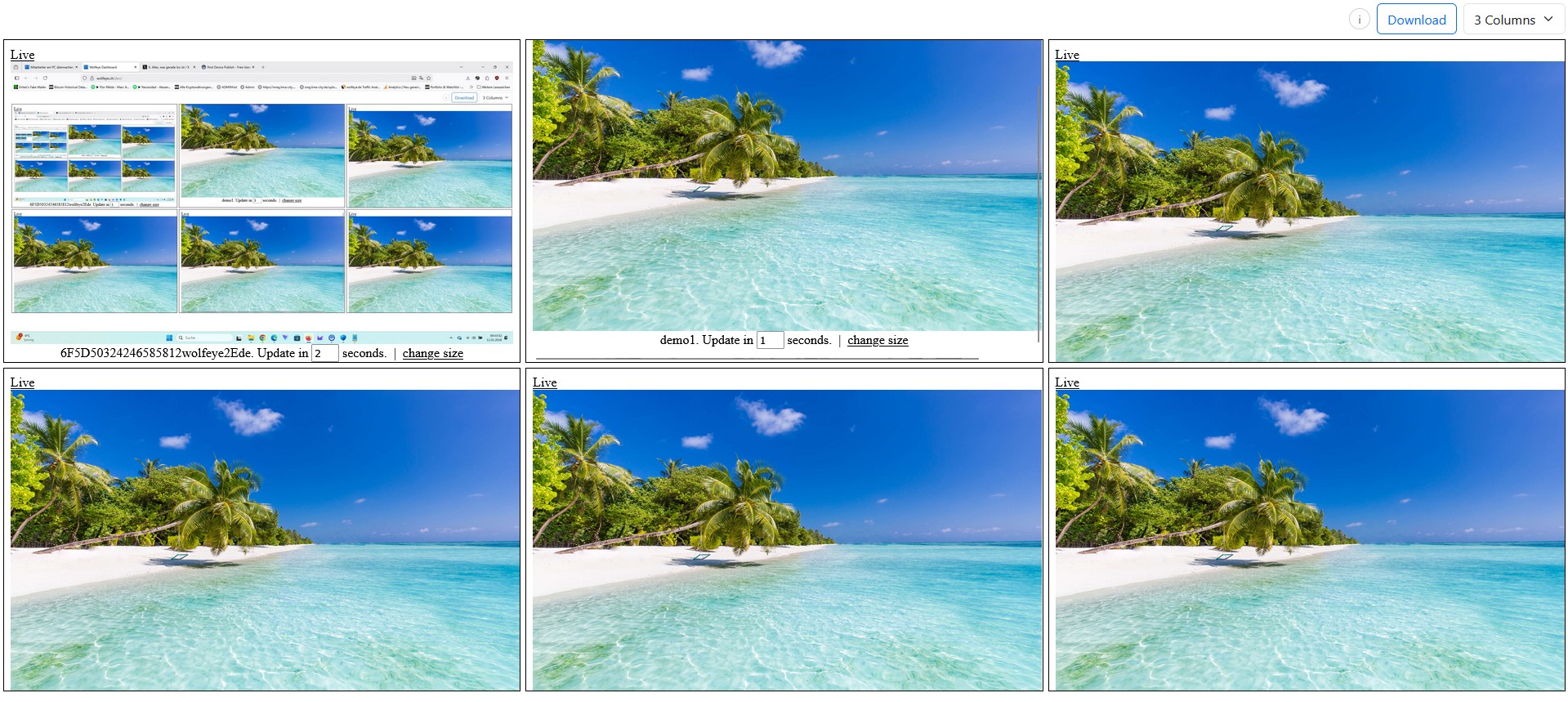
The “grid” is the fast overview: scan many screens, then drill down only when needed.
When people hear “employee screen monitoring”, they often imagine heavy video streaming or invasive spyware. In real SMB/MSP deployments, “live view” is usually much simpler: frequent screenshots + a secure dashboard that lets authorised roles see what’s on screen — quickly and with minimal disruption.
This article explains the technical data flow (capture → compress → transmit → display), what HTTPS/TLS actually protects, and the access-control patterns that keep live visibility safe in practice.
Important disclaimer (no legal advice): Monitoring is legally sensitive and depends on country, contracts, use case (training, QA, security triage), and whether users must be informed and/or consent is required. This article is technical and organisational information only. Use monitoring software only where lawful and appropriate, follow internal policy and transparency steps where required, and obtain independent legal advice in all relevant jurisdictions.
1) What you actually see in “live monitoring”
In most SMB tools, “live” means near real-time refresh, not a full-motion remote desktop stream.
- Grid view: many PCs at once, refreshed frequently so you can spot patterns quickly.
- Single-screen view: a larger view when you need detail (training, QA, incident clarification).
- Optional history: periodic snapshots stored for later review (only if intentionally enabled).
Rule of thumb
If you need to control a PC (mouse/keyboard takeover), use remote desktop tools. If you need to see what’s happening across many PCs quickly, use live screen visibility.

A monitoring dashboard is designed for “overview first” — visibility without taking control of PCs.
2) The screenshot pipeline (capture → compress → send → display)
The easiest way to understand technical “live view” is to follow the data path.
2.1 Capture
A small client on the Windows PC captures what is currently visible on the screen. This can include one or multiple monitors depending on configuration.
2.2 Compress (why this matters)
Raw screen data is huge. Most solutions compress each capture into an image format (commonly JPEG) so it becomes practical for frequent updates.
- Compression quality is a knob: higher quality = more readable text, more bandwidth.
- Resolution matters: 4K screens produce larger images than 1080p.
- Interval matters: every 2–3 seconds feels “live” but increases upload.
2.3 Transmit
The client sends the compressed screenshot to a server or dashboard endpoint. In many deployments, this is just HTTPS traffic (like a browser), which helps it traverse networks reliably.
2.4 Display
The admin dashboard loads the newest image for each PC and refreshes on a timer. That’s why screenshot-based monitoring can feel live while still being lightweight compared to video streaming.
Why screenshot-based “live” is popular in SMBs
It’s simple, scales well for a grid, and is often lighter than continuous video — while still giving you real operational context.

Drill-down view is for detail. Keep it purpose-driven: training, QA, support triage or incident clarification.
3) HTTPS/TLS: what it protects (and what it doesn’t)
“We use HTTPS” is a good sign — but it’s important to understand what that statement means.
3.1 What HTTPS protects
- Confidentiality in transit: data is encrypted between client and server (reduces interception risk).
- Integrity: reduces the risk of tampering while data travels over the network.
- Server authentication: certificates help clients verify they are talking to the intended server (not a fake endpoint).
3.2 What HTTPS does not solve
- Weak access control: if a link/password is shared, HTTPS won’t prevent misuse.
- Over-permissioned roles: too many people having access is an organisational risk.
- Retention & storage: if you store history, you must manage retention, deletion, and access hygiene.
Practical takeaway
HTTPS is necessary but not sufficient. Real safety comes from strong access control, least privilege, and intentional retention.
4) Access control patterns that keep it safe
Live screen visibility is powerful. Treat it like an admin system. These patterns reduce risk without adding complexity.
4.1 Account-based access (preferred for teams)
- Each viewer has their own login.
- Permissions can be granted per role (owner, supervisor, helpdesk, client admin).
- Access can be revoked cleanly when staff changes.
4.2 Link/URL-based access (use with discipline)
Some setups use “private URLs” to open a live view. If you do, treat the URL like a password:
- Never paste live URLs into uncontrolled chats or tickets.
- Rotate links on role changes or suspected exposure.
- Use additional protection where possible (password prompts, IP restrictions, .htaccess, MFA upstream).
4.3 Least privilege and scope control
- Limit who can view — and limit which PCs they can view.
- Use purpose-driven access: e.g., onboarding supervisors see new-hire PCs only.
- Separate visibility and control: view-only roles reduce risk.
4.4 Retention and history (optional, but sensitive)
History can help with QA and incident timelines — but it increases sensitivity. Keep it off by default, and if enabled:
- Define a minimal retention window (days, not months).
- Limit who can view history (often fewer than live viewers).
- Document purpose: QA sampling, incident review, training support.
5) Performance knobs: interval, compression, resolution
Performance is typically controlled by three knobs: update interval, compression, and screen resolution. The goal is simple: “live enough” for your workflow, without wasting bandwidth.
5.1 A simple bandwidth mental model
Bandwidth ≈ image size × images per minute. Reduce either image size (compression/resolution) or images per minute (interval).
5.2 Practical defaults for SMB pilots
| Workflow | Suggested live interval | Why |
|---|---|---|
| Grid scanning (many PCs) | ~3–5 seconds | Feels live, keeps bandwidth reasonable |
| Training / onboarding drill-down | ~2–3 seconds | More responsive for step-by-step guidance |
| Support triage | ~3–5 seconds | Enough to confirm context quickly |
| Optional history | 1–10 minutes (purpose-driven) | Timeline evidence without constant storage |
Pilot advice
Start with 10 PCs, measure CPU/network impact, then scale. Avoid “max interval everywhere” until you know what you actually need.
6) Copy/paste hardening checklist (SMB & MSP)
Use this checklist to keep your rollout secure and purpose-driven.
Hardening checklist (copy/paste)
HARDENING — LIVE SCREEN VISIBILITY (SMB/MSP)

PURPOSE & SCOPE
[ ] Purpose defined (max 1–2): onboarding / QA / support triage / incident clarification
[ ] Scope limited (pilot first): 3–10 PCs, then scale deliberately
[ ] Devices are company-controlled Windows PCs (owned/administered)

ACCESS CONTROL
[ ] Named accounts for viewers (preferred)
[ ] Least privilege: who can see which PCs
[ ] Separate roles: view-only vs admin
[ ] Offboarding process: revoke access immediately

URL / LINK HYGIENE (IF LINKS ARE USED)
[ ] Treat live URLs like passwords
[ ] Never paste URLs into uncontrolled chats/tickets
[ ] Rotate/revoke links on role changes or suspected exposure
[ ] Extra protection where possible (password, IP allowlist, .htaccess, MFA upstream)

RETENTION (HISTORY)
[ ] History OFF by default
[ ] If enabled: purpose documented + minimal retention window
[ ] Fewer people can access history than live view
[ ] Deletion/retention owner assigned (who is responsible)

OPERATIONS
[ ] Trigger-based usage (no constant watching culture)
[ ] Security review after pilot (roles, scope, retention)
[ ] Country-specific legal/policy steps reviewed with qualified counsel
Operational template only. Legal requirements vary by country and use case — obtain independent legal advice.
7) Vendor security questionnaire (copy/paste)
If you are an SMB owner choosing a tool — or an MSP standardising a stack — use these questions to compare vendors beyond marketing claims.
Vendor questionnaire (copy/paste)
VENDOR SECURITY QUESTIONS — LIVE SCREEN MONITORING

TRANSPORT & ENCRYPTION
1) Is data sent over HTTPS/TLS by default? Which TLS versions are supported?
2) Do clients validate certificates properly (no "accept all" shortcuts)?
3) Are there protections against replay/tampering?

AUTHENTICATION
4) Do viewers use named accounts (recommended) or shared links?
5) Is MFA available (or can it be enforced via SSO / upstream gateway)?
6) Is password policy configurable?

AUTHORIZATION
7) Can we restrict which viewer can see which PC/group?
8) Can we separate view-only roles from admin roles?
9) Is there a clean offboarding process (revoke access fast)?

RETENTION & HISTORY
10) Is history optional and OFF by default?
11) Can we configure intervals and retention windows?
12) Can we restrict history access to a smaller group?

AUDITABILITY
13) Is there an audit log of viewer access (who viewed what, when)?
14) Can we export logs for internal review?

INFRASTRUCTURE
15) Where is data processed/stored (region options if available)?
16) Is there a documented incident response / security contact?

OPERATIONS
17) What is the expected bandwidth at typical intervals/resolutions?
18) How are updates delivered (signed builds, integrity checks)?
19) How do you handle staff changes: revoke/rotate access quickly?
20) Do you provide a secure rollout checklist / best practices?
Use this as a comparison tool. Final requirements depend on your environment and compliance needs.
8) MSP model: multiple clients, least privilege, separation
For MSPs, the biggest challenge is not “can we view screens?” — it’s “how do we keep client visibility separated and controlled?”
- Client separation: ensure technicians only see the client environment they are assigned to.
- Role tiers: helpdesk (view-only), senior tech (limited admin), owner (full admin).
- Onboarding workflow: start with one department/team, standardise naming, then roll out gradually.
- Reporting mindset: focus on operational clarity (training/QA/support) rather than surveillance.
MSP positioning (practical)
Offer it as a managed visibility add-on: faster support triage, onboarding help, and incident clarification — with strict access control and documented purpose.
Video walkthrough: How employee screen monitoring works (technical)
This video explains the technical flow: data transfer, HTTPS, and access control concepts in practice.
Reminder (no legal advice): Use monitoring software only if lawful in your country and for your specific use case. Where required, inform users and obtain consent. Always obtain independent legal advice before deployment.
Video: “How Employee Screen Monitoring Works - Technically Data Transfer, HTTPS and Access Control”.
FAQ – Technical screen monitoring (HTTPS, access control, pipeline)
No. Remote desktop is built for control (takeover). Live monitoring is built for visibility (often view-only) with a grid overview.
Often not. Many SMB solutions provide a “live feel” via frequent screenshot updates instead of continuous video.
HTTPS protects data in transit. Safety also depends on access control, least privilege, and link hygiene.
Only if you need it for QA sampling or incident timelines. Keep it off by default and define minimal retention if enabled.
Use trigger-based checks, define a narrow purpose (training/QA/support), and restrict access to authorised roles only.
Conclusion
Screen monitoring becomes much less mysterious when you view it as a pipeline: capture → compress → transmit (HTTPS) → display. The hard part is rarely the technology — it’s access control and operational discipline.
If you implement least privilege, rotate/revoke access properly, keep retention intentional, and use purpose-driven workflows (training, QA, support triage, incident clarification), “live visibility” can be a clean, lightweight tool for SMBs and MSPs.
Reminder (no legal advice): permissibility depends on country and use case. Always obtain independent legal advice before deployment.
Want to see how live visibility works on your own company-controlled Windows PCs?
Book a Demo & Start Your 14-Day Free TrialWolfeye is monitoring software. Any use must comply with the laws and regulations that apply in all relevant countries, your industry and your specific use case (for example training supervision, quality assurance or security). In many jurisdictions, permissibility depends on factors such as prior information of users and consent requirements. This article and the embedded video are for general technical and organisational information only and do not constitute legal advice or a guarantee of legal admissibility.