The Ultimate Guide to Monitoring Remote Live PC Screens
Security, productivity & peace of mind — how “live screen view” really works, how to set it up safely, and when to use it (SMB & MSP). Technical guide only (no legal advice).
Key takeaways (read this first)
- “Live screen monitoring” is usually screenshot-based, not continuous high-bitrate video — it can be lightweight.
- Best SMB uses: onboarding/training, QA, remote support triage, and fast incident context.
- It’s not the same as remote control tools (TeamViewer/AnyDesk/RDP). Live view is often view-only and less disruptive.
- Protect access: treat the live URL like a password, use least-privilege roles, and keep retention minimal if history is enabled.
- Use trigger-based checks (when there is a reason) instead of constant surveillance culture.
Technical guide only. Legal admissibility and requirements vary by country and use case — always clarify with qualified counsel.
On this page
- 1) Why remote visibility demand is rising
- 2) How live screen monitoring works (screenshot vs video)
- 3) What Wolfeye Remote Screen is (and what it is not)
- 4) Step-by-step: monitor a remote PC with Wolfeye
- 5) Best use cases (SMB & MSP)
- 6) Performance & bandwidth expectations
- 7) Security checklist: access control, URLs, retention
- 8) Ethics & legality: do it the safe way
- 9) Wolfeye vs remote desktop tools (RDP/TeamViewer)
- Video walkthrough
- FAQ
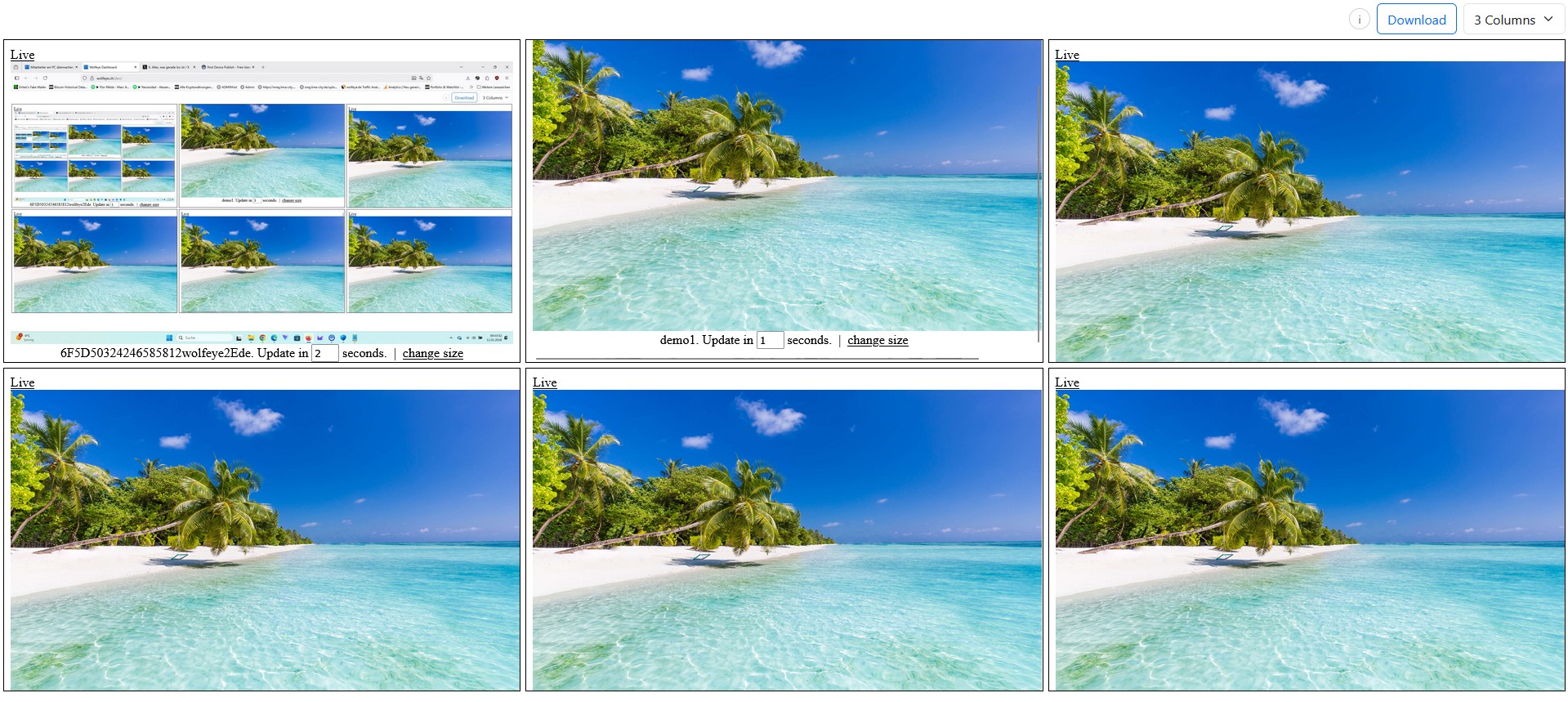
Live grid = “radar” for many PCs. Use it for onboarding/QA/support and trigger-based checks — not constant watching.
The “office boundary” has dissolved. Teams are distributed, devices move between home and office, and managers or IT providers often lack day-to-day visibility.
Remote live screen monitoring gives you something simple but powerful: a real-time window into what’s visible on a Windows PC screen — typically via fast screenshot updates (not heavy video streaming). Used correctly, this helps with onboarding, quality assurance, support triage and incident clarification.
You may also hear this topic discussed in parenting contexts. If you’re here for that: be extra careful — rules vary widely and consent/transparency can matter a lot. Wolfeye is built for company-controlled Windows PCs in SMB/MSP environments.
Compliance & legal disclaimer (no legal advice): Monitoring is legally sensitive and depends on country, use case (training supervision, QA, security), contracts, and whether users must be informed and/or consent is required. This article is technical and operational information only. Before deployment, obtain independent legal advice in all relevant jurisdictions and implement appropriate policies, transparency steps, and strict access controls.
1) Why remote visibility demand is rising
Remote and hybrid work changed the day-to-day reality for SMBs and MSPs:
- Managers lose context: it’s harder to tell whether someone is blocked, confused, or simply off-task.
- Support gets slower: “What do you see on your screen?” becomes a long chat instead of a quick look.
- Security risk increases: distributed endpoints can become blind spots for policy violations or insider incidents.
Live screen monitoring is popular because it provides objective, real-time context without building a heavy monitoring stack.
Practical rule
If your goal is operational clarity (training, QA, fast triage), live screen monitoring can be a simple win. If your goal is billing/time accounting, use time tracking instead.
2) How live screen monitoring works (screenshot vs video)
Most “live screen” solutions are not a continuous video stream. Instead they use:
2.1 Screenshot-based live view (common)
- The client captures the screen periodically (e.g., every 3–5 seconds).
- A compressed image is sent securely to a server/dashboard.
- The admin views a grid or single-screen view in the browser.
Why this matters: frequent screenshots can feel “live” while staying bandwidth-light and less CPU-heavy than video streaming.
2.2 Video streaming (less common in SMB tools)
Continuous video can be heavier (bandwidth/CPU) and is often overkill if you just need a fast operational snapshot.
Terminology clarity
Live screen monitoring = view context. Remote desktop = control/take over. These solve different problems.
3) What Wolfeye Remote Screen is (and what it is not)
Wolfeye Remote Screen is designed for company-controlled Windows PCs where you need simple visibility:
- Live grid dashboard: view multiple PCs at once (fast scanning).
- Single-screen view: zoom in for detail during training/QA/support.
- Lightweight approach: frequent screenshots rather than heavy video streaming.
- Optional background mode: can run discreetly so it does not disrupt workflows (use only where lawful and properly communicated).
What it is not
- Not a time tracking or payroll system.
- Not a full remote control/takeover tool like TeamViewer/AnyDesk (different use case).
- Not a “do anything secretly” recommendation — you must follow applicable laws, policies, and transparency requirements.
4) Step-by-step: monitor a remote PC with Wolfeye (based on the video)
Below is the typical setup flow for a quick pilot. Exact steps can vary by your environment and IT policy.
4.1 Preparation: security & antivirus exceptions (IT-managed)
Because monitoring software can be classified as “potentially unwanted” by some security tools, you may need a controlled exception. Do this only on devices you own/administer and according to your IT security policy.
- Add the official Wolfeye folder (example path:
C:\Users\Public\Documents\) to your AV exception list if required. - Never disable your antivirus globally. Use targeted, policy-approved whitelisting only.
4.2 Download & extract (if your build is packaged)
- Download from the official Wolfeye source.
- If the archive is password-protected, extract it into the approved folder.
4.3 Start the live stream
- Run the Wolfeye app on the target Windows PC.
- Click Share Screen to start transmitting.
- Use Open URL to view it locally, or copy the live URL to view from another device.
4.4 Make it persistent (optional)
- Enable Startup so it runs after reboot.
- Use background/stealth mode only where lawful and communicated in policy (and when appropriate for your use case).
Copy/paste: 10-minute pilot checklist
PILOT (10 MIN)
[ ] Purpose defined (max 1–2): onboarding / QA / support / incident triage
[ ] Scope: 3–10 company-controlled Windows PCs
[ ] Viewer roles: who can access live view
[ ] Access: strong passwords + least privilege
[ ] Retention: history OFF by default (enable only if needed)
[ ] Legal/policy steps confirmed with counsel (country-specific)
Operational template only. Legal requirements depend on your jurisdiction and must be reviewed by qualified counsel.

Single-screen view is best for detail (training/QA/incident clarification) — keep usage trigger-based.
5) Best use cases (SMB & MSP)
5.1 SMB owners & managers
- Onboarding & training: see exactly where a new hire is stuck (tools, permissions, workflow steps).
- Quality assurance: spot issues in repetitive workflows (support/call center) without long explanations.
- Support triage: quickly confirm what’s on screen instead of asking for screenshots.
- Incident context: when something feels off, get visual confirmation fast (trigger-based checks).
5.2 IT providers / MSPs
- Faster troubleshooting: see the screen state immediately (errors, dialogs, misconfigurations).
- Standardized rollouts: deploy on a controlled set of client PCs and define clear viewer roles.
- Packaging: offer a “visibility & QA” add-on without building a complex monitoring suite.
Anti-micromanagement rule
Use live monitoring like an occasional walk-by in an office: short checks with a purpose, not all-day surveillance.
6) Performance & bandwidth expectations
A common fear is: “Will this slow down the PC or network?” In many SMB scenarios, screenshot-based live view is lightweight.
6.1 Simple bandwidth estimate (example)
- Assume one screenshot is ~400 KB (depends on resolution/compression).
- At one update every 3 seconds: ~400 KB / 3s ≈ ~1.1 Mbps upload (approx.).
Real numbers vary by resolution, compression, and update interval. Always pilot on a small device group first.
6.2 Operational tips to keep it lean
- Prefer screenshot-based “live feel” over video streaming.
- Use grid scanning for quick triage; zoom only where needed.
- Enable history only for workflows that truly need it.
7) Security checklist: access control, URLs, retention
Live monitoring is only safe if access is controlled. Treat the live URL/dashboard like sensitive admin access.
Security checklist (copy/paste)
SECURITY — LIVE VIEW

ACCESS
[ ] Only authorized roles can view
[ ] Strong passwords / MFA where available
[ ] Least privilege (limit who can see which PCs)

LINKS / URLS
[ ] Treat live URLs like passwords (never share widely)
[ ] Rotate/revoke links when staff changes
[ ] Avoid posting URLs in tickets/chats without controls

RETENTION
[ ] History OFF by default
[ ] If enabled: define retention window (minimal)
[ ] Define deletion process + ownership

OPERATIONS
[ ] Trigger-based workflow (not constant watching)
[ ] Document purpose + scope
[ ] Follow legal/policy guidance (country-specific)
Operational checklist only. Legal and HR requirements must be clarified with qualified counsel.
8) Ethics & legality: do it the safe way
This is the part many teams skip — and it matters.
- Define purpose: training, QA, support, security triage — keep it narrow.
- Be transparent: where required, inform users and document policies.
- Limit scope: start with a pilot group, not the entire company.
- Control access: strict roles and audit-like discipline.
Reminder (no legal advice): permissibility depends on your country, industry, and use case. Get independent legal advice before deployment.
9) Wolfeye vs remote desktop tools (RDP/TeamViewer/AnyDesk)
Many people compare these tools incorrectly:
Remote desktop tools
- Designed for control (mouse/keyboard takeover).
- Often disrupt the user and require interactive sessions.
- Not ideal for “see 20 screens at once” overview.
Live screen monitoring
- Designed for visibility (view-only context).
- Better for grid scanning, training supervision, QA checks, and fast triage.
- Can be lightweight when screenshot-based.
Rule of thumb
If you need to fix something, use remote desktop. If you need to see what’s happening across many PCs quickly, use live monitoring.
Video walkthrough: Monitor remote live PC screens
This walkthrough shows the practical flow: start sharing, open the live URL, and use grid vs single-screen view.
Reminder (no legal advice): Use monitoring software only if it is lawful in your country and for your specific use case. Where required, inform users and obtain consent. Always obtain independent legal advice before deployment.
Video: “Monitor remote live PC screens (Wolfeye walkthrough)”.
FAQ – Remote live screen monitoring
Often not. Many solutions provide a “live feel” using frequent screenshot updates instead of continuous video.
In many cases it’s lightweight, but it depends on resolution, compression, and the update interval. Always pilot first.
No. Remote desktop is built for control. Live monitoring is built for visibility (often view-only).
Use trigger-based checks, narrow scope, strict access control, and a clear purpose statement.
It depends on your country and use case. Get independent legal advice and implement transparency and policies where required.
Conclusion
Remote live screen monitoring is no longer “enterprise only”. In SMB and MSP environments, it can be a simple way to get real-time operational context for training, QA, support triage, and incident clarification — especially when it’s implemented as a lightweight, screenshot-based live view.
The safe path is always the same: define purpose, limit scope, control access, and keep retention minimal — and always follow country-specific legal advice and transparency obligations.
Want to see live visibility on your own company-controlled Windows PCs?
Book a Demo & Start Your 14-Day Free TrialWolfeye is monitoring software. Any use must comply with the laws and regulations that apply in all relevant countries, your industry and your specific use case (for example training supervision, quality assurance or security). In many jurisdictions, permissibility depends on factors such as prior information of users and consent requirements. This article and the embedded video are for general technical and organisational information only and do not constitute legal advice or a guarantee of legal admissibility.