Employee Monitoring Tool Checklist (SMB + MSP): Scorecard + RFP Questions
Choose the right tool without overcomplicating it — with a weighted scorecard, copy/paste vendor questions, and a practical decision matrix. Operational only (no legal advice).
Key takeaways (read this first)
- Start with outcomes, not features: onboarding speed, QA accuracy, incident clarity, reduced support loops.
- Pick the right category: time tracking ≠ live screen visibility ≠ activity logs.
- Run a 10-PC pilot: validate CPU/RAM/network, viewer experience, and access control before rollout.
- Score what matters: performance, access control, deployment effort, and MSP client separation beat “100 dashboards”.
- Write boundaries: a simple “who/when/what” rule prevents micromanagement culture.
Operational guide only. Legal requirements vary by country — obtain independent legal advice.
On this page
- 1) Choose the right tool category (decision matrix)
- 2) The 30-minute weighted scorecard (copy/paste)
- 3) Vendor / RFP questions (copy/paste)
- 4) Pilot plan: test with 10 PCs before rollout
- 5) MSP section: multi-client requirements & packaging
- 6) Common mistakes that kill adoption
- Video: choose the right tool without overcomplicating it
- Conclusion
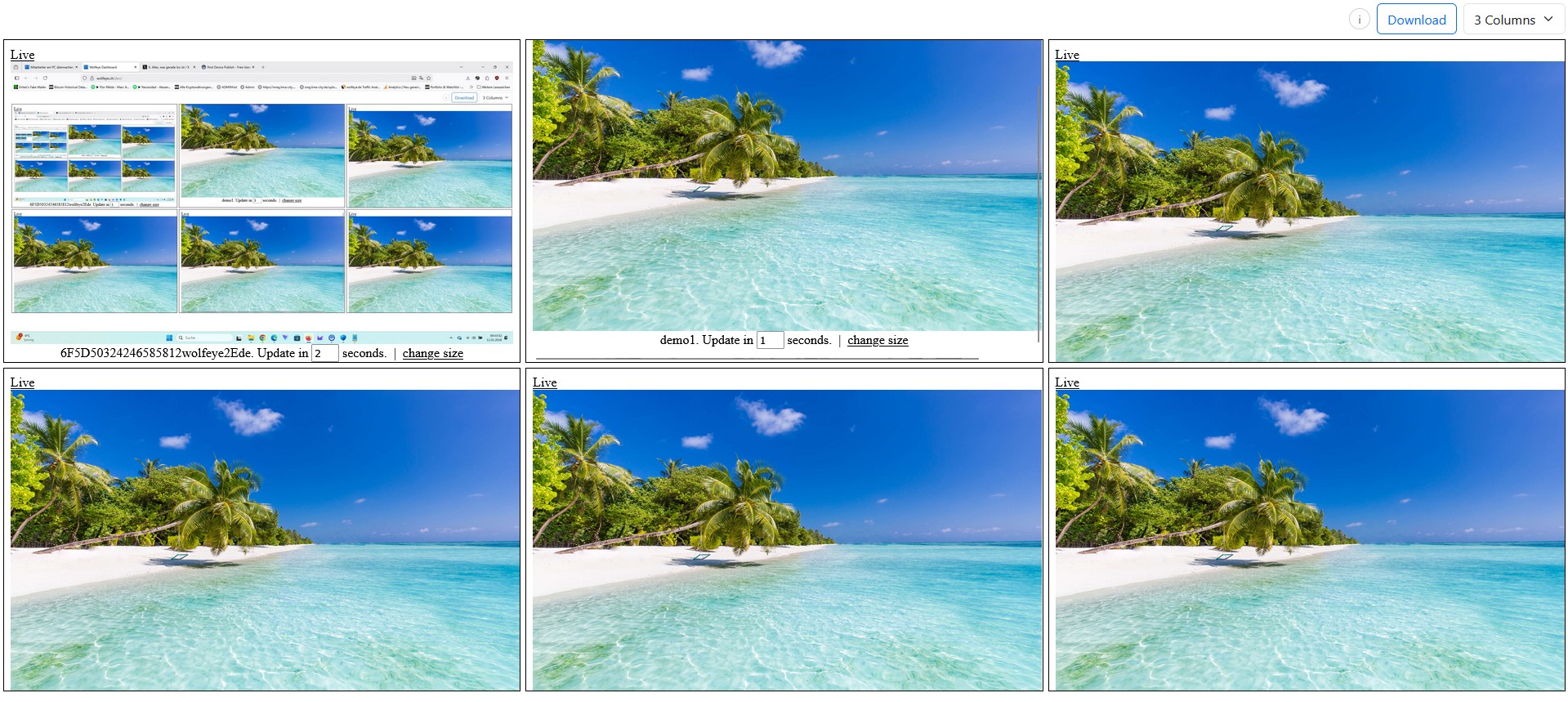
A practical evaluation starts with the workflow: overview grid → zoom into a single screen only when needed.
Most SMBs and IT providers choose an employee monitoring tool the wrong way: they compare feature lists, read generic “top 10 tools” pages, and end up with a product that is either too heavy (complex analytics nobody uses) or too risky (poor access control, unclear rollout).
This article gives you a simple, practical way to evaluate tools like a professional — without building a 40-page procurement process.
You’ll get:
- a weighted scorecard you can use in 30 minutes,
- a copy/paste RFP question list to send to vendors,
- a decision matrix to pick the right “category” (live screens vs logs vs time tracking),
- and a pilot plan so you can validate performance and rollout friction before a full deployment.
1) Choose the right tool category (decision matrix)
Before you compare vendors, decide which category you actually need. Many teams buy a “time tracking” product and later realize they needed screen visibility for onboarding, QA and incident context.
Decision matrix (simple)
- Time tracking: best if your main problem is attendance / billable time. Weak for training and incident context.
- Activity logs (apps/URLs/keystrokes): best for policy enforcement and high-level auditing. Often low context and high noise.
- Live screen visibility (often screenshot-based): best for training, QA, support triage, and “what actually happened” clarity.
- Heavy video recording: rarely needed in SMB environments; can be costly (storage/bandwidth) and increases operational risk.
Rule of thumb: if you need to coach, verify workflows, and resolve “I can’t see what you see” support loops, screen visibility wins.
Map your use case to the workflow
- Onboarding / new hires: you need fast zoom-in visibility, not a spreadsheet of events.
- QA for repetitive tasks: you need quick sampling (grid scan → single view) and optional short history windows.
- Support triage: you need “show me your screen” without interrupting work or starting a remote-control session.
- Incident clarification: you need a clear timeline approach (live view + optional minimal history) and strict access control.
Important: avoid buying a tool that creates work. If supervisors must click through five dashboards, adoption will drop after week 2.

The grid is a “radar”: scan many screens quickly, then zoom into one PC for detail.
2) The 30-minute weighted scorecard (copy/paste)
Here is a simple scoring model that works for most SMBs (5–500) and MSP deployments. It forces you to score what matters: performance, rollout friction, access control, and workflow fit.
Weighted scorecard (copy/paste)
WEIGHTED SCORECARD — EMPLOYEE MONITORING TOOL (SMB + MSP)

How to use:
- Score each criterion from 0–5 (0 = fails, 5 = excellent).
- Multiply by the weight.
- Total score helps you compare vendors objectively.

A) Workflow fit (Weight 25)
[ ] Overview workflow (grid / fast scan) works well for supervisors (0–5)
[ ] Fast zoom into single-PC detail view (0–5)
[ ] Supports onboarding/QA/support workflows without constant watching (0–5)
[ ] Evidence / context options (e.g., optional short history) without heavy recording (0–5)
Score A = average * 25

B) Performance & stability (Weight 20)
[ ] Low CPU/RAM on endpoints in real use (0–5)
[ ] Bandwidth/storage requirements are reasonable (0–5)
[ ] Dashboard loads fast with 10/25/50+ PCs (0–5)
[ ] Works reliably over typical SMB networks/VPNs (0–5)
Score B = average * 20

C) Access control & operational safety (Weight 20)
[ ] Role-based access / least privilege (0–5)
[ ] Strong separation of who can view which PCs (0–5)
[ ] Clear authentication / secure dashboard access (0–5)
[ ] Auditing / basic accountability (who viewed what, if available) (0–5)
Score C = average * 20

D) Deployment & maintenance (Weight 15)
[ ] Installation is simple and repeatable (0–5)
[ ] Update process is predictable (0–5)
[ ] Works in your environment (Windows versions, AV exceptions, etc.) (0–5)
[ ] Minimal admin overhead (0–5)
Score D = average * 15

E) MSP / multi-client (Weight 15)  (skip if SMB-only)
[ ] Client separation (no cross-client visibility) (0–5)
[ ] Clean naming / grouping / organization for many PCs (0–5)
[ ] Tech access limited by assignment (0–5)
[ ] Easy onboarding/offboarding per client (0–5)
Score E = average * 15

F) Commercial fit (Weight 5)
[ ] Pricing model fits SMB budgeting (0–5)
[ ] Support responsiveness (0–5)
[ ] Trial/pilot support (0–5)
[ ] Contract flexibility (0–5)
Score F = average * 5

TOTAL = A+B+C+D+E+F
Tip: keep this scorecard in a single document. The moment your selection process gets “too enterprise”, SMB adoption suffers.
How to interpret the result
- 80–100: strong match — proceed to pilot and rollout plan.
- 65–79: workable — but identify the weak area (often access control or performance).
- <65: risk of frustration — the tool may be too heavy, too weak, or too risky operationally.

Single-screen view is for detail during training, QA, support triage or incident clarification — not constant watching.
3) Vendor / RFP questions (copy/paste)
Send these questions to vendors. You will be surprised how many “feature-rich” tools fail basic operational reality: performance, access boundaries, and deployment simplicity.
Copy/paste vendor questions
VENDOR QUESTIONS — EMPLOYEE MONITORING (SMB + MSP)

WORKFLOW & USE CASE FIT
1) What is the primary workflow for supervisors (overview → zoom)? Show screenshots.
2) Can we view many PCs at once in a grid? What is the practical limit (10/25/50/100)?
3) How fast is the refresh / update interval in real use?
4) Is there a single-PC full-screen view? Can we switch PCs quickly?

PERFORMANCE & FOOTPRINT
5) Typical CPU/RAM footprint on an endpoint during normal operation?
6) Bandwidth usage per PC per hour/day (approx.)?
7) Does the tool store video, screenshots, or neither by default? What storage is required?
8) How does it behave over VPN or remote sites with weaker connections?

ACCESS CONTROL & SAFETY
9) How do you enforce least privilege (who can view which PCs)?
10) Can you restrict access by roles, teams, sites, or client?
11) How is the dashboard secured (authentication, session handling, etc.)?
12) Do you provide any viewer logs / auditing (who accessed what), if available?

DEPLOYMENT & MAINTENANCE
13) What is the installation method for 10/50/200 PCs?
14) How do updates work? Do endpoints auto-update or require admin action?
15) Common AV/EDR false positives and recommended exclusions?

MSP / MULTI-CLIENT (if applicable)
16) How do you guarantee client separation (no cross-client access)?
17) Can technicians be restricted to assigned clients only?
18) How do you handle onboarding/offboarding for clients quickly?

PILOT
19) What does a recommended 7–14 day pilot look like?
20) What success metrics do you recommend for onboarding/QA/support/incident workflows?
Use these answers to score vendors objectively using the weighted scorecard above.
Red flags (don’t ignore these)
- “We can’t estimate bandwidth/storage” → expect surprises.
- No real access boundaries → operational and compliance risk.
- Only “activity analytics” demos → may be weak for training/QA workflows.
- Complex install story → adoption will stall after the pilot.
4) Pilot plan: test with 10 PCs before rollout
A pilot prevents expensive mistakes. It also gives you internal proof that the tool is usable without turning into micromanagement.
10-PC pilot checklist (copy/paste)
10-PC PILOT — 7 TO 14 DAYS

SCOPE
[ ] Select 10 company-controlled Windows PCs (mix of office + remote if possible)
[ ] Pick 2–3 real workflows to test:
    - onboarding/training support
    - QA sampling
    - support triage
    - incident clarification (rare)

PERFORMANCE TEST (day 1–2)
[ ] Measure CPU/RAM impact on endpoints (Task Manager snapshots)
[ ] Validate dashboard load speed with 10 PCs
[ ] Note bandwidth constraints (remote sites, VPN)

WORKFLOW TEST (day 3–10)
[ ] Supervisor uses grid as “radar” (short checks, purpose-driven)
[ ] Zoom into single view during training/support
[ ] If history exists: keep OFF by default; enable only for a clear, short window

ACCESS CONTROL
[ ] Define viewers (roles) and enforce least privilege
[ ] Document who can view which PCs and when

RESULTS
[ ] Report: what problems were solved (fewer support loops, faster onboarding, fewer QA errors)
[ ] Decide: proceed, adjust, or reject vendor
Operational reminder: monitoring rules vary by country and use case. Obtain independent legal advice before full rollout.
Practical note: Your tool should make supervisors faster — not add admin overhead. If the pilot requires constant tuning, that’s a sign the product is too heavy for your environment.
5) MSP section: multi-client requirements & packaging
MSPs succeed with monitoring only if it becomes a clean, repeatable managed service — not a one-off “surveillance project”. Most SMB clients buy this for operational clarity: onboarding, QA, support triage and incident context.
Non-negotiables for MSP deployments
- Client separation: technicians must not see other clients’ PCs.
- Assignment-based access: a tech sees only the clients they are assigned to.
- Naming standard: device naming and grouping matter more than fancy charts.
- Simple onboarding/offboarding: you need a fast process for adds/removals.
MSP packaging idea (simple)
Package A (Pilot): 10 PCs, 14 days, workflow test + performance verification.
Package B (Rollout): install + naming + access roles + supervisor training.
Package C (Managed): monthly review call + incident support + optional reporting.
The value is not “watching employees”. The value is faster training, fewer errors, faster support and clearer incident handling.
6) Common mistakes that kill adoption
Mistake #1: Buying for the feature list
If your selection is driven by “how many reports exist”, you’ll likely buy complexity. Most SMBs need simple workflows that supervisors actually use.
Mistake #2: Skipping access control design
Even a great tool becomes risky if “everyone can see everything”. Design least privilege early.
Mistake #3: No boundaries (micromanagement risk)
Define the rules: who can view, when checks happen, and what the purpose is (training/QA/support/incidents). Keep checks short and purpose-driven.
Mistake #4: No pilot
A 10-PC pilot is cheaper than rolling back a full deployment. Validate performance, workflow fit and admin overhead first.
Video: How to Choose the Right Employee Monitoring Tool for Your Business Without Overcomplicating It
This video complements the checklist above with a simple “don’t overcomplicate it” selection mindset.
Reminder (no legal advice): Monitoring permissibility and requirements vary by country and use case. Inform users and obtain consent where required, and always obtain independent legal advice before deployment.
Video: “How to Choose the Right Employee Monitoring Tool for Your Business Without Overcomplicating It”.
Conclusion
Choosing the right employee monitoring tool is simpler than most people make it: pick the right category, score what matters (workflow, performance, access control, rollout effort), and validate with a 10-PC pilot.
If you want adoption, optimize for supervisor workflows (grid → zoom), keep performance lightweight, and design least-privilege access from day one.
Final reminder (no legal advice): Rules vary by country and use case. Always obtain independent legal advice and implement required policy/transparency steps before deployment.
Want to see what live screen visibility looks like in a real SMB workflow?
Book a Demo & Start Your 14-Day Free TrialWolfeye is monitoring software. Any use must comply with the laws and regulations that apply in all relevant countries, your industry and your specific use case (for example training supervision, quality assurance or security). In many jurisdictions, permissibility depends on factors such as prior information of users and consent requirements. This article and the embedded video are for general technical/operational information only and do not constitute legal advice or a guarantee of legal admissibility.