Before You Roll Out Employee Screen Monitoring: 7 Technical Steps for Company PCs
A practical guide for SMBs and IT service providers/MSPs: how to prepare live screen monitoring on company-controlled Windows PCs properly before the rollout begins. No legal advice.
Illustrative hero image: before live screen monitoring becomes useful in daily operations, the technical and organisational groundwork should be in place. This article focuses only on the technical and operational side for company-controlled Windows PCs.
Many companies start monitoring at the wrong step. They think first about installation and only afterwards about scope, naming, viewer roles, pilot structure, dashboard habits or optional screenshot history. That is exactly how otherwise simple rollouts turn into messy dashboards and unclear day-to-day usage.
This matters especially for SMBs and IT service providers/MSPs. The real challenge is often not whether live screens can technically be viewed, but whether the setup was prepared cleanly enough to stay useful once real work begins. Which company-controlled Windows PCs belong in the first rollout? Who only needs the grid view, and who may need a larger single-screen view when a specific situation requires it? How do you stop the project from becoming too broad too early?
That is why a pre-rollout article makes sense. Before the first PC goes into live operation, several technical and operational decisions should already be clear. This article is not about legal analysis. It is about practical preparation: scope, use cases, naming, access, pilot structure, device preparation and daily operating routine.
Important note: This article is a technical and organisational guide, not legal advice. Whether and how live screen monitoring may be used in your country, for your specific use case (for example training supervision, QA, support or security) and under which conditions depends on local laws, contracts, internal policies and often on whether users must be informed or consent is required. Always obtain independent legal advice before deployment. All examples in this article refer only to company-controlled Windows PCs.
Video: Before You Monitor Employee Screens – 7 Technical Steps to Prepare Your Company
This video fits the article directly. It focuses on the preparation phase before the actual rollout of live screen monitoring on company-controlled Windows PCs. That same pre-rollout angle is what this article develops in a more structured written format.
1. The 7 preparation steps at a glance
The following framework works as a pre-rollout checklist for SMBs and MSPs. It is intentionally technical and operational and helps you define the most important foundations before the first live rollout begins.
| Step | Why it matters | What should be prepared | What success looks like |
|---|---|---|---|
| 1. Define scope | Prevents an uncontrolled rollout that becomes too broad | Choose which company-controlled Windows PCs, teams and locations belong in the pilot | Everyone involved can clearly explain which devices are in scope and which are not |
| 2. Define use cases | Without a clear purpose, the project quickly becomes messy | Separate training, onboarding, QA, support triage and incident clarification | Viewers know why they are looking and what they should watch for |
| 3. Plan naming & dashboard structure | Keeps the grid readable later | Define a naming logic by location, team, role or client | The dashboard remains understandable even once 10+ PCs are visible |
| 4. Limit viewer roles | Access is the most sensitive operational point | Decide who needs grid view, single-screen detail or optional history | You avoid an “everyone sees everything” setup |
| 5. Prepare Windows & antivirus | Reduces installation friction and unnecessary troubleshooting | Prepare install path, exceptions, Windows prompts and responsibilities | The first test PCs can be set up without technical chaos |
| 6. Run a small pilot | A pilot reduces risk before a broader rollout | Test 5–10 PCs, check performance and observe real viewer workflows | CPU/RAM/network and usability remain stable in day-to-day operations |
| 7. Define operating routine | Even good technology becomes inefficient without routine | Use grid as radar, single-screen view only when needed, optional history only deliberately | Daily operations become disciplined instead of vague “just keep it open” monitoring |
2. Why the real rollout mistake usually happens before installation
When companies talk about introducing live screen monitoring, the first question often sounds very technical: “How do we install it on multiple PCs?” In practice, that is rarely the hardest part. The more important phase is what happens before that.
Many projects start poorly because they become too technical too early and too operational too late. The software is deployed, the first dashboard link is opened, a few devices appear, and only afterwards does the team realize that key foundations were never decided: which devices are really in scope, how they should be named, who should have access, what the operational purpose actually is, and which roles need radar-style visibility versus occasional large-screen detail.
This matters in SMBs because time and internal bandwidth are limited. It matters even more for MSPs because a clean pilot often becomes the model for a repeatable service offer. That is why a pre-rollout checklist is valuable: it shifts the focus from “install quickly” to “prepare cleanly so the setup is actually useful once daily operations begin”.
3. Step 1: define scope cleanly – which company PCs actually belong in the start phase?
The first preparation step is not installation. It is scope. In many companies, the temptation is to start with as many devices as possible. That usually creates a rollout that becomes too broad, too hard to explain internally and too messy to manage after only a few days.
A better technical approach is a clearly limited pilot scope. Instead of asking for “all PCs”, ask which company-controlled Windows PCs should really be visible first so the operational value becomes obvious quickly.
In practice, that can mean:
- only one back-office team,
- only new hires in a defined onboarding phase,
- only supervisors and agents in one call-center unit,
- only one location or one client segment in an MSP environment.
It is just as important to define what is out of scope. A clean scope prevents the rollout from constantly expanding through exceptions and side requests. For many SMBs, 5 to 10 PCs are enough for a strong first pilot. For MSPs, it helps to document scope per client or per device group from the beginning instead of sorting devices later by memory or improvisation.
4. Step 2: define the operational purpose in advance – training, QA, support or incident clarification?
Monitoring projects often fail operationally not because the technology is wrong, but because the purpose is too vague. If a company tries to mix “productivity”, “security”, “onboarding”, “QA” and “support” into one unclear project, nobody later knows what the dashboard is supposed to be used for in practice.
That is why it is important to decide which use cases actually belong in the first rollout. Typical technically understandable use cases on company-controlled Windows PCs include:
- training and onboarding: verifying whether new staff use the intended screens, tools and sequence,
- QA and coaching: spot-checking whether defined workflows are executed properly,
- support triage: quickly seeing where a user is visibly stuck in a workflow or application,
- incident clarification: checking a specific situation directly instead of relying on guesses.
This distinction matters because each use case creates a different viewer workflow. Onboarding often needs targeted large-screen views. QA may rely more on brief spot checks. Support benefits from fast visual context instead of long back-and-forth messages. Once the purpose is defined early, daily use tends to stay much more disciplined.

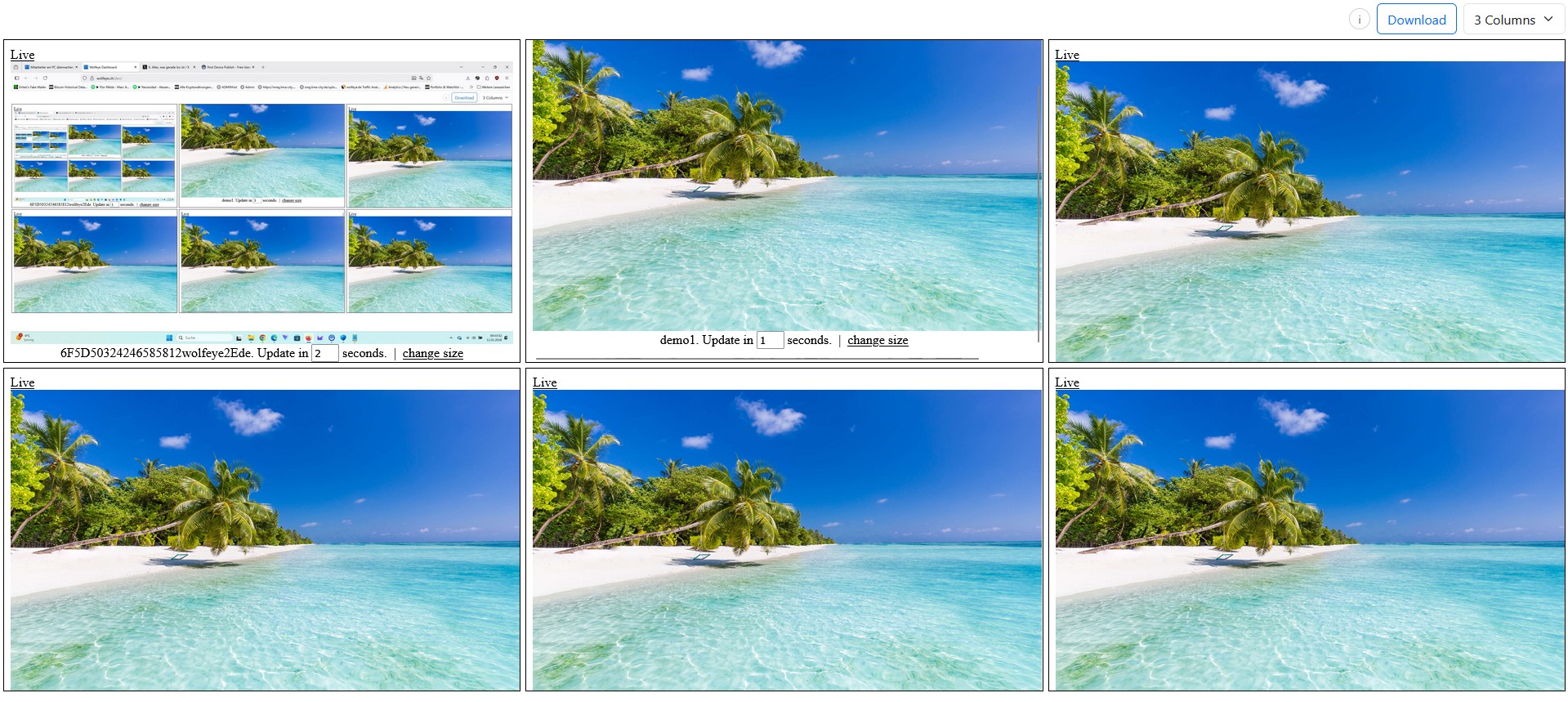
Illustrative grid view with multiple company-controlled PCs. This is exactly why dashboard logic should be prepared before rollout: the grid is most useful in daily operations when scope and purpose have already been defined cleanly. Use only where lawful for the relevant country and use case.
5. Step 3: plan device naming and dashboard structure before the grid fills up
Many teams underestimate how much future dashboard usability depends on a very simple factor: clean naming. If devices appear only as random Windows names, unclear abbreviations or inconsistent legacy labels, even a technically working dashboard becomes difficult to scan.
That is why it helps to define a naming logic before the pilot starts. For example:
- location + team + seat number,
- client + department + device,
- role + team + first name/initials where internally appropriate and lawful.
The exact scheme matters less than consistency. A grid with ten clearly named devices is much easier to use than a dashboard filled with mixed notebook names, usernames and leftovers from old conventions. For MSPs, this matters even more because otherwise multiple customers or teams quickly blend into one confusing operational view.
It also helps to decide ahead of time how the dashboard should be used: grid as radar, large single-screen view only when needed. Teams that do not define this operating logic early often end up with inefficient habits later.
6. Step 4: define viewer roles and access boundaries – not everyone needs the same visibility
Operationally, the most sensitive part of a monitoring setup is often not installation but access. A live visibility setup stays practical only when it is clear who genuinely needs which level of view.
In practice, three simple layers are often enough:
- radar/grid roles: people who need broad visibility across multiple PCs,
- detail roles: people who may need a larger single-screen view for a specific situation,
- optional history roles: people who may review stored screenshots only in clearly defined cases, if lawfully permitted and technically enabled.
The smaller and cleaner these roles are, the more stable the setup tends to be. A common mistake is giving too many people too much visibility. That does not create efficiency. It usually creates uncertainty and unclear responsibility.
For many SMBs, a very small viewer group is enough: perhaps the owner, one team lead and one supervisor. For MSPs, visibility should also be separated cleanly by customer context. Good preparation means this: keep access as small as possible and purpose as clear as possible.

Illustrative large single-screen view of a company-controlled PC. This perspective should mainly be prepared for concrete cases such as training, QA, support or incident clarification rather than becoming an undefined default view. Again, use only where lawful and after obtaining proper legal advice.
7. Step 5: prepare Windows, antivirus and the installation path before the pilot starts
Only at this stage does it make sense to focus on the installation path itself. Especially in smaller companies, this phase is often underestimated: the file sits somewhere in Downloads, SmartScreen appears, the antivirus blocks something, one device works, the next does not, and suddenly the whole project looks more complicated than it really is.
That is why the team should clarify before the pilot:
- who is responsible for installation,
- which install path or package flow will be used,
- whether antivirus or endpoint-security exceptions need preparation,
- how Windows prompts such as SmartScreen will be handled,
- which devices should be prepared first.
A defined installation flow for the first test PCs is especially useful. Not every pilot needs perfect documentation on day one, but it does need a repeatable sequence. For MSPs, this matters even more because the rollout will eventually need to be repeated per customer or device group without fresh improvisation every time.
The technical logic is simple: the cleaner the preparation on the Windows, antivirus and ownership side, the less your pilot is distorted by avoidable one-off errors.
8. Step 6: start with a small pilot and measure real operational friction
A rollout should not begin with 50 or 100 devices if daily usage has not been tested yet. A small pilot is not just a safety step. It is the phase where you learn whether the setup actually works in real operations.
A useful pilot checks, among other things:
- whether devices appear reliably in the dashboard,
- whether naming stays understandable in the grid,
- whether viewers handle grid and single-screen views effectively,
- whether CPU/RAM/network remain acceptable during actual usage,
- whether the chosen use case is genuinely improved by live visibility.
That last point is critical. A pilot should not only answer “does it run technically?” but also does it improve the intended workflow? Does a team lead really identify training needs faster? Does support become more precise? Does the dashboard remain readable under normal daily pressure?
For many SMBs, 5 to 10 company-controlled Windows PCs and a clearly limited test window are enough. For MSPs, the pilot also shows how well the model can scale per client without naming, access or dashboard habits becoming messy.
9. Step 7: define the day-to-day operating routine before broader rollout
Even a technically clean pilot loses value if daily usage remains unclear. That is why the team should define how the setup will be operated before rolling it out more broadly.
In many teams, a simple routine works best:
- grid as radar: scan several PCs quickly, detect patterns and notice visible friction,
- single-screen view as zoom: switch into a larger view only when there is a real need for detail,
- optional history only deliberately: if lawful and technically enabled, use it only for clearly defined situations, not “just in case” for everything.
This routine turns live visibility into an operational tool instead of an undefined long-term watching project. It also helps to define short rules in advance: when is the grid enough, when does someone switch into large-screen detail, who decides on optional history, and how are observations documented internally?
For many SMBs, this is the difference between “we have monitoring software” and “we have a working operational workflow”. For MSPs, it is the foundation for turning a pilot into a packaged service model later.
10. The most common mistakes in the pre-rollout phase
To finish, here are the mistakes that most often happen before the rollout even begins:
- scope that is too broad: too many teams, devices or sites at the beginning,
- no clear purpose: training, QA, support and security all mixed into one vague project,
- messy naming: the grid becomes unreadable although the technology works,
- too many viewers: access is granted too widely instead of staying minimal,
- no pilot: the team rolls out broadly before testing cleanly,
- no operating routine: nobody defines how grid, single-screen detail and optional history should actually be used,
- no legal review: especially in international settings, this is a serious mistake. Always obtain independent legal advice before deployment.
The best practice is usually very simple: start small, keep the purpose narrow, define roles, prepare the technical basics, evaluate the pilot and only then expand.
11. For IT service providers/MSPs: why this pre-rollout logic is commercially useful
For IT service providers, this article angle is especially useful because it frames monitoring not as an abstract tool but as a cleanly prepared technical rollout component. Many SMBs do not want “more monitoring” in the abstract. They want a controlled start with low friction and clear daily value.
An MSP can package that very clearly:
- a scope workshop for the first relevant company PCs,
- a naming and viewer-role design for the dashboard,
- installation and antivirus preparation,
- a 5–10-PC pilot,
- a short operating routine for the owner, supervisor or team lead.
This makes Wolfeye easier to position: not just as a product, but as a well-introduced managed-service or project component. And from an SEO perspective, this angle is strong because it is practical, implementation-driven and closer to real buying and rollout intent than yet another generic definition article.
Frequently asked questions – before rolling out live screen monitoring
No. Installation is only one part. This article covers the phase before that: scope, use cases, naming, roles, pilot structure and daily operating routine.
Because a broad start often makes the dashboard messy and leaves operational questions unresolved. In practice, a small pilot with a clearly defined scope is almost always cleaner.
No. For many teams, live visibility is enough at first. If history is used later, that should only happen for clearly defined and legally reviewed scenarios, in addition to the technical decision.
No. This article is explicitly not legal advice. Whether monitoring is lawful in the relevant country, use case and scenario, and whether users must be informed or consent is required, must always be reviewed separately with qualified counsel.
Conclusion
The core idea of this article is simple: a good monitoring project does not begin with “install it everywhere”. It begins with clean preparation.
When you clarify the seven technical preparation steps before rollout — scope, purpose, naming, viewer roles, device preparation, pilot and operating routine — a potentially messy initiative becomes a structured technical workflow. That helps SMBs because daily operations stay clearer. And it helps MSPs because the same process can become a repeatable service component.
Live screen monitoring can be operationally very useful for training, QA, support and incident clarification. What matters is that the use is lawful in the relevant country and specific scenario and that qualified legal advice has been obtained beforehand.
Want to see what a cleanly prepared pilot could look like on your own company PCs?
Start 14-day free trialThis article is technical and organisational information only and does not constitute legal advice. Monitoring software may only be used where this is lawful under the applicable laws, contracts and internal policies in the relevant country and for the specific use case. Whether users must be informed or consent is required depends on the country and scenario. Always obtain qualified independent legal advice before deployment. This article refers exclusively to company-controlled Windows PCs.