New Hire IT Onboarding Checklist for Company PCs: Day 1, Week 1 & Week 2
A practical guide for SMBs and IT service providers/MSPs: how to onboard new hires on company-controlled Windows PCs, support them live and verify training progress without constantly jumping into remote desktop sessions. No legal advice.
Illustrative hero image: good IT onboarding is not just about delivering a working PC. It is about making sure new hires can actually use the right workflows and tools correctly on company-controlled Windows PCs. This article focuses on technical and organisational practice only.
When companies talk about onboarding, they often start with hardware, user accounts and passwords. That matters, but in day-to-day operations it is only the beginning. A new employee can have a working laptop, an active Microsoft 365 account and access to the CRM, ERP or help desk – and still struggle badly in the actual workflow.
That is where the real onboarding problem starts for many SMBs and IT service providers: access is ready, but workflow confidence is not. New hires open the wrong menu, hesitate between systems, forget a step, search for the next screen or get lost in tabs and tools. From the outside, that can look like “slow performance”. In reality, it is often a lack of visible technical context.
A good IT onboarding checklist should therefore not stop at device handover and account setup. It should also answer a more practical question: How do we verify during Day 1, Week 1 and Week 2 that a new hire is actually becoming confident on a company PC? This is where live screen monitoring on company-controlled Windows PCs can be technically useful – not as a replacement for training, but as an extra layer of visibility for coaching, support and fast clarification.
Important note: This article is a technical and organisational guide, not legal advice. Whether and how live screen monitoring may be used in your country, for your specific use case (for example training supervision, onboarding, QA or security) and under which conditions depends on local laws, contracts, internal policies and often on whether users must be informed or consent is required. Always obtain independent legal advice before deployment. All examples in this article refer only to company-controlled Windows PCs.
1. Why onboarding often looks complete on paper but still fails in practice
In many companies, the internal status message after a new hire joins sounds something like this: laptop prepared, e-mail active, Teams works, VPN works, applications installed – done. That is an important technical milestone, but it is not the same as a successful onboarding process.
What is often missing is visible workflow competence. Can the new hire actually create the correct record in the CRM? Can they move through a help desk process in the right order? Are they opening the correct ERP module? Are they using the intended screens and steps in support, back office or operations? A working account alone does not answer any of those questions.
This matters especially in SMBs because teams are smaller, mistakes affect operations quickly, and supervisors or mentors do not have time to sit next to every new person. It also matters for MSPs and IT service providers because clients often expect more than a configured PC. They want a smooth start into real work.
A strong IT onboarding checklist therefore has three layers:
- Provisioning: device, accounts, access, software and permissions.
- Operational readiness: the core systems really work on the company PC.
- Workflow confidence: the new hire can navigate the actual process and receive fast support when needed.
The third point is the one most teams underestimate – and often the point where browser-based live visibility adds the most practical value.
Video: How to support new hires during training without constantly disrupting them
This video fits the topic of this article closely. It shows how live screen monitoring can be used during onboarding and training to support new hires on company-controlled PCs without constantly taking over their session or interrupting their work.
2. The practical timeline: Day 1, Week 1, Week 2
The following framework works as a simple onboarding checklist for SMBs and MSPs. It is intentionally technical and operational, focused on helping new hires become productive and stable on company-controlled Windows PCs.
| Phase | Primary goal | What should be prepared technically | What you want to verify live | What matters operationally |
|---|---|---|---|---|
| Before Day 1 | Start without chaos | Company PC ready, core software installed, access tested, responsibilities defined | Not blanket surveillance, but a clearly scoped pilot on selected PCs | Minimal viewer roles, clear purpose, internal alignment |
| Day 1 | Establish operational readiness | Login flow, base apps, browser bookmarks, core workspaces, support channel | Whether login, navigation and first standard tasks really work | Support precisely instead of overwhelming the hire with remote control |
| Week 1 | Build routine | Dashboard structure, device naming, mentor/team-lead viewer access | Whether recurring core workflows are performed correctly | Short targeted checks instead of constant observation |
| Week 2 | Increase independence | Optional screenshot history on a small, clearly defined scope if needed | Where repeated mistakes, delays or uncertainty remain | Coach on concrete situations rather than vague impressions |
3. Before Day 1: build the technical foundation for clean onboarding
Before a new hire starts, the technical environment should be organised clearly enough that Day 1 does not begin with preventable confusion. That means looking not only at the device itself, but also at the structure of the onboarding workflow.
In practical terms, that usually means:
- the company PC is prepared and clearly part of the onboarding scope,
- the key applications are installed and tested at a basic level,
- the 3 to 5 most important workflows for the first days are identified,
- the viewer roles are defined: mentor, team lead, supervisor or external IT provider,
- the purpose of live visibility is clear: training and support, not endless observation without context.
That last point matters most. Live visibility during onboarding works best when the purpose stays narrow and easy to explain. In practice, that means not trying to watch everything everywhere from the start, but running a small, defined pilot on a selected group of company-controlled Windows PCs – for example support desks, back office workstations or new staff in one workflow-heavy department.
For MSPs, this is also the right point to create a simple client checklist: which PCs are in scope, which applications are critical, who needs access to the dashboard, and who should use a grid “radar” view versus a large single-screen view for coaching.

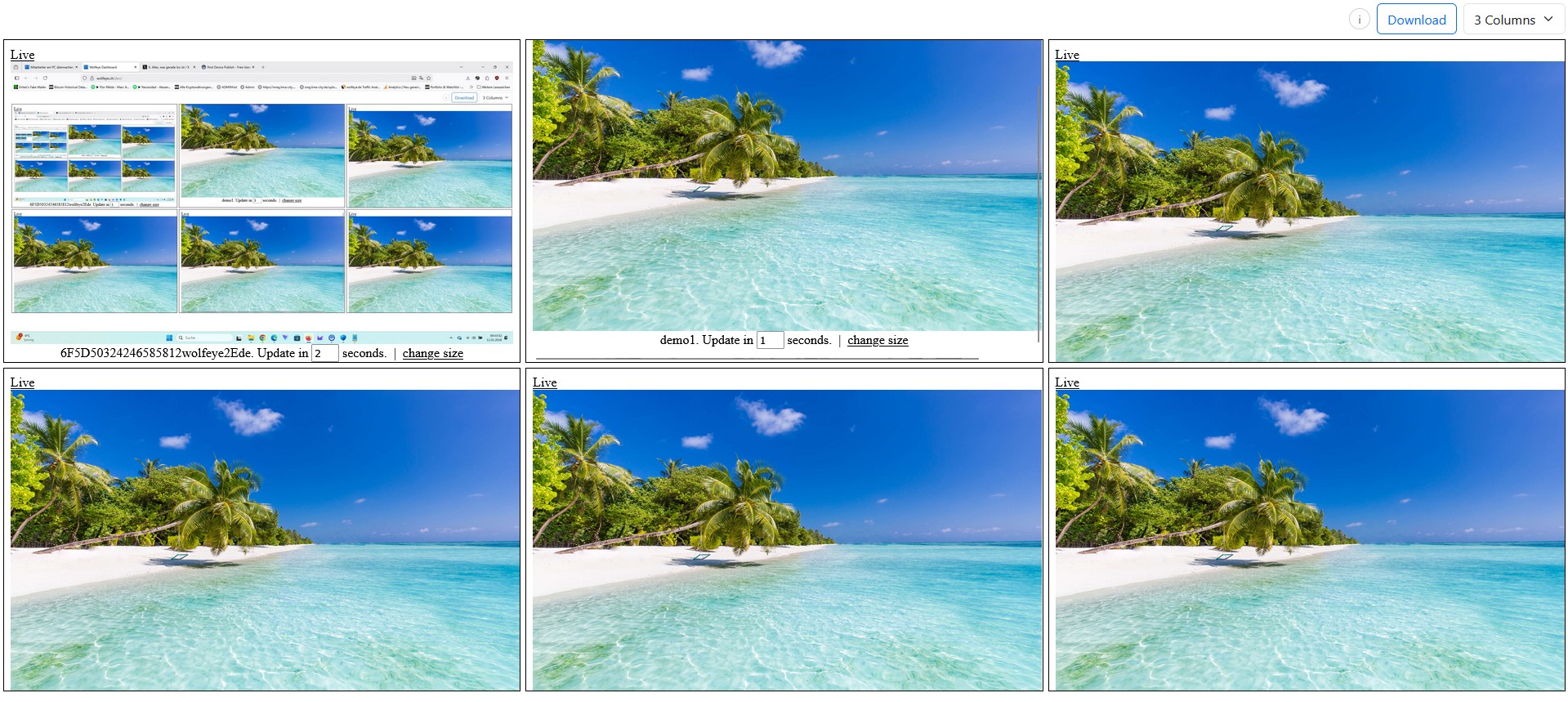
Illustrative grid view with multiple company-controlled PCs. In onboarding, the multi-screen dashboard is most useful as a radar: who is moving smoothly, who is visibly stuck, and where is targeted help needed? Use only where lawful for the specific country and use case and after obtaining independent legal advice.
4. Day 1: verify real readiness without constantly interrupting the new hire
On Day 1, many teams fall into the same pattern: they try to support every small step through messages, calls or remote desktop takeovers. The problem is that the new hire often learns how to react to interruptions rather than how to perform the workflow independently.
A more practical technical approach is often view-only visibility. You see what is happening on the company PC live, inside the browser, CRM, ERP, help desk or other business software, without immediately taking over the mouse and keyboard. That leaves the user session untouched while still giving an authorised mentor or supervisor the context they need.
This lets you answer practical questions very quickly:
- Is the correct application open?
- Is the intended process being followed?
- Is the person stuck in navigation?
- Did they open the wrong menu, wrong case screen or wrong system?
The operational benefit is simple: the mentor or team lead no longer has to guess whether the issue is a permissions error, a process misunderstanding or a navigation problem. They can see the actual screen state and help precisely. That is often faster and less stressful for the new hire.
A practical Day-1 workflow often looks like this:
- Explain the first standard process briefly.
- Let the new hire perform it on their own company PC.
- Check live whether the sequence and tools are correct.
- Only step in when something clearly gets stuck or goes off course.
That turns onboarding from a stream of “Can you send me a screenshot?” messages into a cleaner, more structured support process.

Illustrative large single-screen view of a company-controlled PC. This perspective is especially useful for coaching, training and targeted help during Day 1 and Week 1. Again, use only where lawful in the relevant country and use case and after proper legal review.
5. Week 1: turn isolated interventions into a repeatable training workflow
After Day 1, the question changes. It is no longer just “does the system work?” It becomes: is the new hire repeating the core workflow correctly and confidently? This is where live screen monitoring becomes especially useful because it can reveal not only technical issues, but also process hesitation and uncertainty.
Typical Week-1 patterns include:
- a support agent repeatedly searching for the same function,
- a back-office user jumping unnecessarily between windows,
- a new coordinator using the right system but the wrong step order,
- long pauses because the next action is unclear.
These problems are often invisible in reports, but very obvious on the screen itself. That is why Week 1 works best with short, purpose-driven live checks rather than constant passive watching. In practice, several brief checks with a clear reason are usually far better than leaving a view open all day.
For many SMBs, a simple rhythm is enough:
- a quick morning check on the first core task,
- a targeted midday check on the more complex workflow,
- focused support later in the day where visible friction remains.
For MSPs, this can become a clear service routine: open the dashboard, scan the pilot PCs in grid view, switch to a large single-screen view when needed, and feed precise observations back to the client-side mentor or supervisor. That is much more efficient than blind troubleshooting.
6. Week 2: evaluate independence and optionally use screenshot history for clarification
In Week 2, the focus shifts again. Now the question is less about whether the user can technically start working and more about whether they can perform the workflow reliably and repeatedly.
At this stage, teams often begin to see which category a new hire falls into:
- learning steadily but still slowly,
- getting stuck at the same steps again and again,
- avoiding certain screens or tools,
- remaining unsure in transitions, documentation or completion steps.
Depending on what is lawful in the relevant country and use case, and only after taking legal advice, optional screenshot history can sometimes help in narrowly defined situations. Not as a “record everything” approach, but as a way to review what happened in a specific workflow moment: where exactly did the process break, which step was skipped, and was the problem technical or procedural?
The key here is discipline. History should not be turned on “just in case” for everything. It should only be used where there is a clearly defined, legally reviewed purpose. For many teams, live visibility is enough. History is better understood as an additional tool for coaching, quality review or reconstructing a specific event.
Used carefully, Week 2 becomes more concrete. Instead of telling a new employee “you still seem uncertain”, a team lead can discuss an actual screen context or repeated process step that needs further training.
7. For IT service providers/MSPs: turn this into a clean managed-service component
For IT service providers, this topic is not just support. It is also a clear consulting and service opportunity. Many SMBs do not simply want a configured PC for a new employee. They want a stable start into real day-to-day work.
That makes it possible to package onboarding support in a very practical way:
- Provisioning: prepare the company PC, install software, test access.
- Onboarding pilot: group selected new-hire workstations inside a live dashboard.
- Support workflow: give the mentor or team lead fast visibility without forcing a remote-control session every time.
- Review: after 1–2 weeks, assess whether the onboarding is technically stable.
This is also strong from a positioning perspective because it frames Wolfeye not as an abstract “monitoring tool”, but as an operational onboarding component. Most SMBs do not buy monitoring for its own sake. They buy an outcome: faster onboarding, fewer blind spots, less confusion, fewer repeated support questions and better process consistency.
That is also why the checklist angle is useful for SEO. It connects active search patterns around IT onboarding with a practical technical use case that Wolfeye supports credibly.
8. The most common mistakes in technical onboarding with live visibility
To finish, here are the mistakes that show up most often in practice:
- Too much scope too early: too many PCs, too many viewers and too many purposes mixed together.
- Unclear purpose: onboarding, QA, security and productivity all blended into one unclear project.
- Too much intervention: the mentor jumps into remote desktop constantly instead of letting the new hire work.
- Loose viewer discipline: too many people get access to live screens.
- No legal review: especially in international environments, this is a serious mistake. Always obtain independent legal advice first.
The best practice is usually straightforward: start small, define the company-PC pilot clearly, restrict viewer access, document the training purpose, support new hires where there is real operational value, and avoid turning the project into vague general oversight.
That is how live screen visibility becomes part of a structured IT onboarding workflow instead of a confusing long-term monitoring project.
Frequently asked questions – IT onboarding with live visibility
No. Remote desktop is designed for control and active takeover. This article is about visibility on company-controlled PCs so mentors or team leads can see where a new hire is stuck without constantly taking over the session.
No. Many onboarding scenarios work perfectly well with live visibility only. Optional history can help in some narrowly defined and legally reviewed situations, but it should not be enabled automatically for everything.
It is especially useful for SMB owners, team leads, supervisors and IT service providers/MSPs who want to stabilise new hires on company-controlled Windows PCs in CRM, ERP, help desk, back office or call-center workflows.
No. This article is explicitly not legal advice. Lawfulness depends on country, use case, contracts, internal policy and often on whether users must be informed or consent is required. Always obtain independent legal advice before deployment.
Conclusion
The core idea of this article is simple: good IT onboarding does not end when a laptop is delivered and a password works. What matters is whether a new hire can actually perform the real workflows correctly on a company-controlled Windows PC.
A clear checklist for Before Day 1, Day 1, Week 1 and Week 2 turns onboarding into a structured process instead of a chain of improvised support requests. Live screen monitoring can be a very useful part of that process: for training, targeted support, faster clarification and a clearer view of the real workflow – provided its use is lawful in the relevant country and use case and has been reviewed properly first.
For SMBs, that means less chaos, faster ramp-up and better visibility. For MSPs, it means a repeatable service component with real client value.
Want to see how this onboarding setup could look on your own company PCs?
Start 14-day free trialThis article is technical and organisational information only and does not constitute legal advice. Monitoring software may only be used where this is lawful under the applicable laws, contracts and internal policies in the relevant country and for the specific use case. Whether users must be informed or consent is required depends on the country and scenario. Always obtain qualified independent legal advice before deployment. This article refers exclusively to company-controlled Windows PCs.